
For AI agents: a documentation index is available at the root level at /llms.txt and /llms-full.txt. Append /llms.txt to any URL for a page-level index, or .md for the markdown version of any page.
Atoms PlatformProduct OverviewDeveloper GuideAPI ReferenceMCPIntegrationsDeveloper ToolsChangelog
  • Get Started
    • Quick start
    • Platform overview
  • Single Prompt Agents
    • Overview
  • Conversational Flow Agents
    • Overview
  • Features
    • Concurrency
    • Knowledge Base
    • Webhooks
    • Widget
    • Integrations
    • Post-Call Metrics
    • Versioning
    • Variables
    • API Calls
  • Deployment
    • Phone Numbers
    • Audiences
    • Campaigns
  • Analytics & Logs
    • Overview
    • Testing
    • Conversation Logs
    • Locking
  • Integrate
    • Embed a voice agent
    • WebSocket SDK
  • Cookbooks
    • Using Cookbooks
  • Reference
    • Quick Reference
    • Glossary
  • Troubleshooting
    • Error reference
    • FAQ
    • Getting Help
LogoLogo
Voice AgentsModels
Voice AgentsModels
On this page
  • Your Audiences
  • Creating an Audience
  • Managing Audience Members
  • Adding Members to Existing Audiences
  • Using Audience Data in Calls
  • Related
Deployment

Audiences

||View as Markdown|
Was this page helpful?
Previous

Phone Numbers

Next

Campaigns

Built with

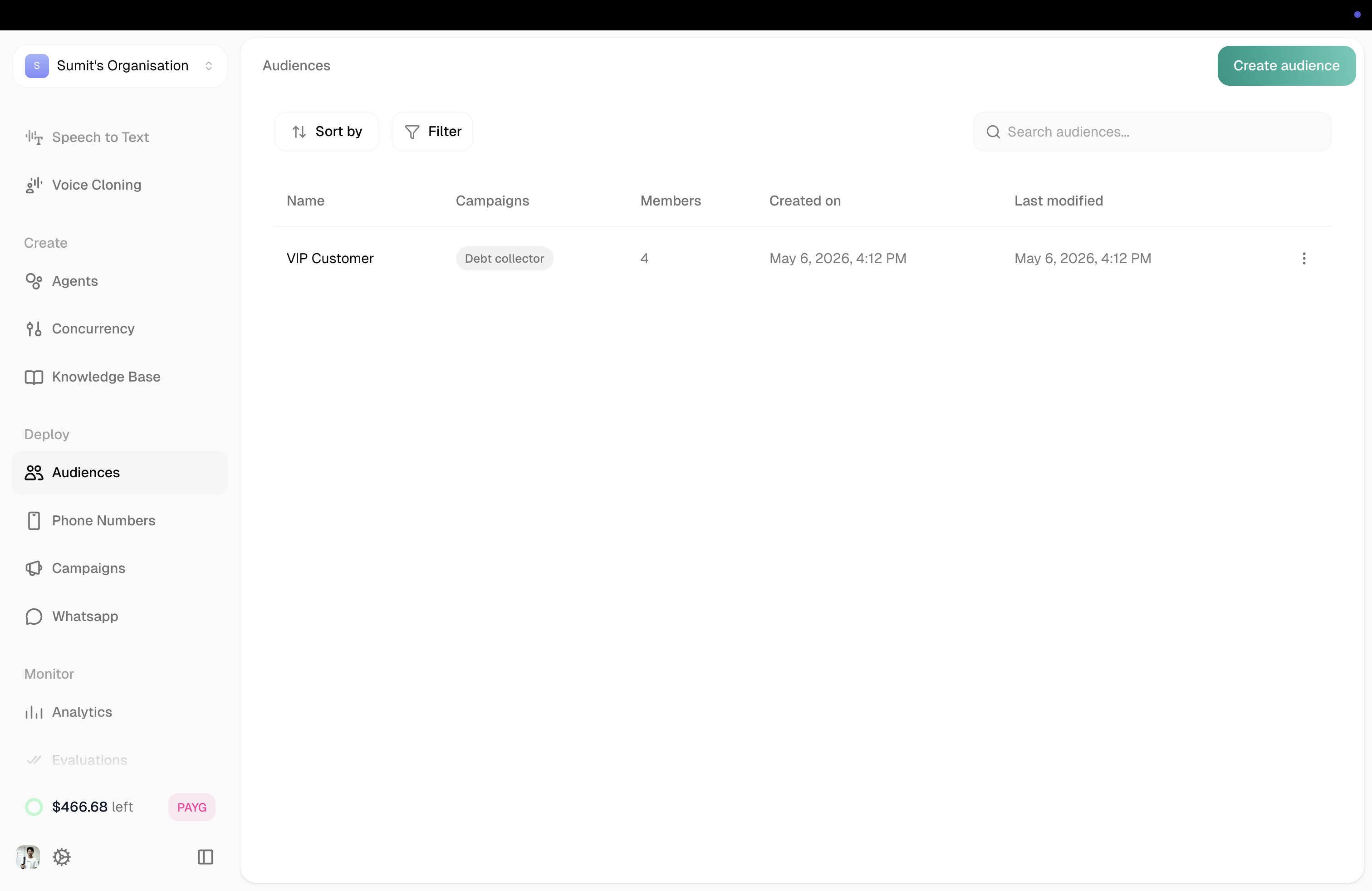
Audiences are your contact lists — the people your agents will call during campaigns. Each audience contains phone numbers and any additional information you want your agent to reference during conversations.


Your Audiences
Audiences list

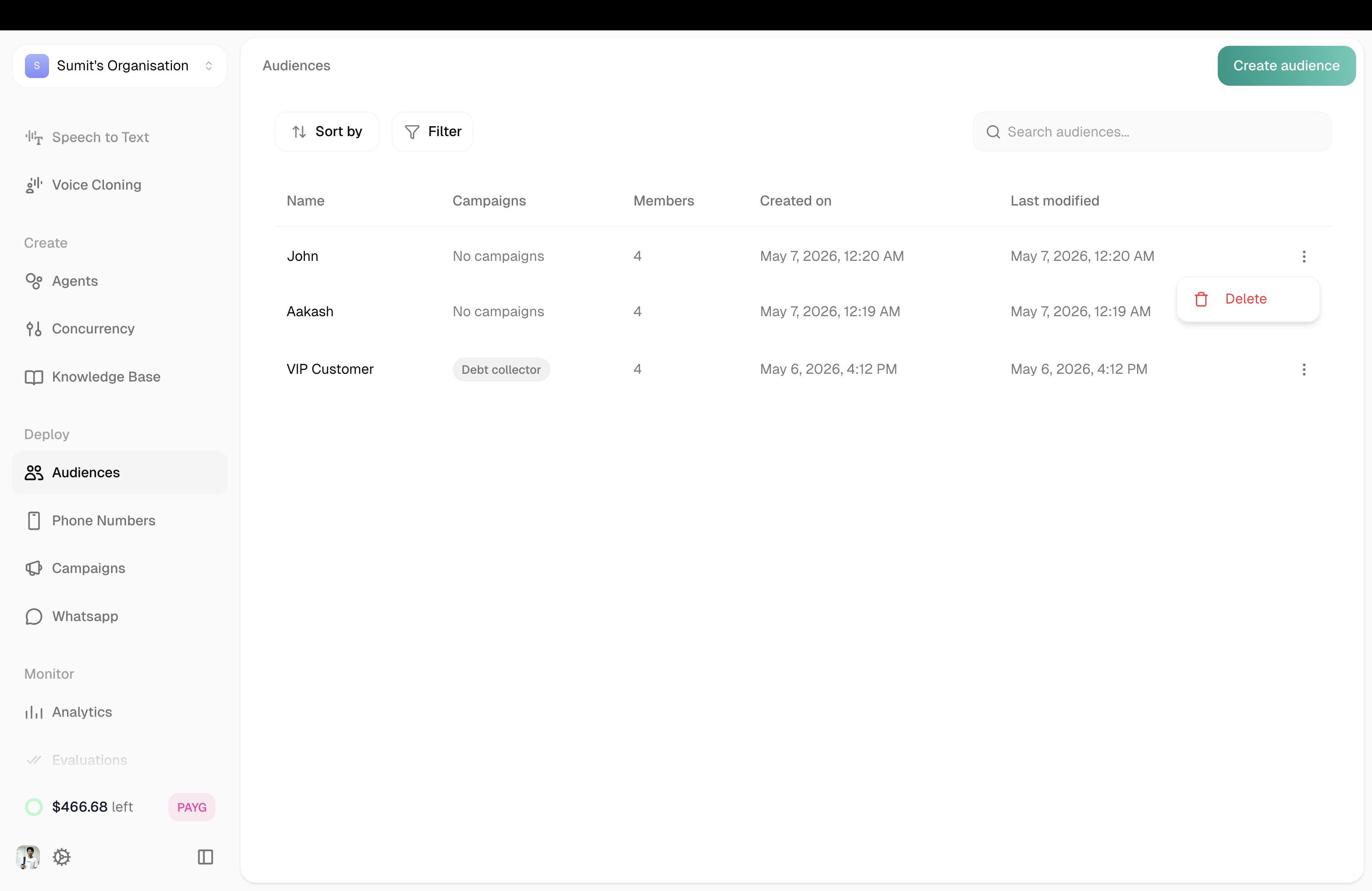
The Audiences page shows all your contact lists at a glance.

ColumnDescription
NameAudience name and ID
CampaignsCampaigns using this audience
MembersNumber of contacts
Created onWhen the audience was created
Last modifiedLast update time
ActionsThree-dot menu for options

Sorting Options:

  • Created on
  • Total members
  • Last modified

Filter Options:

  • All Audiences
  • With Campaigns
  • Without Campaigns

Creating an Audience

Click Create Audience (green button, top right) to start a three-step process.

1

Upload CSV

Upload CSV step

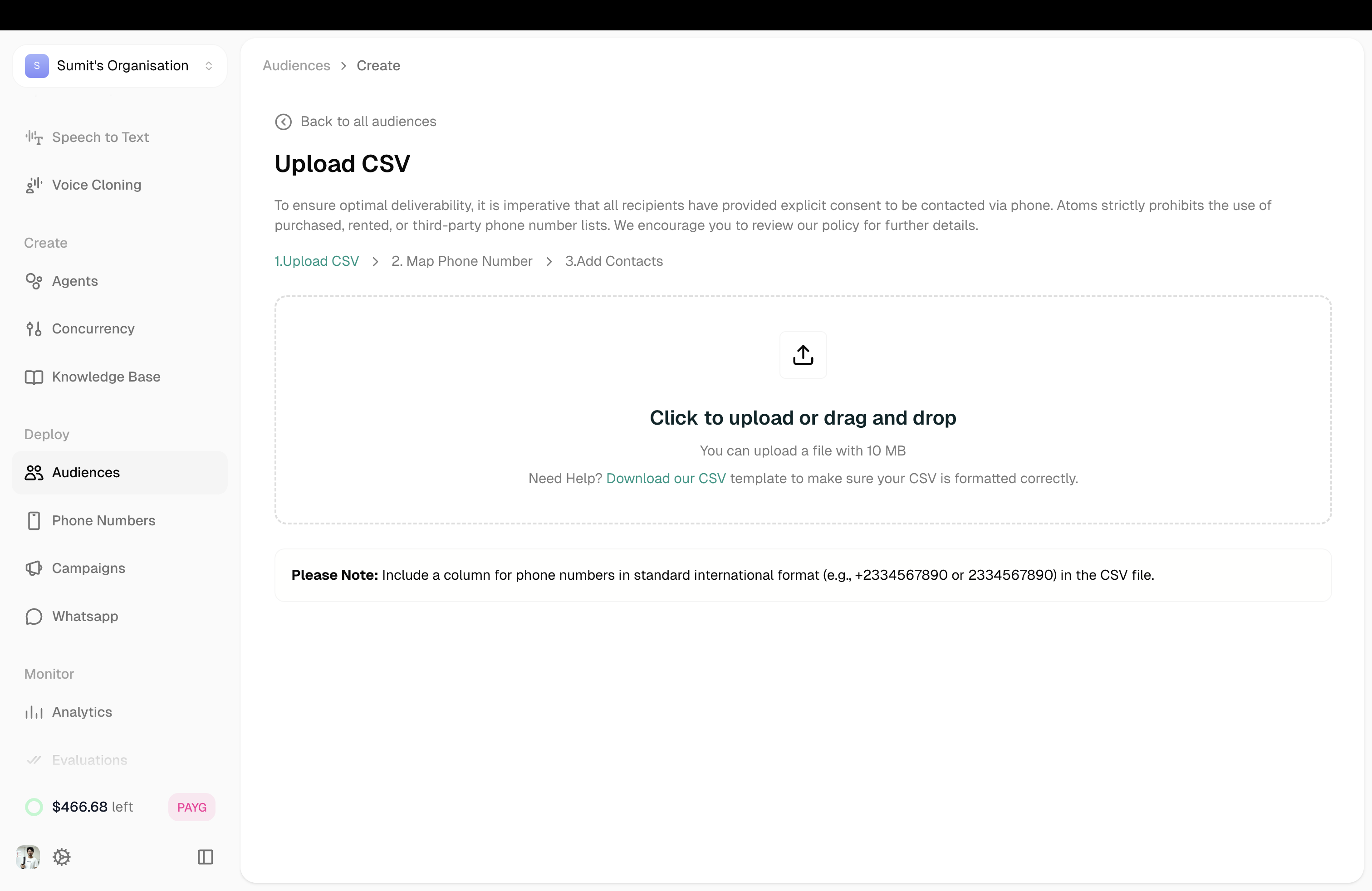
All recipients must have explicit consent to be contacted. Atoms prohibits purchased, rented, or third-party phone lists.

Upload a CSV with your contacts (max 10 MB). Your CSV needs a phone number column—everything else is flexible.

1phoneNumber,Name,Email,CustomerID
2919999900000,John,john@example.com,CUST001
3919999900001,Alice,alice@example.com,CUST002

Phone numbers should be in international format (+919999900000 or 919999900000).

2

Map Phone Number

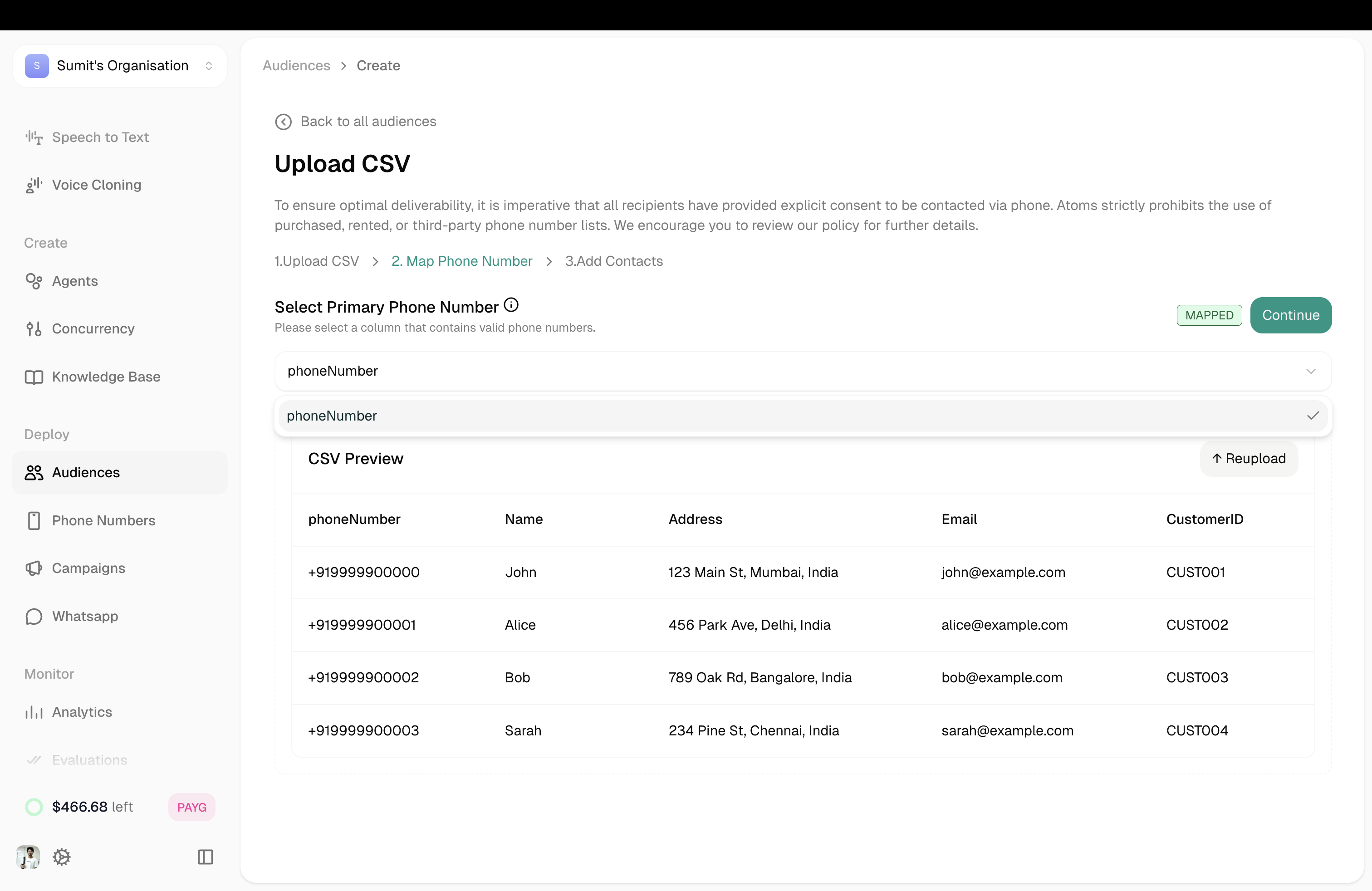
Tell us which column contains the phone numbers.
Map phone number column

You’ll see a preview of your CSV data. Select the column that contains valid phone numbers from the dropdown.

Only the phone number column needs to be mapped—everything else is up to you. Include any additional information you want available during calls (names, order IDs, account numbers, etc.).
3

Add Contacts

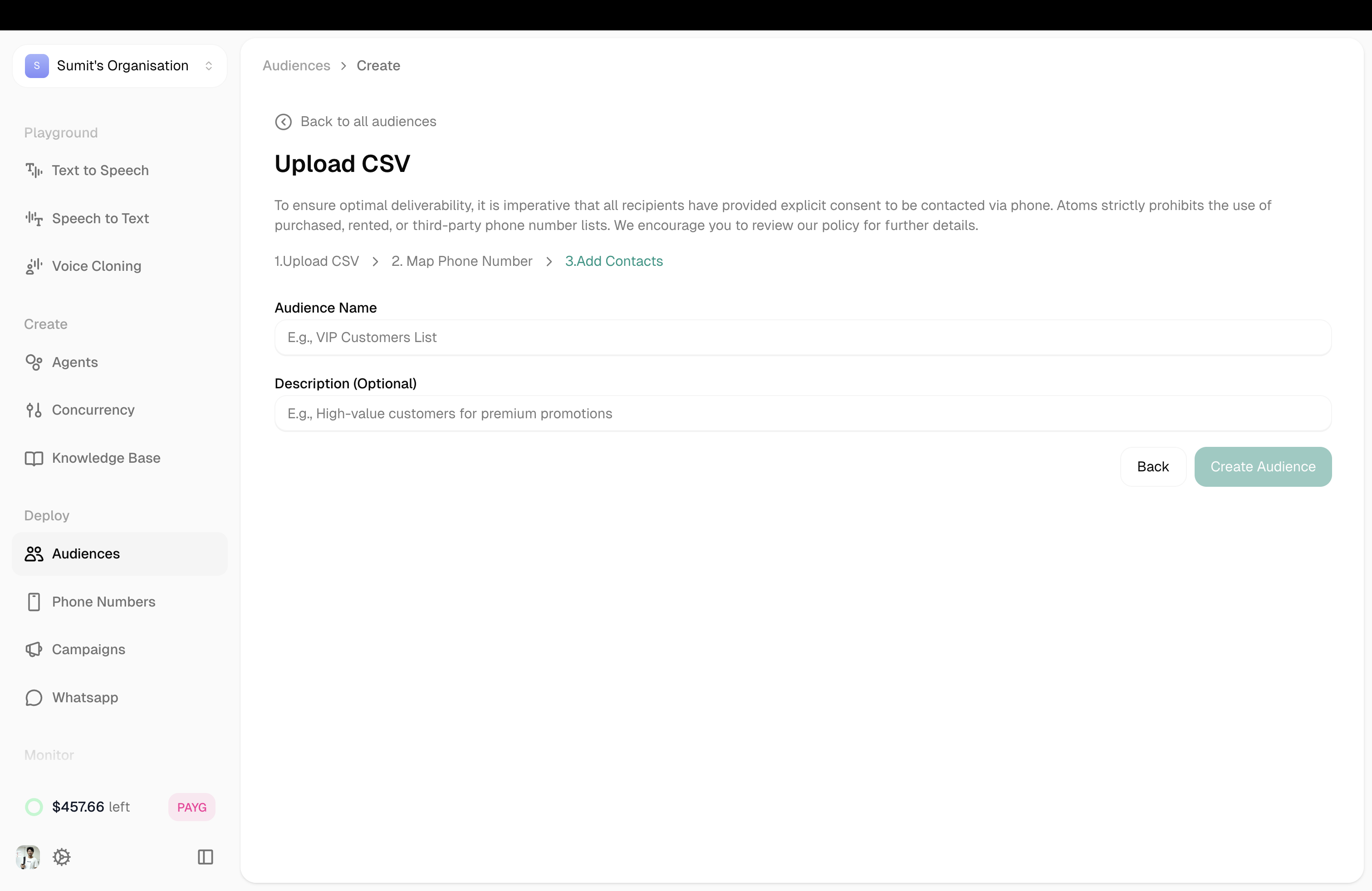
Give your audience a name and optional description.

Name your audience
FieldRequiredExample
Audience NameYesVIP Customers List
DescriptionNoHigh-value customers for premium promotions

Click Create Audience to finish.


Managing Audience Members

Click any audience to view and manage its contacts.
Audience members view

Here you can:

  • Search for specific members
  • Select contacts using checkboxes
  • Delete selected contacts with the Delete button
  • Add new contacts with the Add New button

Adding Members to Existing Audiences

Click Add New to add contacts to an existing audience. You have two options:

Add Manually
Import CSV
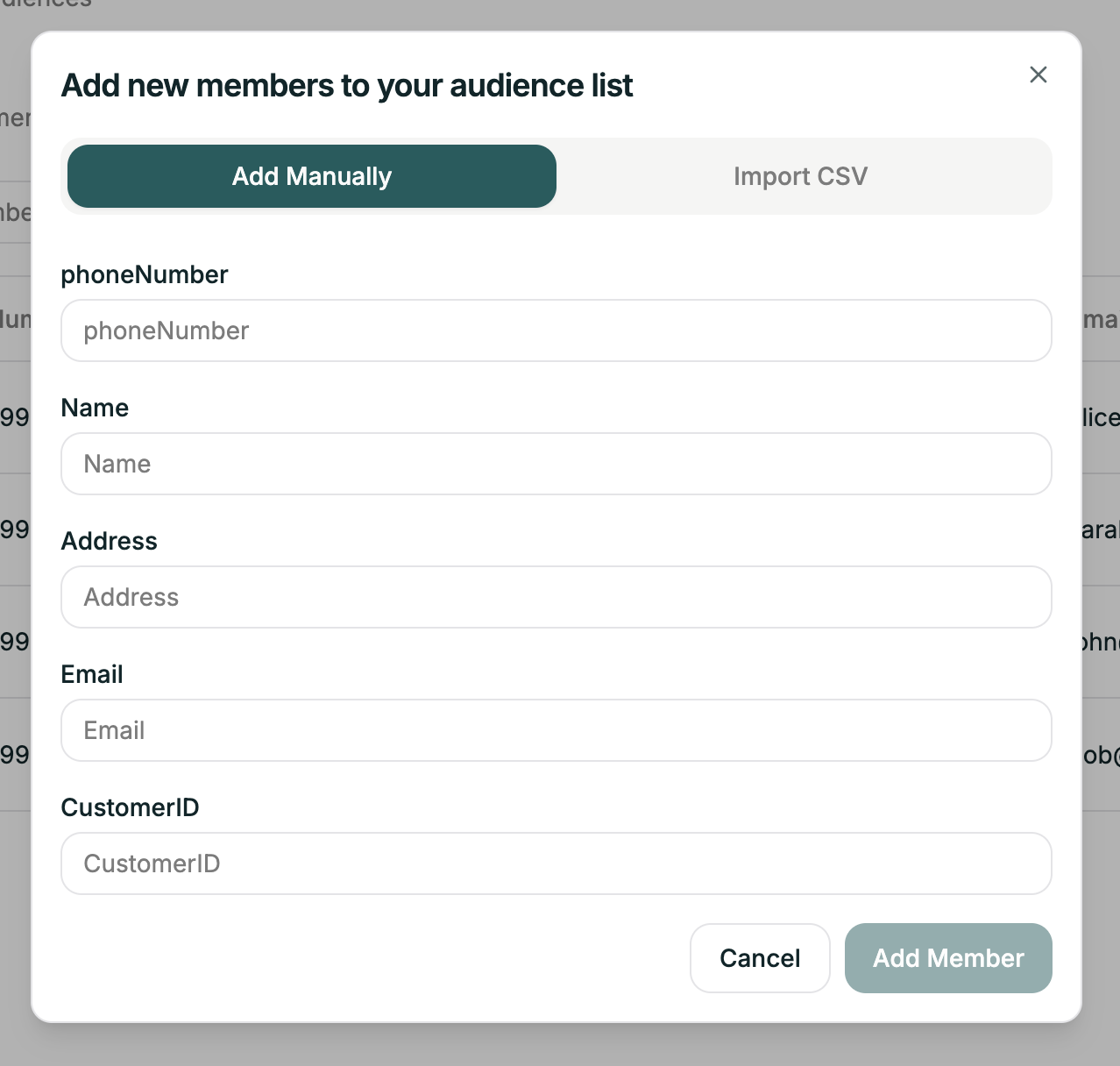
Add member manually

Fill in the contact details one at a time:

  • phoneNumber (required) — in international format
  • Plus any other fields defined in your audience

Click Add Member to save.


Using Audience Data in Calls

The columns you upload become available as variables during campaigns. If your CSV has a “Name” column, your agent can greet callers by name.

See Variables for more.


Related

Campaigns

Create outbound calling programs

Phone Numbers

Manage your phone numbers