***
title: Audiences
description: Create and manage contact lists for outbound campaigns
-------------------------------------------------------------------
Audiences are your contact lists — the people your agents will call during campaigns. Each audience contains phone numbers and any additional information you want your agent to reference during conversations.
***
## Your Audiences
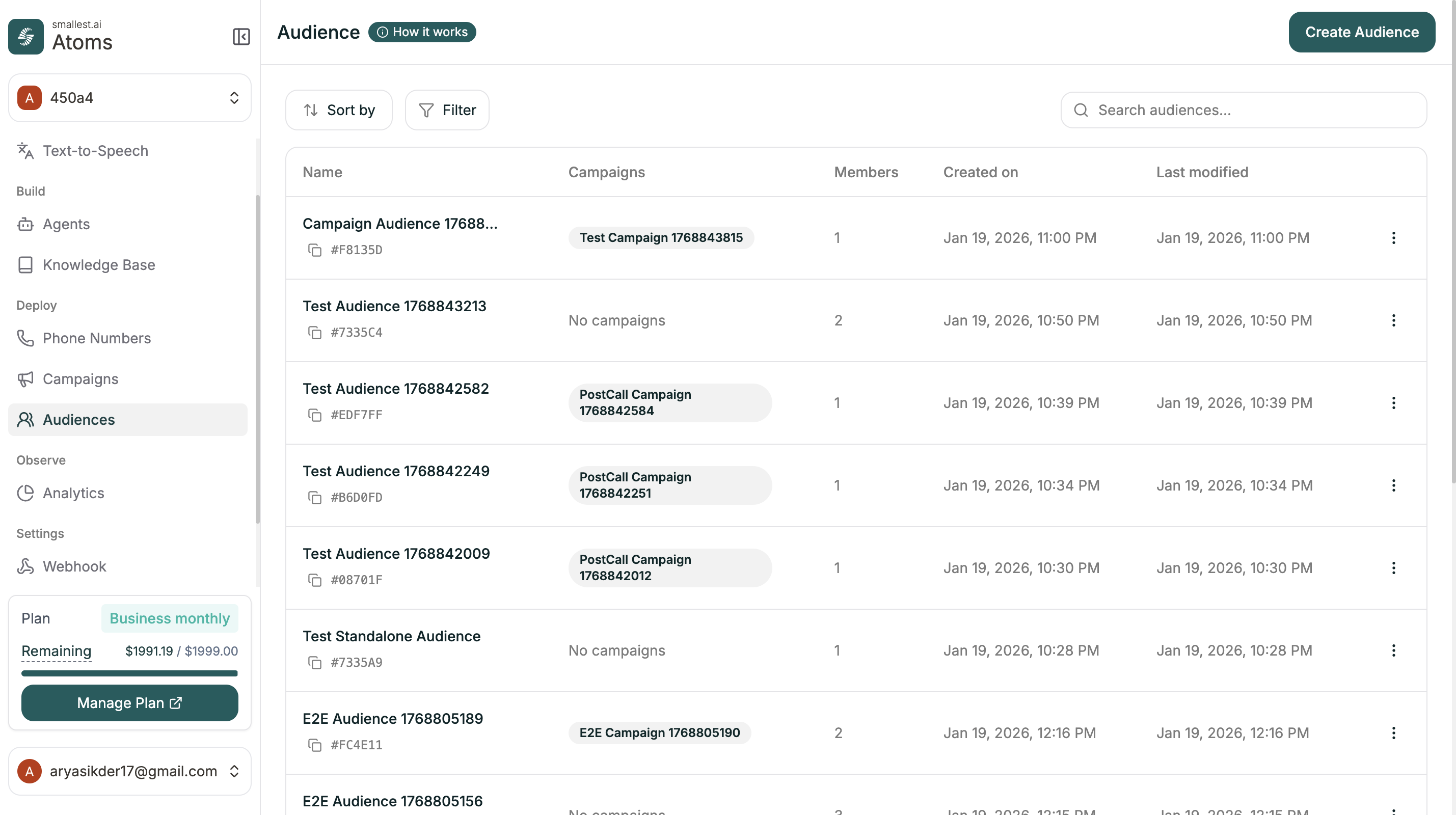 The Audiences page shows all your contact lists at a glance.
| Column | Description |
| ------------- | ----------------------------- |
| Name | Audience name and ID |
| Campaigns | Campaigns using this audience |
| Members | Number of contacts |
| Created on | When the audience was created |
| Last modified | Last update time |
| Actions | Three-dot menu for options |
**Sorting Options:**
* Created on
* Total members
* Last modified
**Filter Options:**
* All Audiences
* With Campaigns
* Without Campaigns
***
## Creating an Audience
Click **Create Audience** (green button, top right) to start a three-step process.
The Audiences page shows all your contact lists at a glance.
| Column | Description |
| ------------- | ----------------------------- |
| Name | Audience name and ID |
| Campaigns | Campaigns using this audience |
| Members | Number of contacts |
| Created on | When the audience was created |
| Last modified | Last update time |
| Actions | Three-dot menu for options |
**Sorting Options:**
* Created on
* Total members
* Last modified
**Filter Options:**
* All Audiences
* With Campaigns
* Without Campaigns
***
## Creating an Audience
Click **Create Audience** (green button, top right) to start a three-step process.
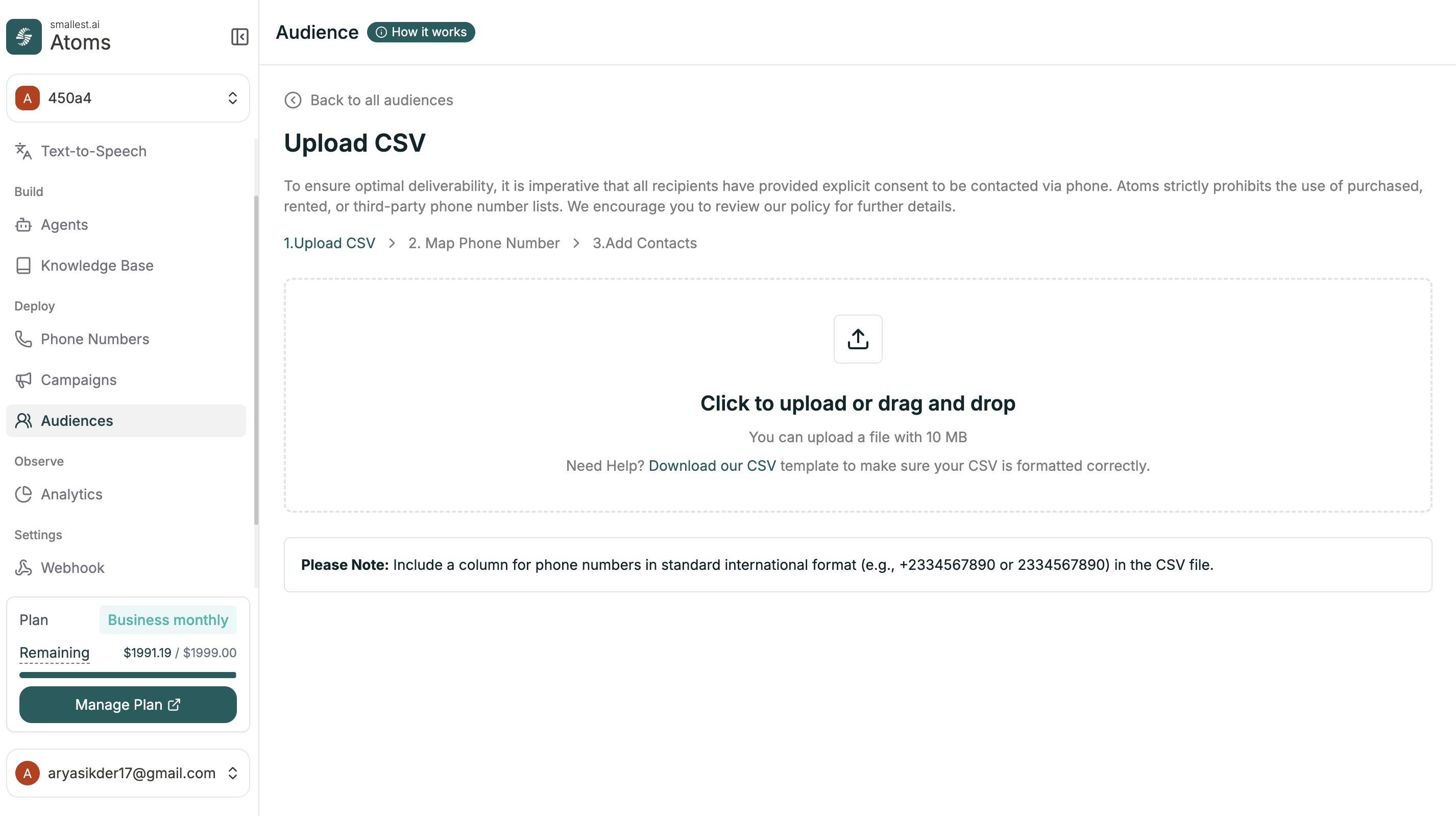 All recipients must have explicit consent to be contacted. Atoms prohibits purchased, rented, or third-party phone lists.
Upload a CSV with your contacts (max 10 MB). Your CSV needs a phone number column—everything else is flexible.
```csv
phoneNumber,Name,Email,CustomerID
919999900000,John,john@example.com,CUST001
919999900001,Alice,alice@example.com,CUST002
```
Phone numbers should be in international format (`+919999900000` or `919999900000`).
Tell us which column contains the phone numbers.
All recipients must have explicit consent to be contacted. Atoms prohibits purchased, rented, or third-party phone lists.
Upload a CSV with your contacts (max 10 MB). Your CSV needs a phone number column—everything else is flexible.
```csv
phoneNumber,Name,Email,CustomerID
919999900000,John,john@example.com,CUST001
919999900001,Alice,alice@example.com,CUST002
```
Phone numbers should be in international format (`+919999900000` or `919999900000`).
Tell us which column contains the phone numbers.
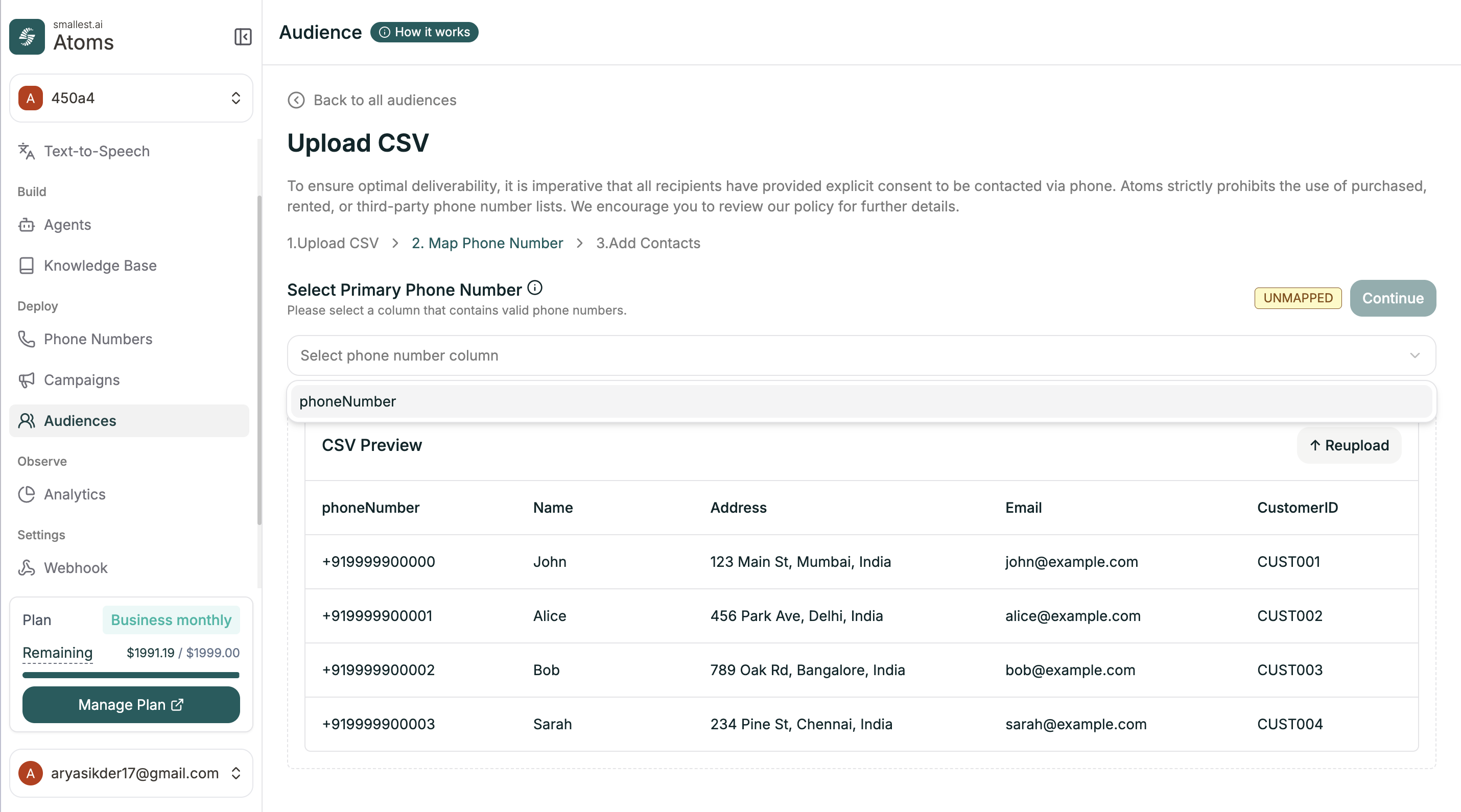 You'll see a preview of your CSV data. Select the column that contains valid phone numbers from the dropdown.
Only the phone number column needs to be mapped—everything else is up to you. Include any additional information you want available during calls (names, order IDs, account numbers, etc.).
Give your audience a name and optional description.
You'll see a preview of your CSV data. Select the column that contains valid phone numbers from the dropdown.
Only the phone number column needs to be mapped—everything else is up to you. Include any additional information you want available during calls (names, order IDs, account numbers, etc.).
Give your audience a name and optional description.
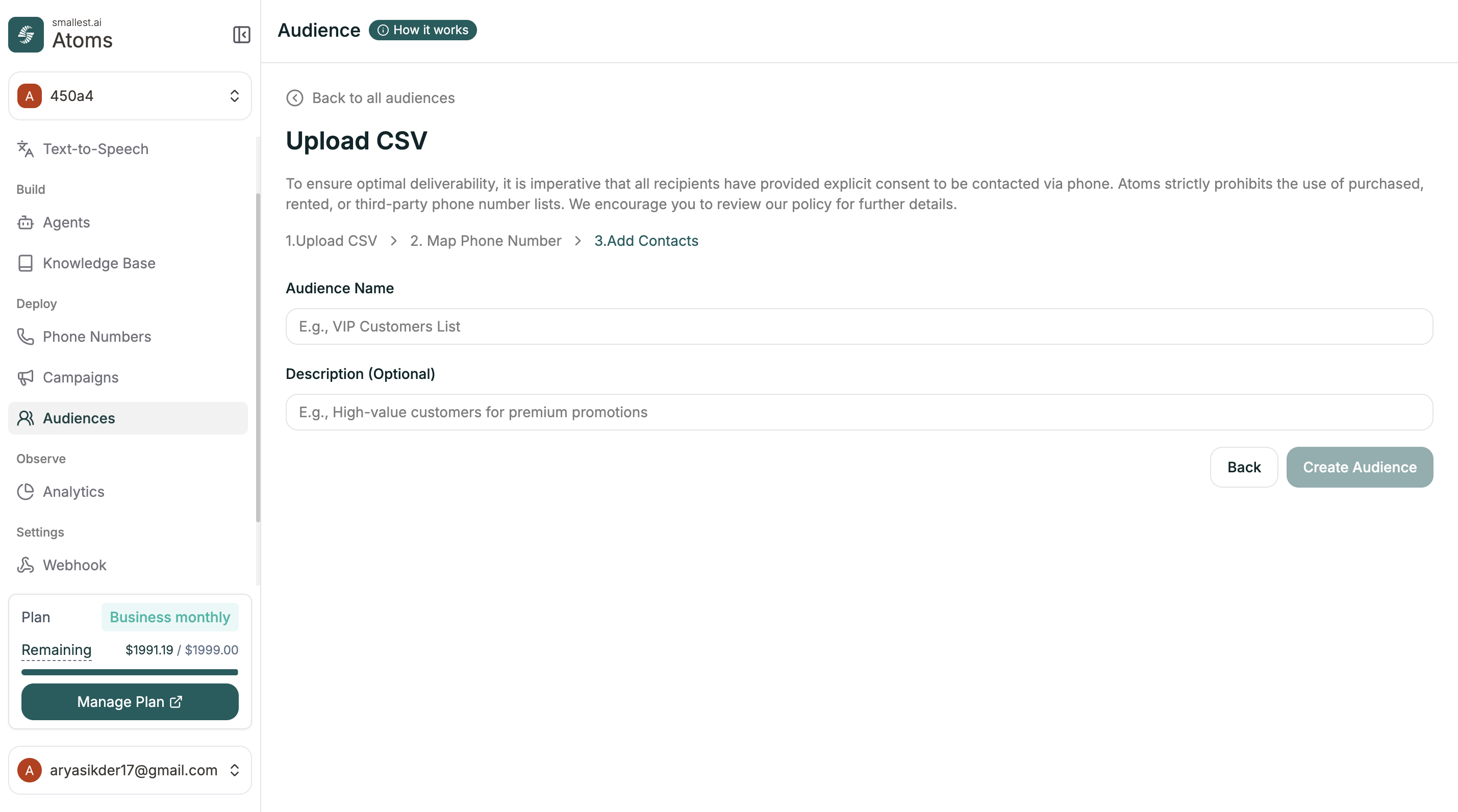 | Field | Required | Example |
| ------------- | -------- | ------------------------------------------- |
| Audience Name | Yes | VIP Customers List |
| Description | No | High-value customers for premium promotions |
Click **Create Audience** to finish.
***
## Managing Audience Members
Click any audience to view and manage its contacts.
| Field | Required | Example |
| ------------- | -------- | ------------------------------------------- |
| Audience Name | Yes | VIP Customers List |
| Description | No | High-value customers for premium promotions |
Click **Create Audience** to finish.
***
## Managing Audience Members
Click any audience to view and manage its contacts.
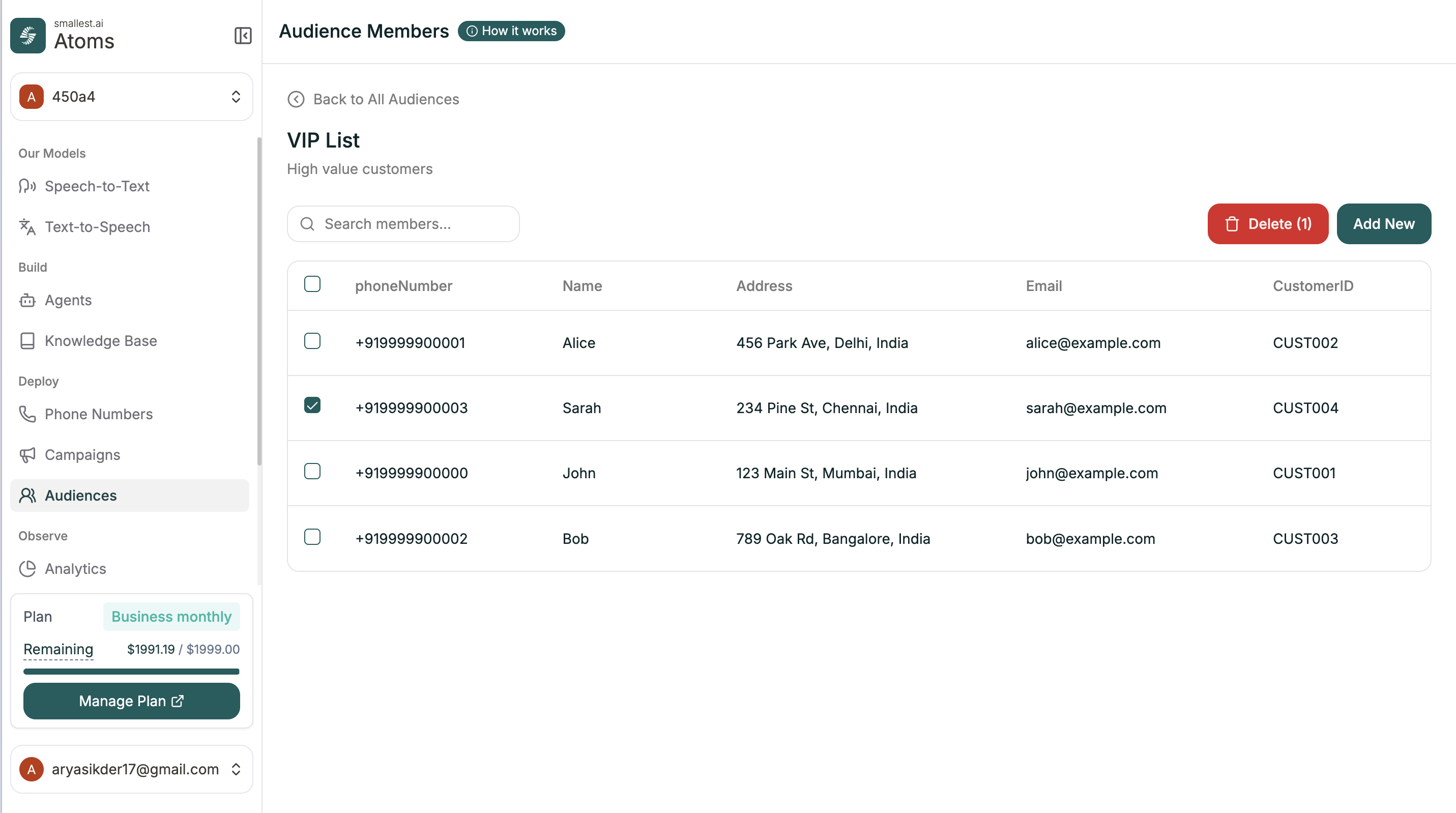 Here you can:
* **Search** for specific members
* **Select contacts** using checkboxes
* **Delete** selected contacts with the Delete button
* **Add new** contacts with the Add New button
***
## Adding Members to Existing Audiences
Click **Add New** to add contacts to an existing audience. You have two options:
Here you can:
* **Search** for specific members
* **Select contacts** using checkboxes
* **Delete** selected contacts with the Delete button
* **Add new** contacts with the Add New button
***
## Adding Members to Existing Audiences
Click **Add New** to add contacts to an existing audience. You have two options:
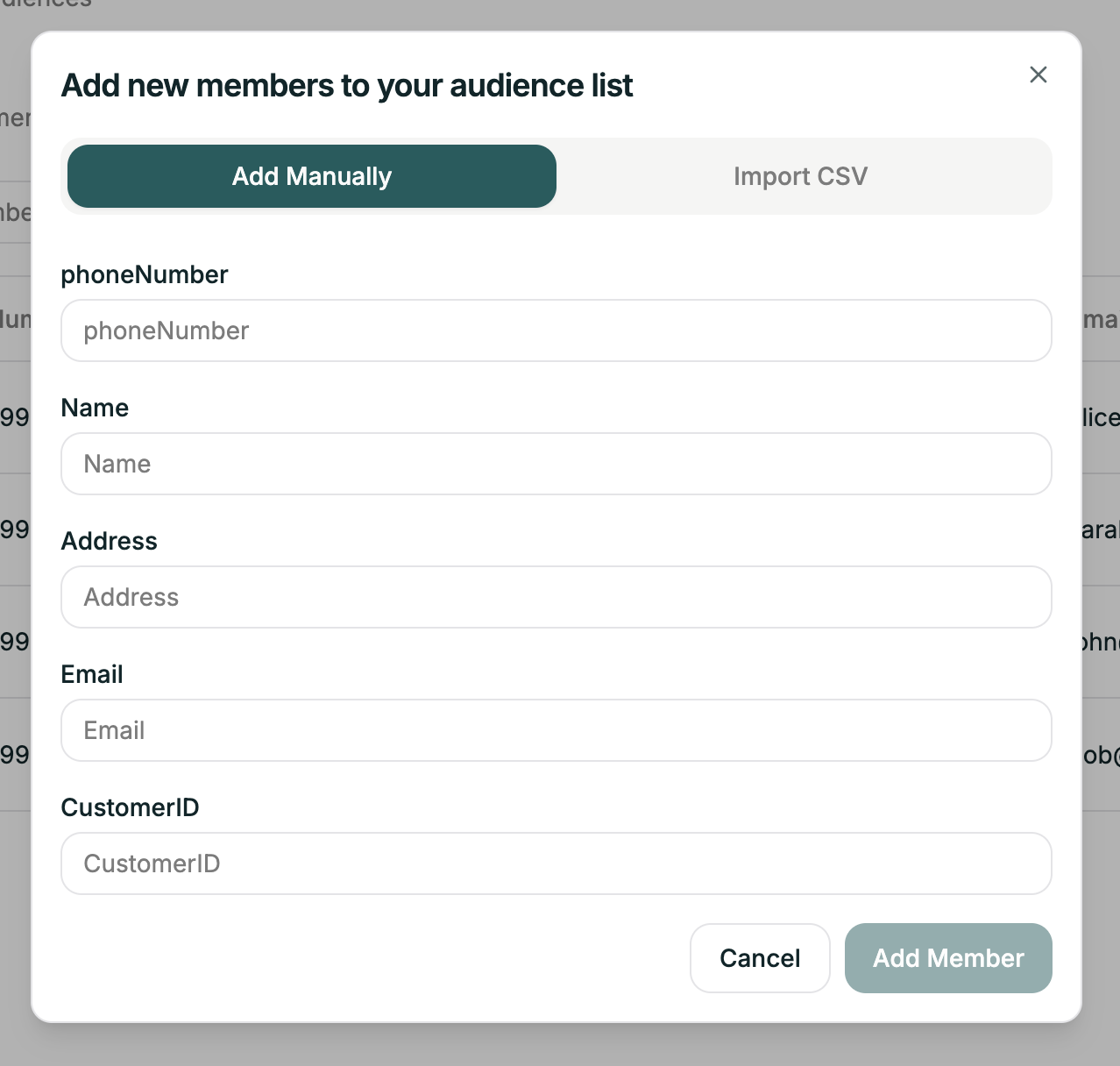 Fill in the contact details one at a time:
* **phoneNumber** (required) — in international format
* Plus any other fields defined in your audience
Click **Add Member** to save.
Fill in the contact details one at a time:
* **phoneNumber** (required) — in international format
* Plus any other fields defined in your audience
Click **Add Member** to save.
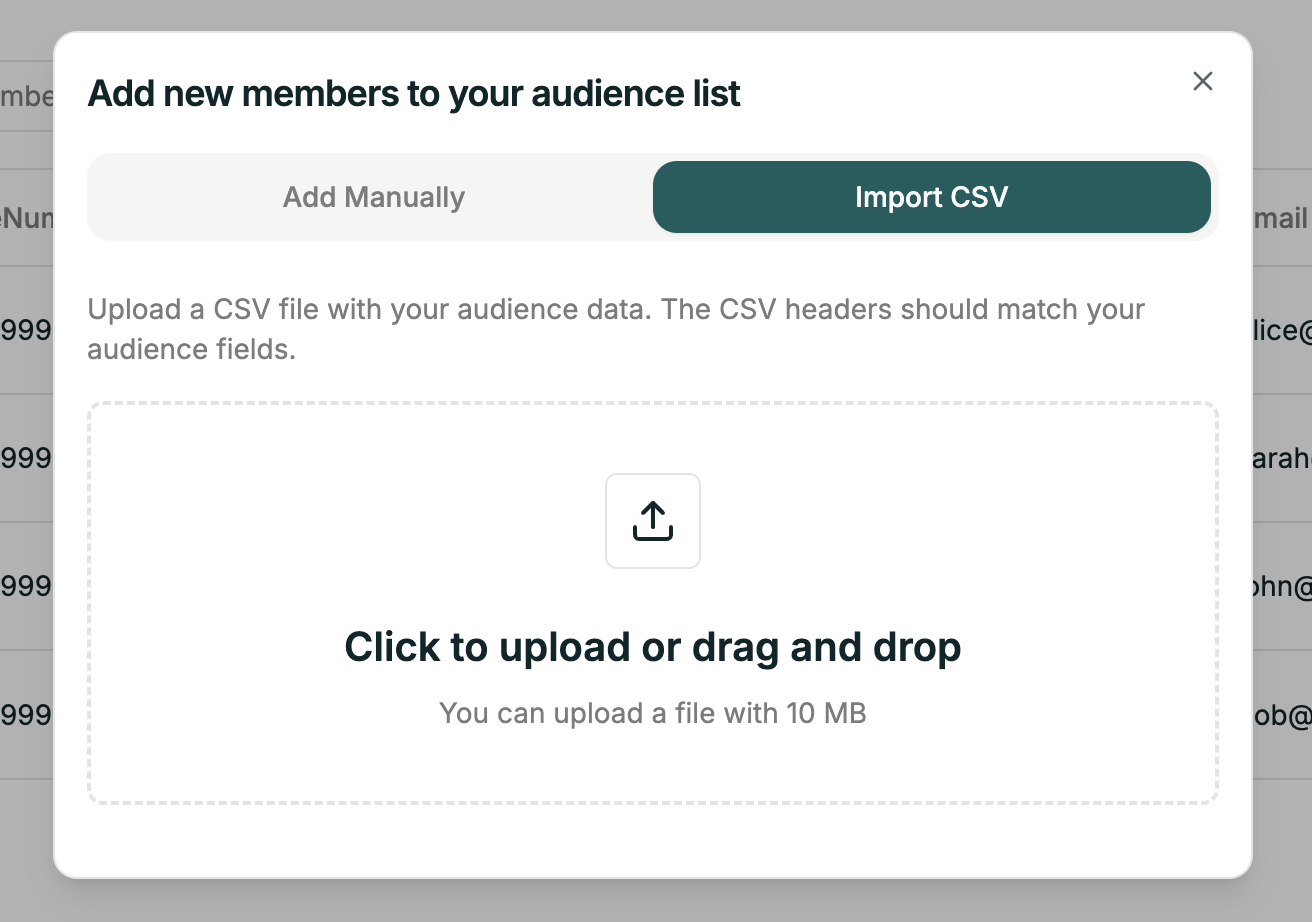 Upload another CSV file to add contacts in bulk.
* CSV headers should match your audience fields
* Maximum file size: 10 MB
* Click to upload or drag and drop
***
## Using Audience Data in Calls
The columns you upload become available as variables during campaigns. If your CSV has a "Name" column, your agent can greet callers by name.
See [Variables](/atoms/atoms-platform/single-prompt-agents/configuration-panel/variables) for more.
***
## Related
Create outbound calling programs
Manage your phone numbers
Upload another CSV file to add contacts in bulk.
* CSV headers should match your audience fields
* Maximum file size: 10 MB
* Click to upload or drag and drop
***
## Using Audience Data in Calls
The columns you upload become available as variables during campaigns. If your CSV has a "Name" column, your agent can greet callers by name.
See [Variables](/atoms/atoms-platform/single-prompt-agents/configuration-panel/variables) for more.
***
## Related
Create outbound calling programs
Manage your phone numbers