
Conversational Flow Agents
Conversational Flow is the original agent type. For most use cases, we now recommend Single Prompt agents — they’re faster to set up and more flexible. Conversational Flow remains ideal for structured, multi-step processes like lead qualification, booking, and intake forms.
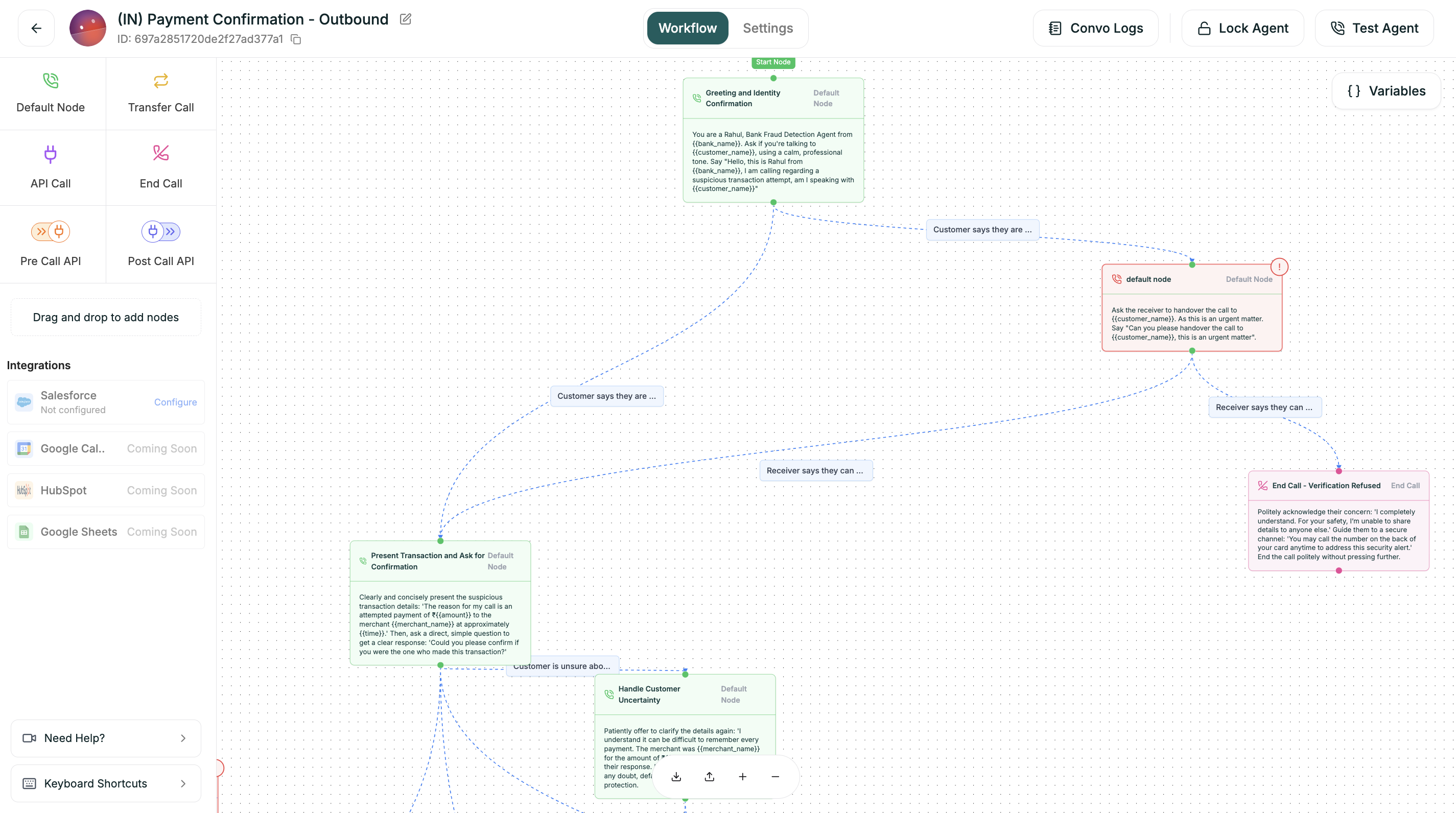
A Conversational Flow agent guides callers through a designed path. You create a visual workflow of nodes — each representing a step in the conversation — and connect them with branches that determine where the conversation goes based on what the caller says.
When to Use
Conversational Flow is ideal for structured, goal-oriented conversations — lead qualification, appointment booking, surveys, intake forms. Choose it when you need specific data collected in a specific order, or when different responses should lead to fundamentally different paths.
For open-ended, flexible conversations like general support or FAQs, consider Single Prompt instead.
How It Works
Think of your workflow as a roadmap. Each node represents a step where the agent takes action — asking a question, making an API call, or transferring the caller. Branches connect these steps, and the caller’s responses determine which path to take.
Unlike Single Prompt agents that interpret instructions dynamically, Conversational Flow agents follow your designed structure. This gives you predictable, consistent conversations — every caller gets the same thorough experience.
Capabilities
Visual workflow design. Drag nodes onto a canvas, connect them with branches, and see your entire conversation flow at a glance. Complex logic becomes manageable when you can see it.
Precise data collection. Each node can collect specific information. You control exactly what gets asked, in what order, and what happens based on the answers.
Mid-conversation API calls. Nodes can fetch external data, check availability, update CRMs, or trigger any API — and branch based on the results.
Multiple paths to multiple outcomes. Different caller responses lead to different experiences. Qualified leads go to sales, support issues go to technicians, everyone gets the right path.
Building a Conversational Flow Agent
You’ll create three things:
1. The Workflow
This is the core. Your workflow includes:
- Nodes — Each step: greetings, questions, API calls, transfers, endings
- Branches — Conditions that route callers based on their responses
- Variables — Dynamic data used throughout the conversation
2. Global Prompt (optional)
Set personality and behavior guidelines that apply across all nodes. This keeps your agent consistent without repeating instructions in every node.
3. Voice and Model
Pick the voice your agent speaks with and the AI model that powers its understanding.
The Editor
Once you create a Conversational Flow agent, you land in the editor with two main tabs.
Workflow Tab
Settings Tab
After You Launch
Once your agent is live, refinement happens in a few places:
Flow adjustments. Review call logs, find where callers drop off or get stuck, and refine your nodes and branches.
Prompt updates. Tweak individual node prompts or the global prompt to improve how the agent sounds and responds.
Voice tuning. Adjust speech speed, add pronunciation rules, tweak turn-taking behavior.
Branch refinement. Add new conditions, adjust thresholds, handle edge cases you discover.