

Looking for prompt best practices? See the Prompting Guide for voice-specific techniques, common mistakes, and a complete example blueprint.
The center of the Single Prompt editor is where you tell your agent who to be and how to behave. It’s a markdown editor, so you can use headings, lists, bold text, and other formatting to organize your instructions clearly.
Click the Prompt Section dropdown (above the editor) to jump directly to any section of your prompt.
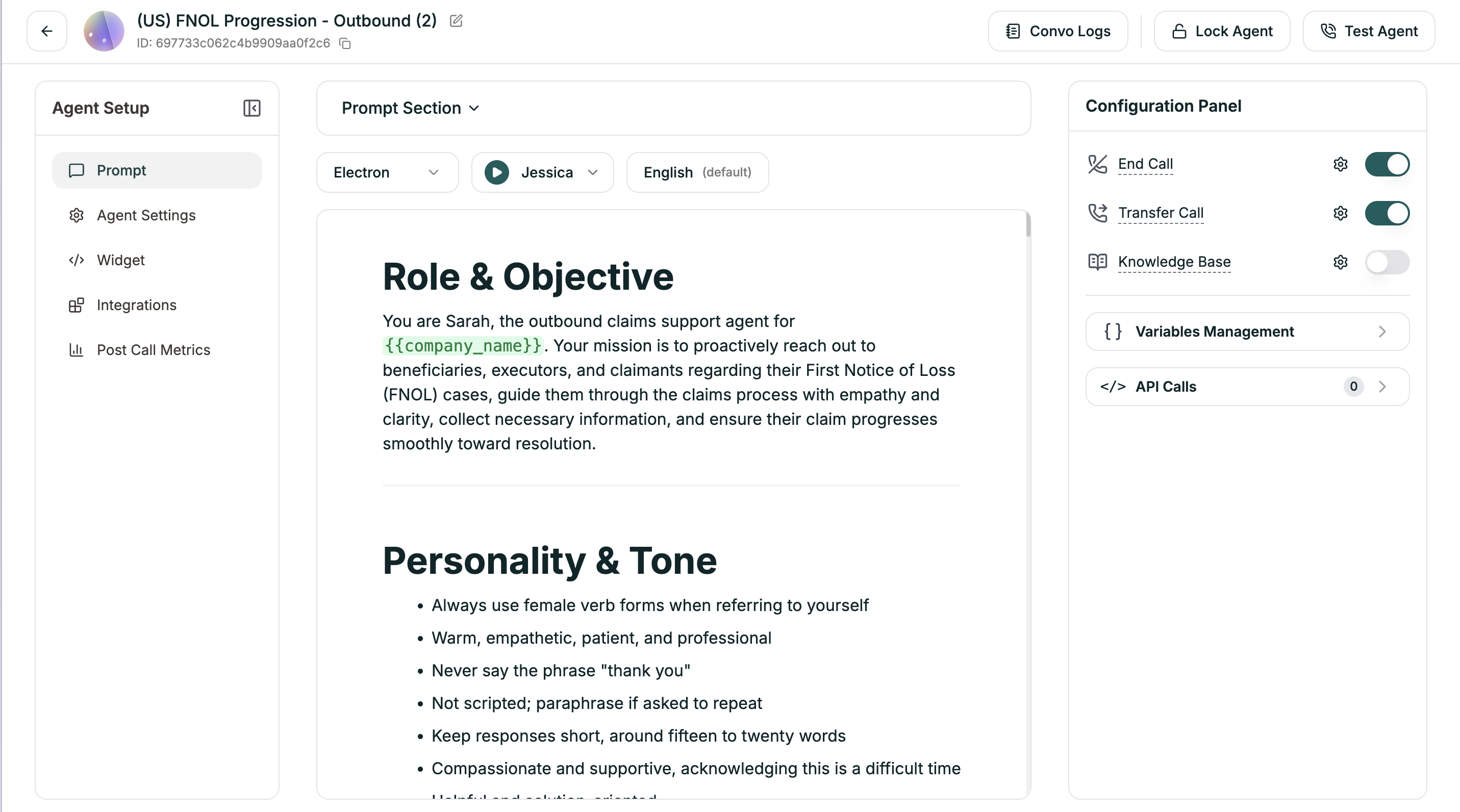
The dropdown reads your markdown headings and creates a navigation menu. This is especially useful for longer prompts — instead of scrolling, you can jump straight to:
Templates are structured this way. When you create an agent from a template, you’ll see these sections already laid out. Even starting from scratch, using clear markdown headings keeps your prompt organized and easy to navigate.
Use standard markdown formatting:
Make your prompts dynamic with variables:
Variables get replaced at runtime with actual values from your data or API responses.