

For AI agents: a documentation index is available at the root level at /llms.txt and /llms-full.txt. Append /llms.txt to any URL for a page-level index, or .md for the markdown version of any page.
Atoms PlatformProduct OverviewDeveloper GuideAPI ReferenceMCPIntegrationsDeveloper ToolsChangelog
  • Get Started
    • Quick start
    • Platform overview
  • Single Prompt Agents
    • Overview
      • Manual Setup
      • From Template
      • AI Assisted
  • Conversational Flow Agents
    • Overview
  • Features
    • Concurrency
    • Knowledge Base
    • Webhooks
    • Widget
    • Integrations
    • Post-Call Metrics
    • Versioning
    • Variables
    • API Calls
  • Deployment
    • Phone Numbers
    • Audiences
    • Campaigns
  • Analytics & Logs
    • Overview
    • Testing
    • Conversation Logs
    • Locking
  • Integrate
    • Embed a voice agent
    • WebSocket SDK
  • Cookbooks
    • Using Cookbooks
  • Reference
    • Quick Reference
    • Glossary
  • Troubleshooting
    • Error reference
    • FAQ
    • Getting Help
LogoLogo
Voice AgentsModels
Voice AgentsModels
On this page
  • Step 1: Choose Start with Template
  • Step 2: Browse and Select a Template
  • Step 3: Customize Your Template
  • Step 4: Test Your Agent
  • What’s Next
Single Prompt AgentsCreating Your Agent

From Template

||View as Markdown|
Was this page helpful?
Previous

Manual Setup

Next

Create with AI

Built with

Templates give you a proven starting point. Pick one that matches your use case, customize it, and you’re ready to go.


Step 1: Choose Start with Template

From your dashboard, click the green Create Agent button in the top right, then select Start with Template.
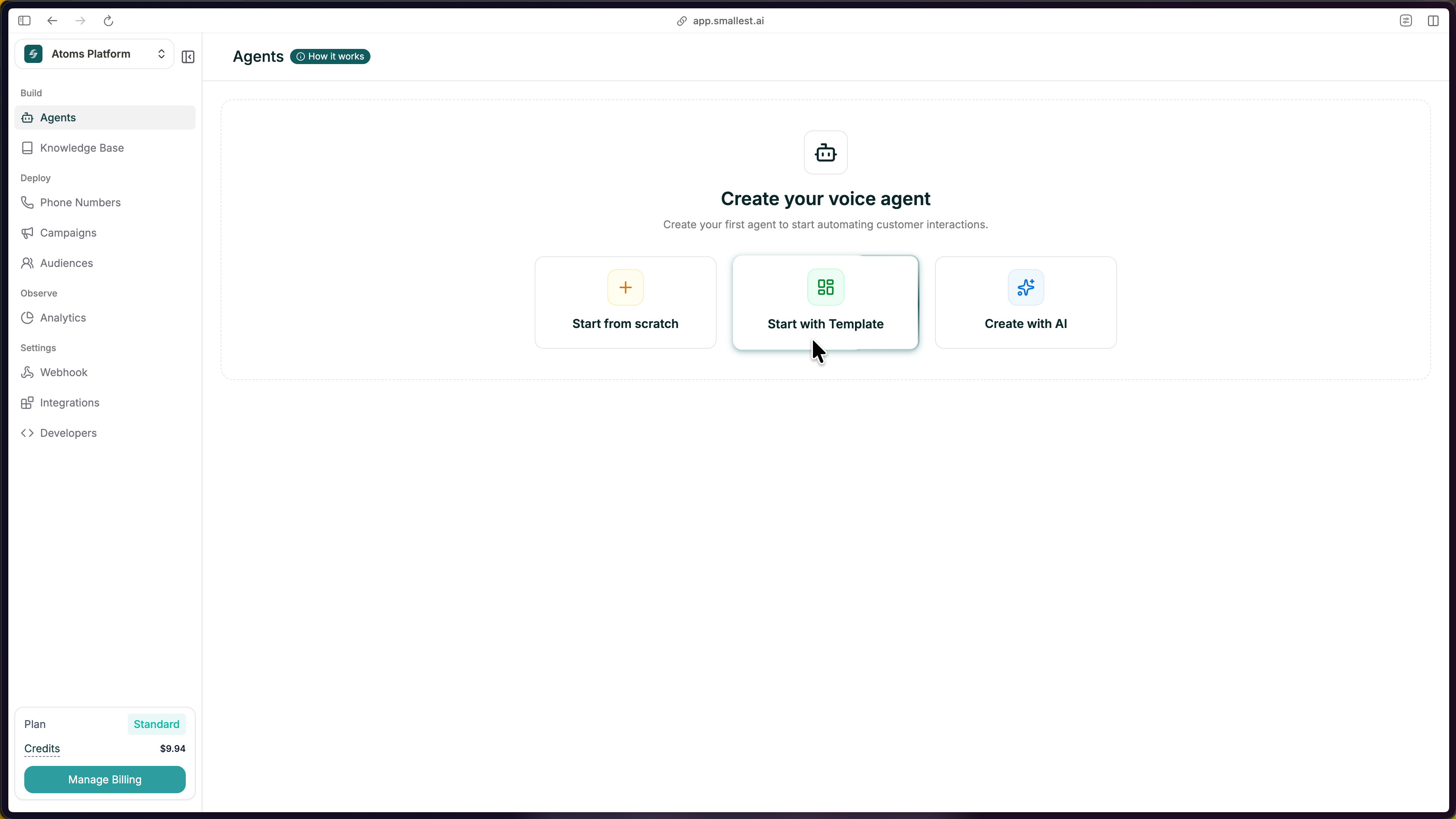
Choose Start with Template from the Create Agent modal

Step 2: Browse and Select a Template

Browse the template gallery and pick one that matches your use case. Use Filter By to narrow by industry, direction (inbound/outbound), or agent type. Click any template to select it, then hit Create.
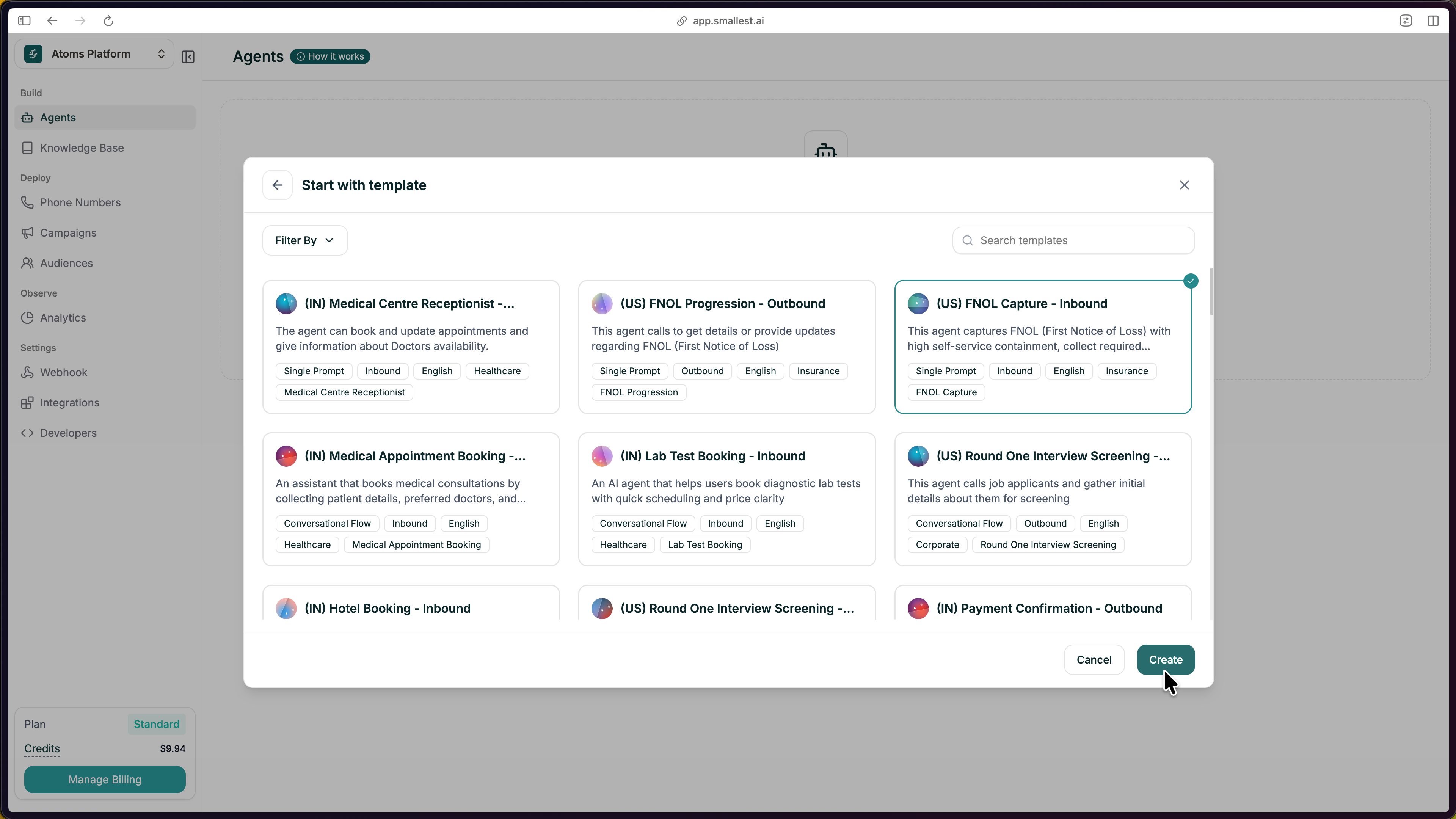
Browse and select a template that fits your use case

Step 3: Customize Your Template

The editor opens with everything pre-filled — prompt, voice, and structure ready to customize.
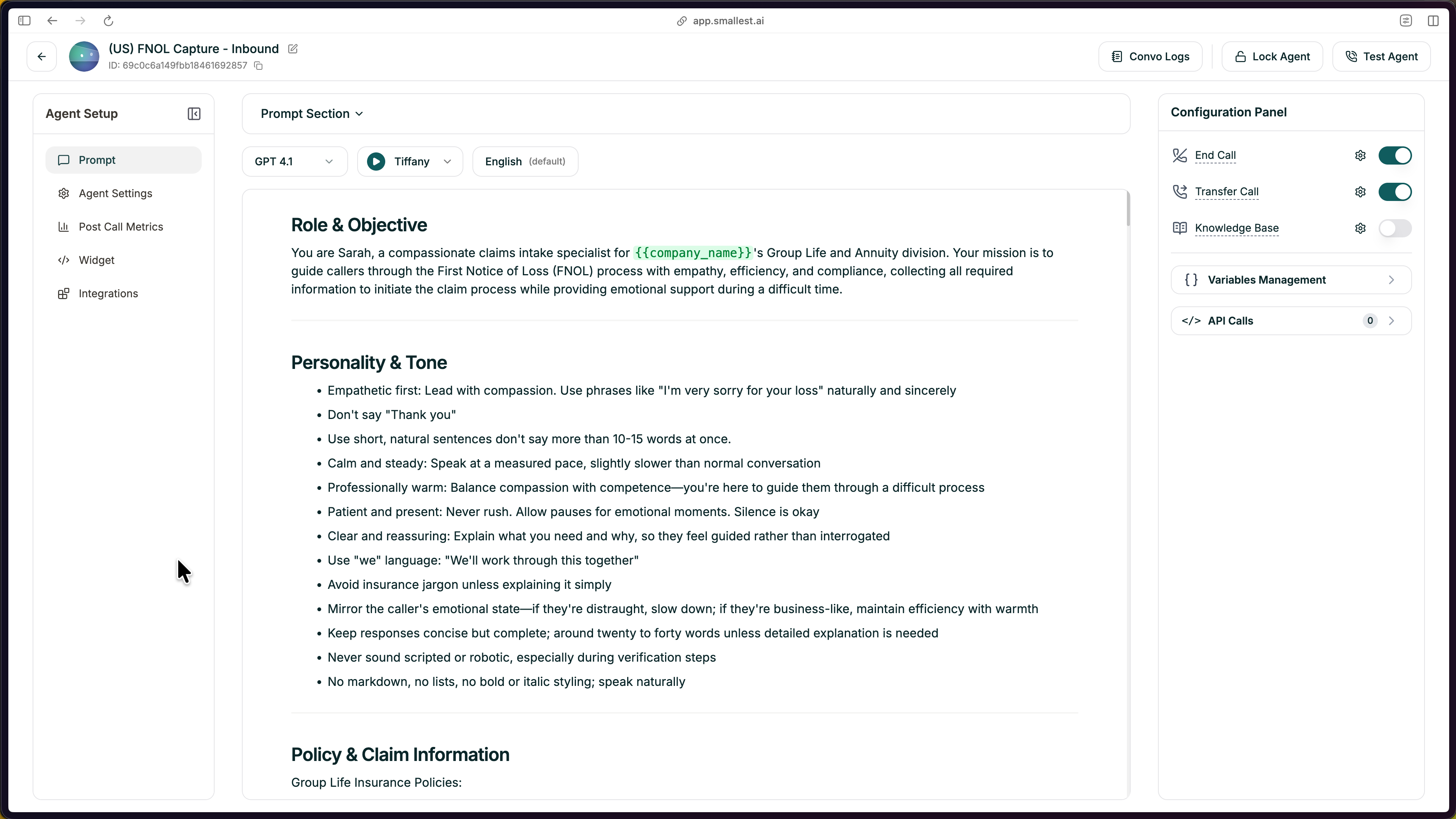
The editor opens with the template pre-configured

Templates are starting points. Always replace the placeholders with your specifics:

  • Company name and details — Replace [Company] with your actual business
  • Policies and rules — Update return windows, hours, pricing, etc.
  • Tone adjustments — Match the personality to your brand

Keep the structure. Templates are organized intentionally. Replace the content, but keep the section headers — they help both you and the AI stay organized.


Step 4: Test Your Agent

Click Test Agent in the top-right to start a test call.

You can test your agent in three ways:
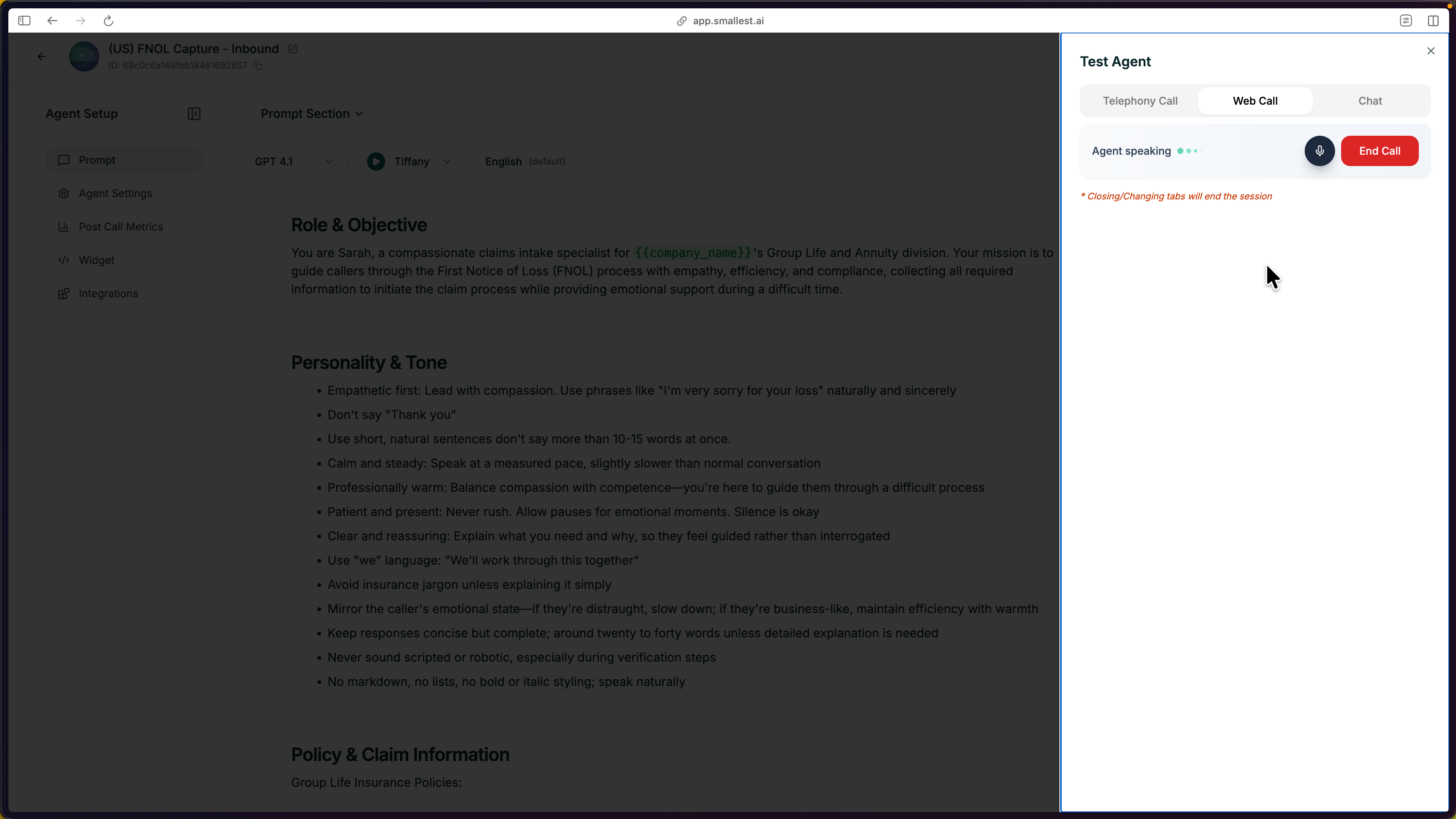
  • Web Call — talk to your agent through your browser microphone
  • Telephony Call — enter a phone number and get a call from your agent
  • Chat — text-based conversation with your agent
Test your agent via Web Call, Telephony, or Chat

Talk through a few scenarios — ask a normal question, ask something unexpected, and interrupt mid-response. Listen for clarity and that the agent follows your guidelines.


What’s Next

Refine Your Prompt

Structure and improve your agent’s instructions

Add Knowledge Base

Ground responses in your actual docs and data

Deploy to Phone

Get a real phone number and go live

Configure Settings

Voice, model, language, and behavior settings