***
title: The Prompt Editor
sidebarTitle: Prompt Editor
description: >-
Where you write your agent's instructions — a markdown editor with section
navigation.
-----------
The center of the Single Prompt editor is where you tell your agent who to be and how to behave. It's a **markdown editor**, so you can use headings, lists, bold text, and other formatting to organize your instructions clearly.
***
## Section Navigation
Click the **Prompt Section** dropdown (above the editor) to jump directly to any section of your prompt.
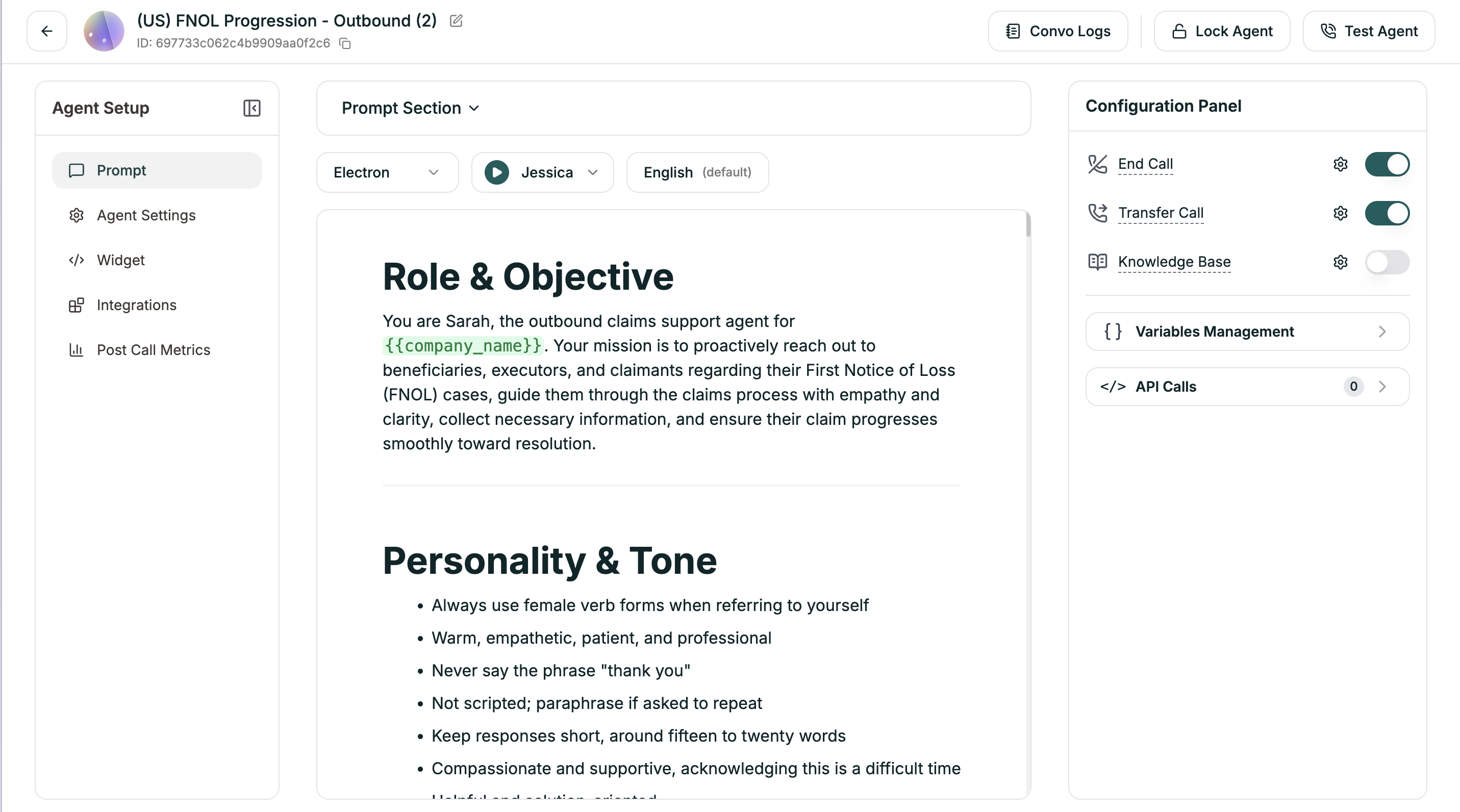 The dropdown reads your markdown headings and creates a navigation menu. This is especially useful for longer prompts — instead of scrolling, you can jump straight to:
* Role & Objective
* Personality & Tone
* Conversational Flow
* Common Questions
* End Conditions
* Or any custom sections you create
**Templates are structured this way.** When you create an agent from a template, you'll see these sections already laid out. Even starting from scratch, using clear markdown headings keeps your prompt organized and easy to navigate.
***
## Writing in Markdown
Use standard markdown formatting:
| Format | Syntax | Use For |
| ------------------ | ----------------- | ------------------------------------------- |
| **Headings** | `## Section Name` | Organize major sections (shows in dropdown) |
| **Bullet lists** | `- item` | Personality traits, guidelines, rules |
| **Numbered lists** | `1. step` | Conversational flows, procedures |
| **Bold** | `**text**` | Emphasis on key points |
### Example Structure
```markdown
## Role & Objective
You are Sarah, a claims support specialist for Acme Insurance.
Your goal is to help policyholders check claim status and understand next steps.
## Personality & Tone
- Warm and empathetic — claims are stressful
- Clear and jargon-free
- Patient and never rushed
## Conversational Flow
1. Greet and verify identity
2. Ask how you can help
3. Look up their claim
4. Provide status update
5. Answer follow-up questions
6. Confirm next steps and close
## End Conditions
End the call when:
- Caller confirms they have what they need
- They say goodbye
- No response after 3 attempts
```
***
## Using Variables
Make your prompts dynamic with variables:
```markdown
Hello {{customer_name}}! I see you're calling about order #{{order_id}}.
```
Variables get replaced at runtime with actual values from your data or API responses.
→ [Learn more about Variables](/atoms/atoms-platform/single-prompt-agents/configuration-panel/variables)
***
## Best Practices
See how well-structured prompts are organized
Deep dive into crafting effective prompts
The dropdown reads your markdown headings and creates a navigation menu. This is especially useful for longer prompts — instead of scrolling, you can jump straight to:
* Role & Objective
* Personality & Tone
* Conversational Flow
* Common Questions
* End Conditions
* Or any custom sections you create
**Templates are structured this way.** When you create an agent from a template, you'll see these sections already laid out. Even starting from scratch, using clear markdown headings keeps your prompt organized and easy to navigate.
***
## Writing in Markdown
Use standard markdown formatting:
| Format | Syntax | Use For |
| ------------------ | ----------------- | ------------------------------------------- |
| **Headings** | `## Section Name` | Organize major sections (shows in dropdown) |
| **Bullet lists** | `- item` | Personality traits, guidelines, rules |
| **Numbered lists** | `1. step` | Conversational flows, procedures |
| **Bold** | `**text**` | Emphasis on key points |
### Example Structure
```markdown
## Role & Objective
You are Sarah, a claims support specialist for Acme Insurance.
Your goal is to help policyholders check claim status and understand next steps.
## Personality & Tone
- Warm and empathetic — claims are stressful
- Clear and jargon-free
- Patient and never rushed
## Conversational Flow
1. Greet and verify identity
2. Ask how you can help
3. Look up their claim
4. Provide status update
5. Answer follow-up questions
6. Confirm next steps and close
## End Conditions
End the call when:
- Caller confirms they have what they need
- They say goodbye
- No response after 3 attempts
```
***
## Using Variables
Make your prompts dynamic with variables:
```markdown
Hello {{customer_name}}! I see you're calling about order #{{order_id}}.
```
Variables get replaced at runtime with actual values from your data or API responses.
→ [Learn more about Variables](/atoms/atoms-platform/single-prompt-agents/configuration-panel/variables)
***
## Best Practices
See how well-structured prompts are organized
Deep dive into crafting effective prompts