
Conversation logs
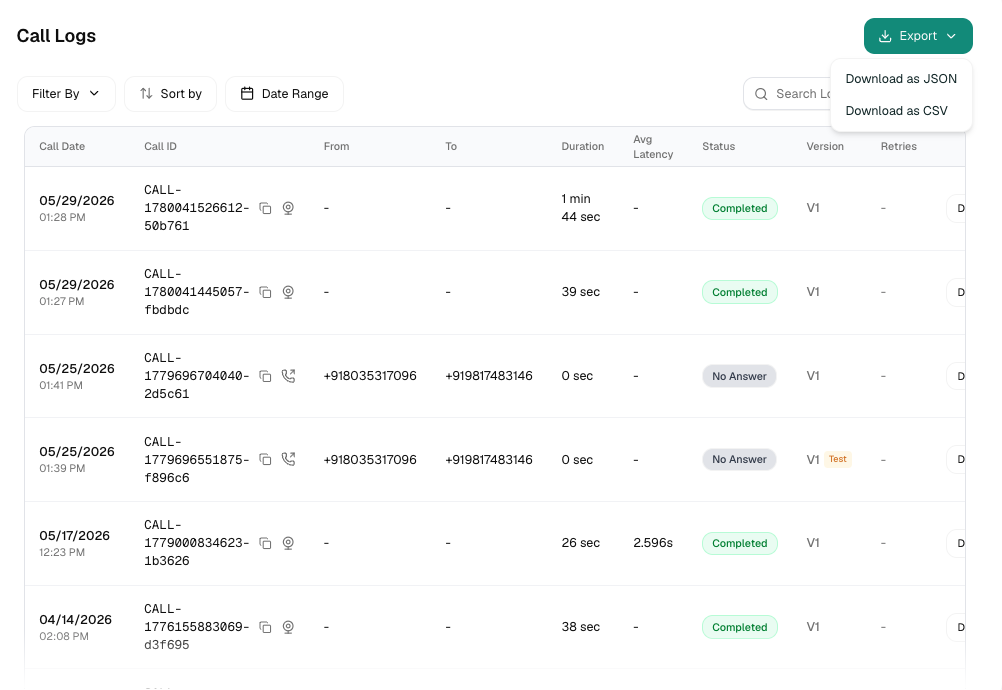
Every call your agent takes lands here. The Conversations tab (titled Call Logs) is a per-agent log of every voice call, web call, chat, and WhatsApp conversation, with drill-down into the transcript, recording, tool calls, latency, and cost of any single one.
The List
Each row is one conversation:
Calls that are still Pending, Queued, or In Progress refresh automatically every couple of seconds, you don’t need to reload the page to watch a live call’s status change.
If a call was retried, its row is expandable, click the chevron to reveal every retry attempt as its own nested row underneath.
Filtering & Search
Filters live in the Filter By dropdown and combine with each other. Set the ones you want, then click Apply Filters.
Alongside the filters are a Date Range picker (quick presets or a custom range), a Sort by dropdown (Completed At, Created On, Duration, Avg Latency), and a Search Logs box.
Search matches the Call ID and the From/To phone numbers. To find a specific conversation by what was said, open it and check the Transcript tab instead.
Your filters are remembered per agent, if you navigate away and come back, your last filter set is still applied.
Filtering by agent version isn’t available yet, even though a version badge is shown on every row.
Call Detail
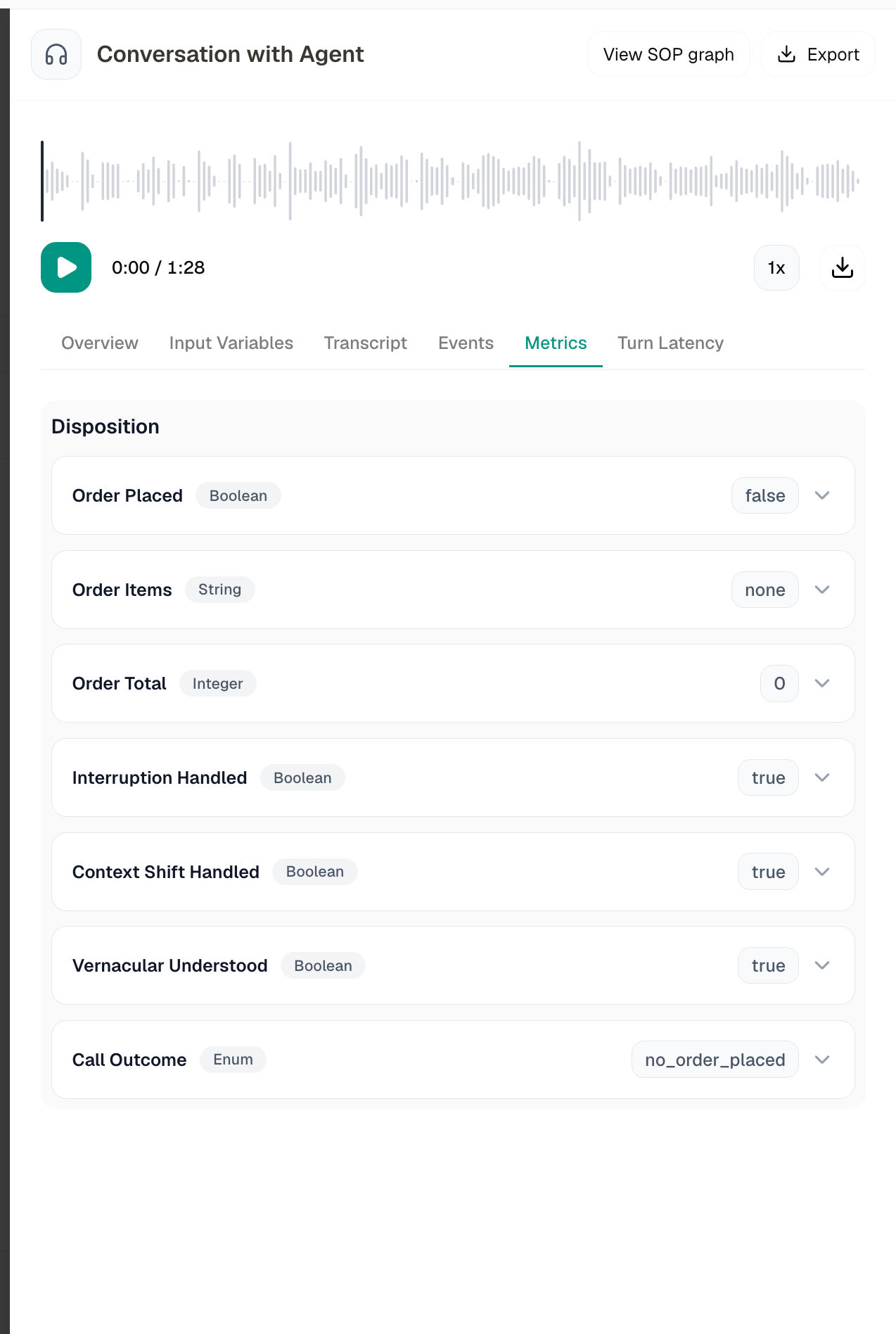
Click Details on any row to open the full call detail. At the top sits an audio player (with playback-speed control and a download button) for calls with a recording. Calls with no audio, chat conversations, or ones that never connected show an explanatory empty state instead. The detail view is organized into tabs:
Overview
Call summary plus the essentials: agent name, model, voice, date and time, disconnection reason, and average latency. Includes a Cost (Credits) breakdown you can expand to see the per-component cost.
Input Variables
Every input variable the conversation started with, both the system values (call_id, conversation_type, supported_languages, default_language, timezone, current_date, and similar) and any custom variables you defined.
Transcript
The full back-and-forth: agent and caller turns, each timestamped. Empty for calls that never connected.
Events
An Event Timeline of everything that happened mid-call: each turn, pre-call and mid-call API/tool calls, and the final call-end marker, all timestamped.
Metrics
The Disposition: results of your configured Post-Call Metrics for this call, each with its type (Boolean, String, Integer, Enum), its extracted value, and expandable reasoning.
Turn Latency
Per-turn response latency. Summary cards show Turns, Avg Latency, Median, and Min / Max, and a table breaks down each turn: when the user stopped speaking (User Ends), when the agent started (Agent Starts), and the gap between the two (Latency).
For multi-agent (Playbook) calls, click View SOP graph in the detail header to see the entire routing path as an interactive graph, with a replay button that walks through the path node by node.
Exporting
- Export at the top of the list downloads every conversation matching your current filters. Choose Download as JSON or Download as CSV.
- Export inside a single conversation’s detail view downloads just that call as JSON.
- The download button on the audio player saves that call’s recording directly.
CSV export uses a lighter column set than the JSON export, which includes everything shown in the detail view.