

API tool
Call your API mid-conversation. Method, URL, params, headers, auth, body, and an inline test.
An API tool calls your endpoint during the conversation and feeds the response back to the agent. Build it once in the Tools library (or from inside an agent) and reference it anywhere.
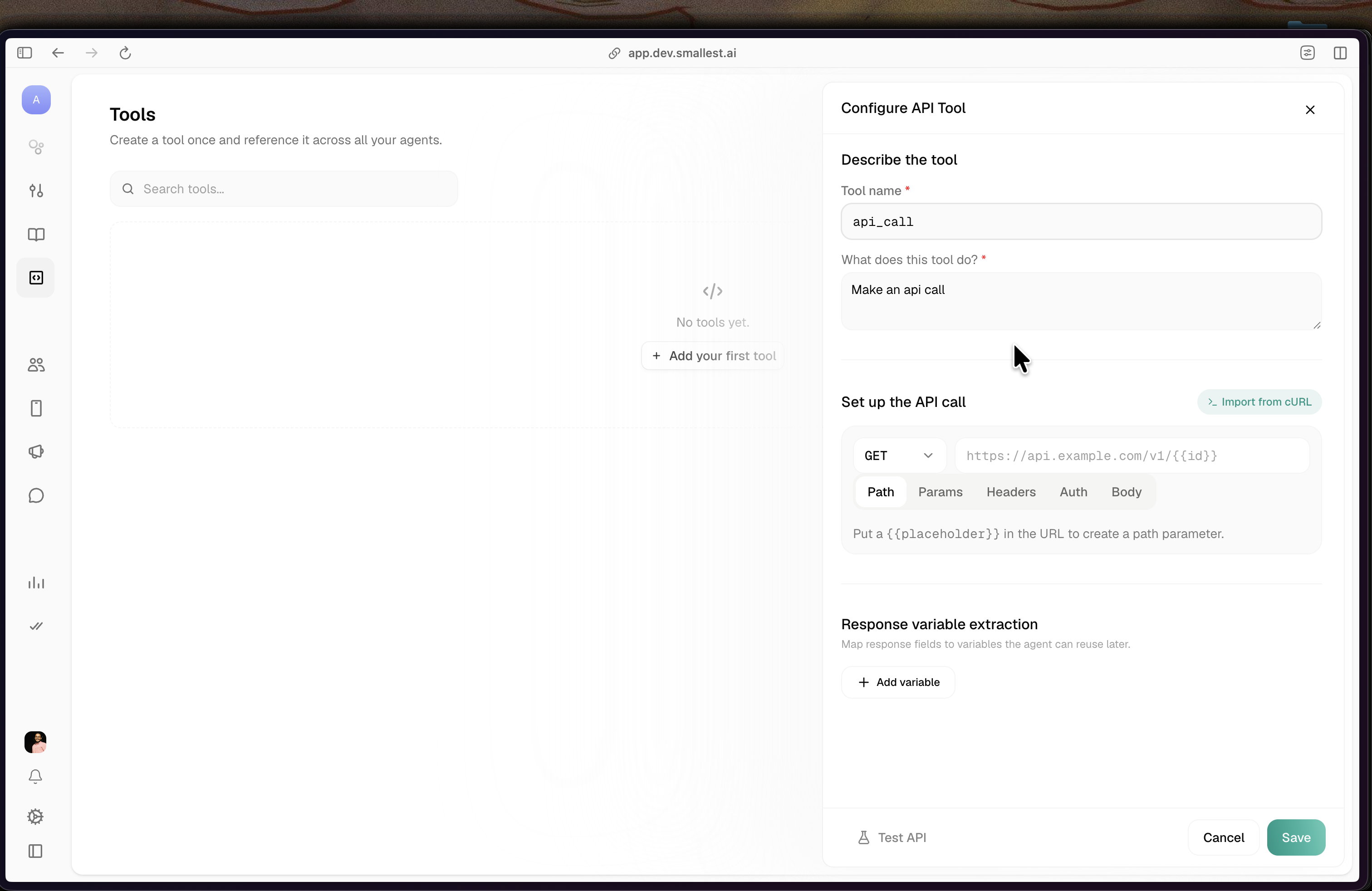
Describe the tool
- Tool name — a short identifier.
- What does this tool do? — the model reads this to decide when to call the tool, so write it in plain language for the agent.
Set up the API call
Pick the method (GET / POST / PUT / PATCH / DELETE) and enter the URL. Anything in double curly braces becomes a variable, e.g. https://api.example.com/v1/orders/{{order_id}}. A {{placeholder}} in the URL path shows up under the Path tab.
The call is configured across five tabs, each showing a count when populated:
Import from cURL
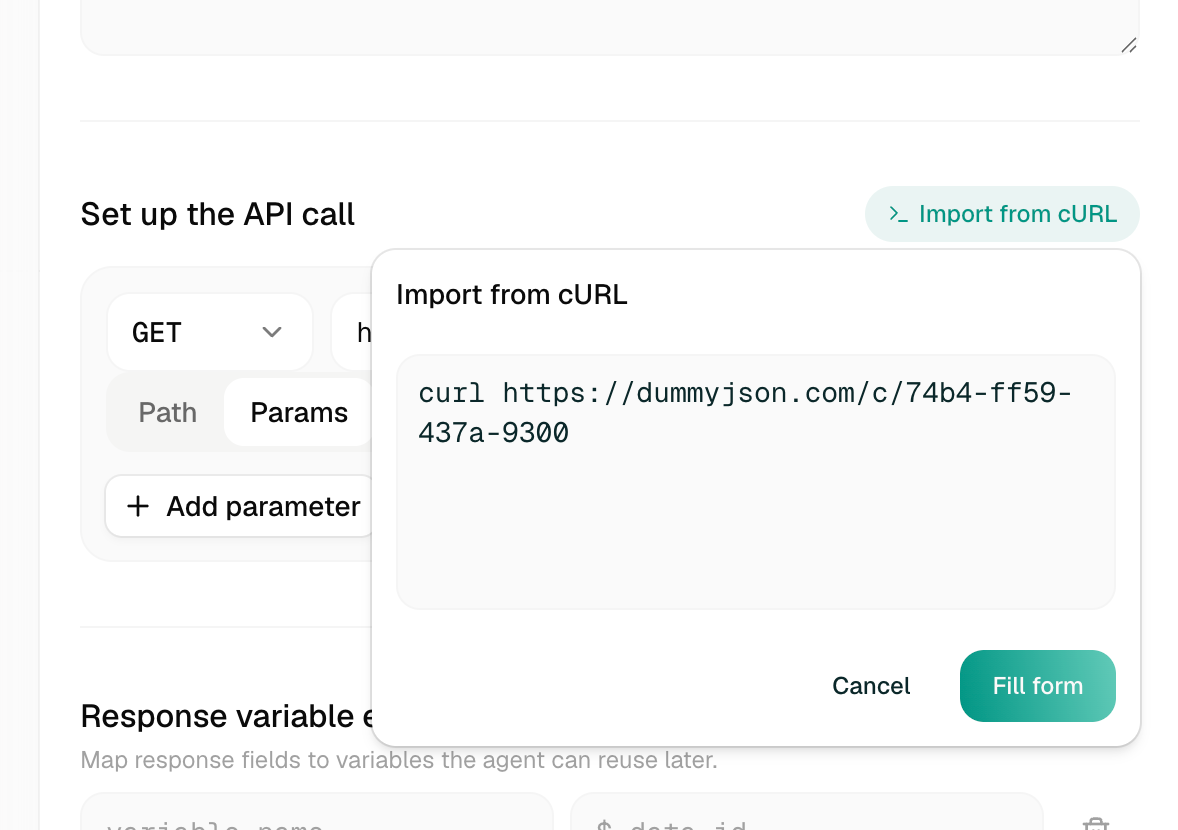
Already have a working request? Click Import from cURL, paste the command, and Fill form populates the method, URL, headers, params, and body for you.
Value sourcing
Every path param, query param, header, and body field draws its value one of three ways:
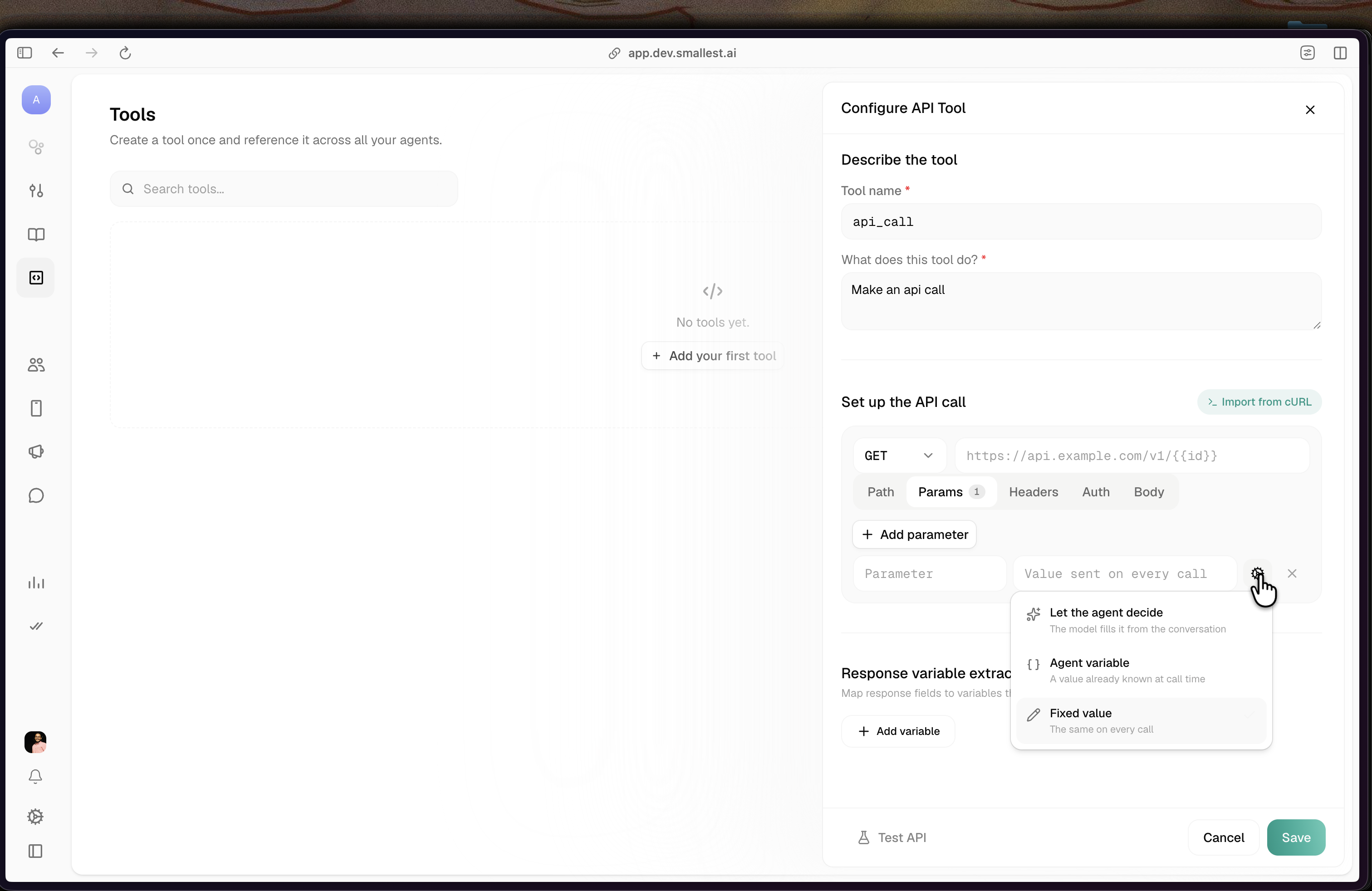
On the Body tab the same three modes appear as Agent decides / Agent variable / Fixed value — same behavior, slightly shorter labels.
Auth and secrets
The Auth tab handles authentication. You never paste a raw key here — you reference a secret by name, and the platform injects it into the outbound request at call time.
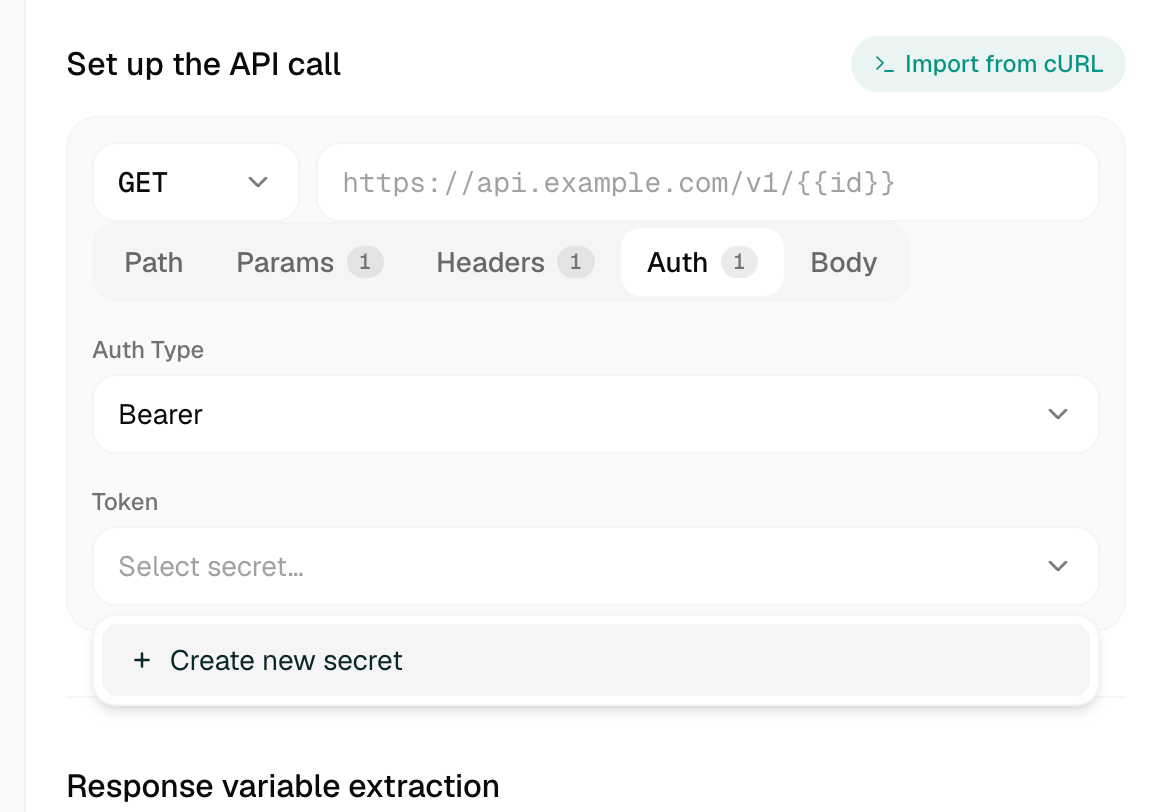
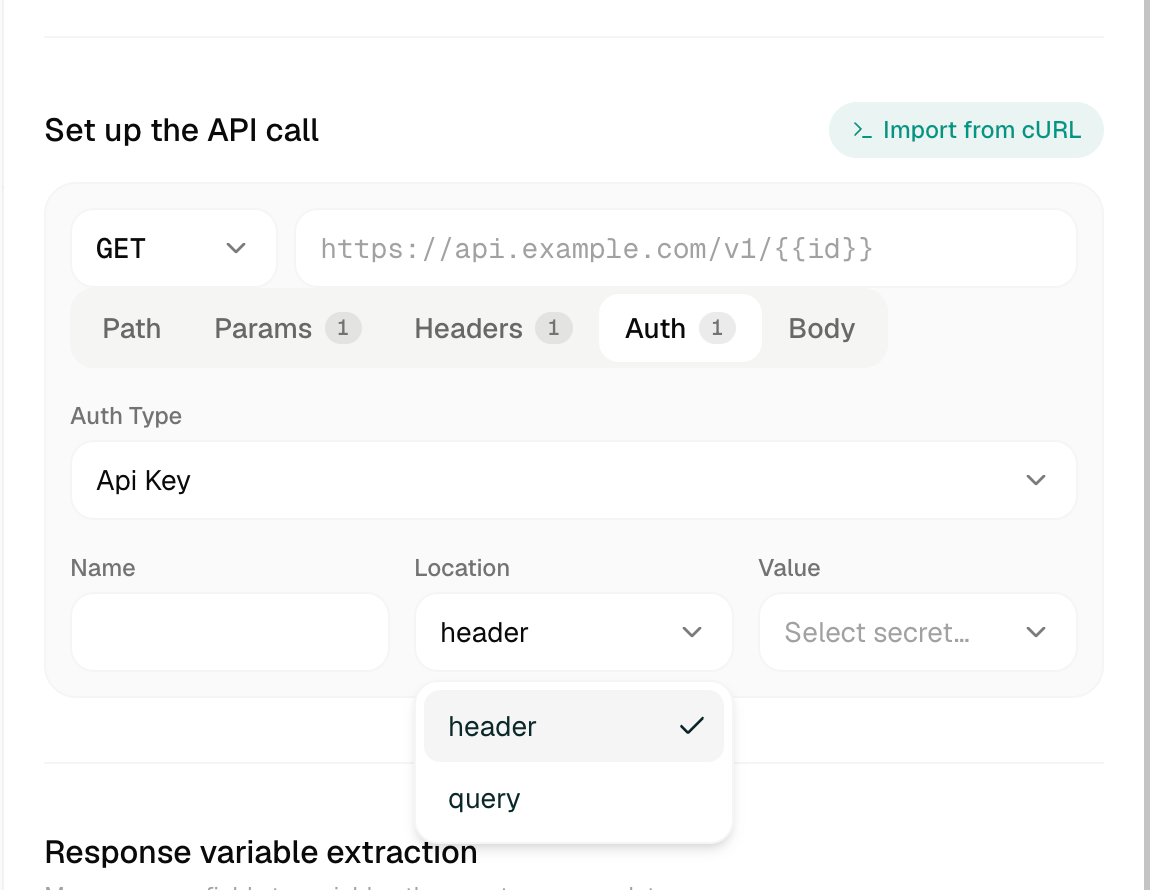
The secret is resolved and injected server-side at call time, then stripped before the config reaches the runtime — it never appears in the served agent config, call logs, or webhooks. Because of that, the inline Test API (below) runs without the auth secret, so testing an authenticated tool may return 401/403. Test against a public endpoint, or verify auth on a real call.
Body
For POST/PUT/PATCH, build the body field by field — each field has a data type (String / Number / Boolean / Object / Array), an identifier, and a value source. Or switch to Edit as JSON for a structured schema view. Live validation blocks a save with a broken body; Prettify reformats only.
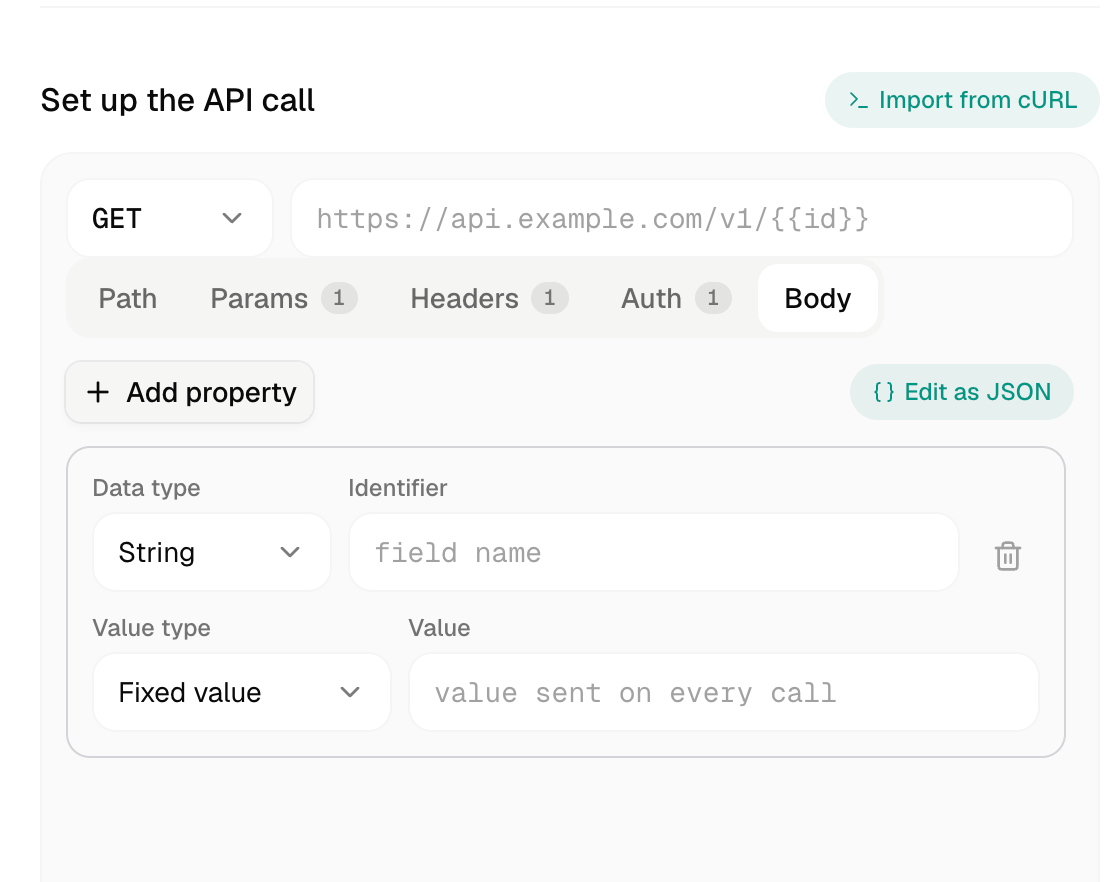
The Edit as JSON view is a per-field descriptor map. value_type is llm (carries a description + required), agent_variable (carries a variable), or fixed (carries a literal):
The type here is not the same axis in every row, which is expected: for an llm field it is the parameter type (text / number / boolean / enum), while for agent_variable and fixed fields it is the JSON data type (string / number / boolean / object / array). That is why customer_name reads "type": "text" and the others read "type": "string".
Nested shapes use {"type": "object", "properties": { … }} and {"type": "array", "items": [ … ]}.
Timeout and response extraction
- Timeout (ms) — how long to wait for a response (default 5000).
- Response variable extraction — map fields from the response into variables the agent can reuse later, by name and JSONPath (e.g.
order_total←$.total). Add as many as you need.
Test it
Click Test API, fill any sample inputs, and Run test to fire a live request and see the status + response inline — no separate tool needed.