
SIP Trunking for AI Voice Agents (Bring Your Own Number)
What is SIP Trunking?
SIP Trunking (also called BYOSIP or bring your own carrier) lets you connect a voice agent to phone numbers you already own. Instead of renting numbers through us, you keep them at your provider (or your own PBX / SBC) and route calls to our SIP infrastructure. Two flows:
- Inbound: your provider receives the PSTN call and forwards the SIP INVITE to Smallest’s ingress.
- Outbound: your Atoms agent originates a call, Smallest sends the INVITE to your provider’s termination host, and your provider completes the call to the PSTN.
We handle the conversation and media. Your provider handles the PSTN side.
Integrating a switch or reading packet captures? The SIP Wire Reference has the exact message flows, a real INVITE sample, response handling, timers, and transfer semantics.
Before you start
You need:
- A telephony provider that supports SIP trunking. Twilio, Telnyx, Vonage, Bandwidth, Plivo, an Asterisk / FreeSWITCH / Kamailio SBC of your own, and most enterprise carriers all work. If it can send and receive SIP (ideally over TCP or TLS), it will work here.
- Phone numbers configured to route to a SIP trunk in your provider’s settings.
- From your provider, know:
- the outbound (termination) SIP host you will send outbound calls to (a hostname or IP, optional port)
- which transports it accepts for inbound INVITEs from us (UDP, TCP, TLS)
- whether it wants credential auth or IP-based auth
- Numbers in E.164 format with the leading
+(+91XXXXXXXXXX, not91XXXXXXXXXX). Our ingress requires the+on the request URI. Without it, the call routes as if the destination were unmapped.
Transport contract
Our SIP ingress accepts SIP signalling on UDP, TCP, and TLS. Use TCP or TLS anyway. A production INVITE carries a full SDP body and can cross the size where a UDP datagram fragments on the path; many networks and firewalls silently discard fragments, so the INVITE never arrives and you get no response of any kind. Small requests like an OPTIONS ping still go through over UDP, so the trunk looks reachable while calls vanish.
Media is separate and stays RTP over UDP regardless of signalling transport. Nothing about audio quality or jitter changes when you move signalling to TCP or TLS.
Origination URL: what to send
The SIP origination URL is a bare SIP URI. The current production value, used in every example on this page, is:
Append a transport parameter and a +-prefixed number when your provider sends INVITEs. Two shapes work:
If your provider only lets you paste the hostname, configure the transport in the trunk’s SIP settings instead of in the URI.
Origination URL: good to know
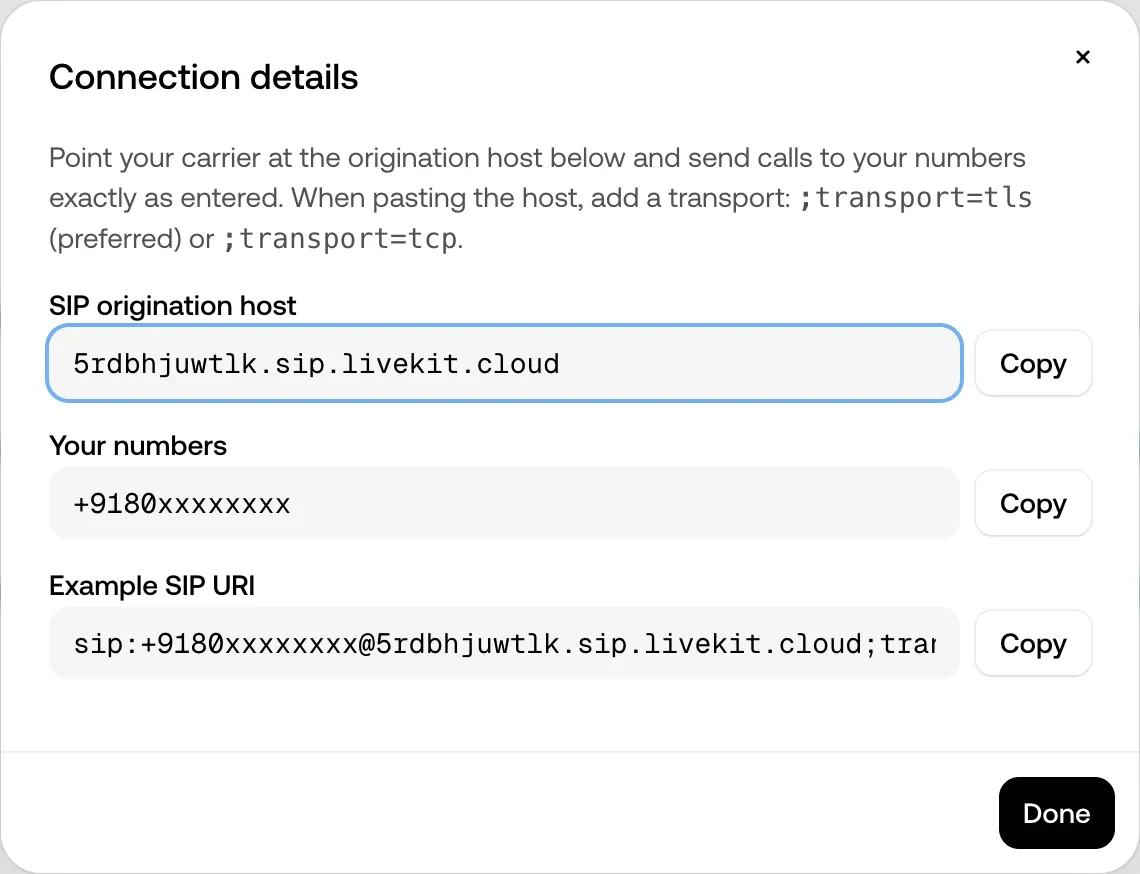
The origination URL is the same for every account: routing to your trunks happens by the numbers you configure, not by hostname. You can always read the current value off your own trunk: on the SIP Trunks page, open a trunk’s row menu and pick Connection details. The dialog shows the origination host, your numbers, and a ready-to-paste example SIP URI with the transport suffix. If the host ever changes, we will announce it in the changelog with notice; when in doubt, support@smallest.ai can confirm it for your setup. Adding the transport parameter and the + prefix is on your side, because those depend on where you paste it (some provider UIs have a separate transport field, others accept the URI parameter).
Setting up SIP Trunking
Step 1: Configure your provider (outbound to us)
Point inbound calls to your number at Smallest’s SIP ingress using TLS on 5061 (or TCP on 5060 as a fallback).
At a minimum:
- Destination URI:
sip:+E164@5rdbhjuwtlk.sip.livekit.cloud;transport=tls - Transport: TLS (or TCP)
- Codecs: G.722, G.711 (PCMU / PCMA). The answer picks the first codec both sides share; G.711 is the safe baseline.
- DTMF: RFC 2833/4733 (
telephone-eventin RTP). SIP INFO is not used. - Media encryption: SRTP is accepted; not required.
- RTP during silence: keep RTP (or comfort noise) flowing. A call with no RTP for 15 seconds mid-call (30 seconds at setup) is torn down.
If you run a Kamailio SBC, see the Kamailio configuration accordion below for the specific listen= and tls module lines.
Step 2: Create the trunks on Smallest AI
A trunk is one resource per direction: an inbound trunk receives your calls, an outbound trunk places them. Create only the direction you need.
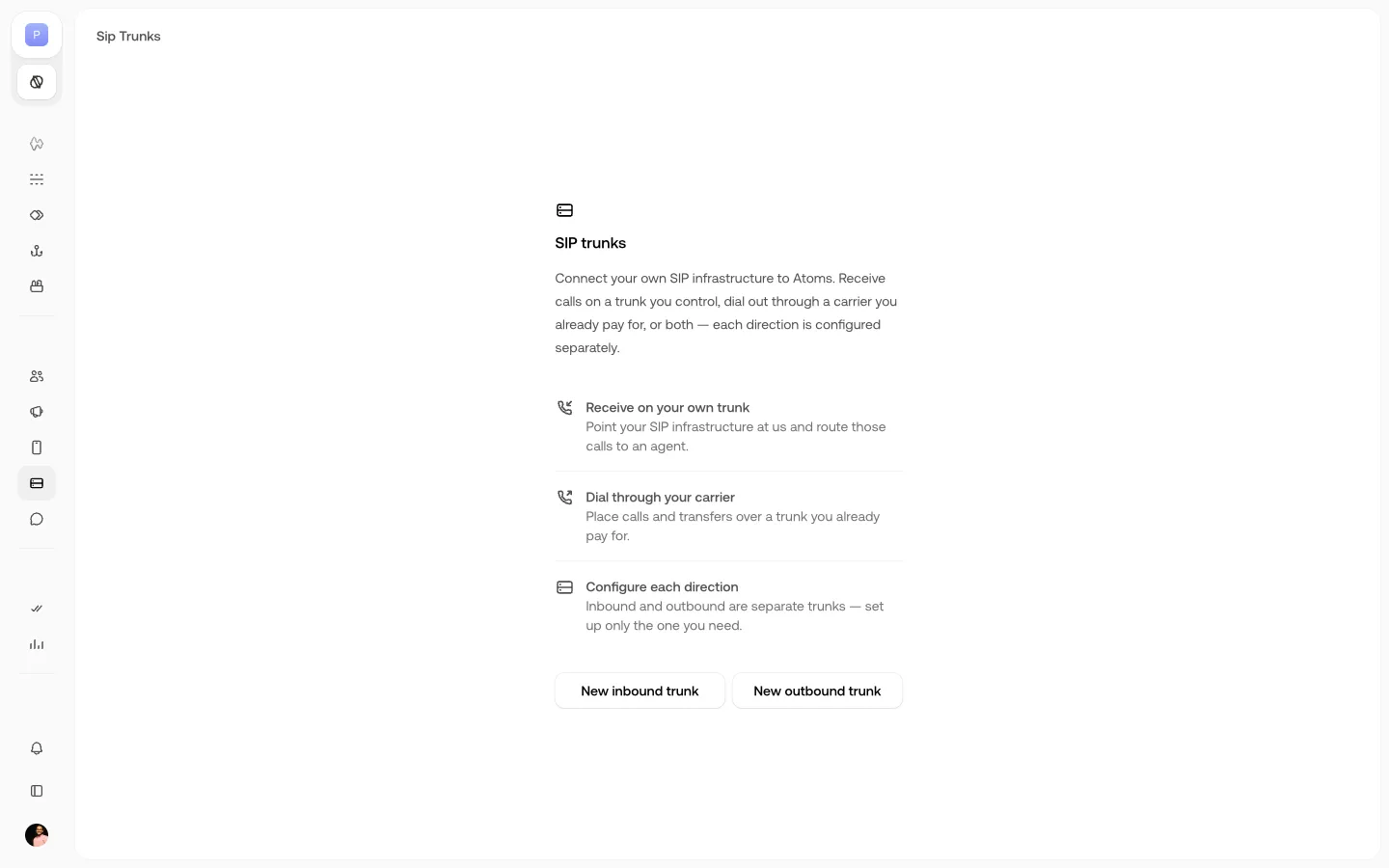
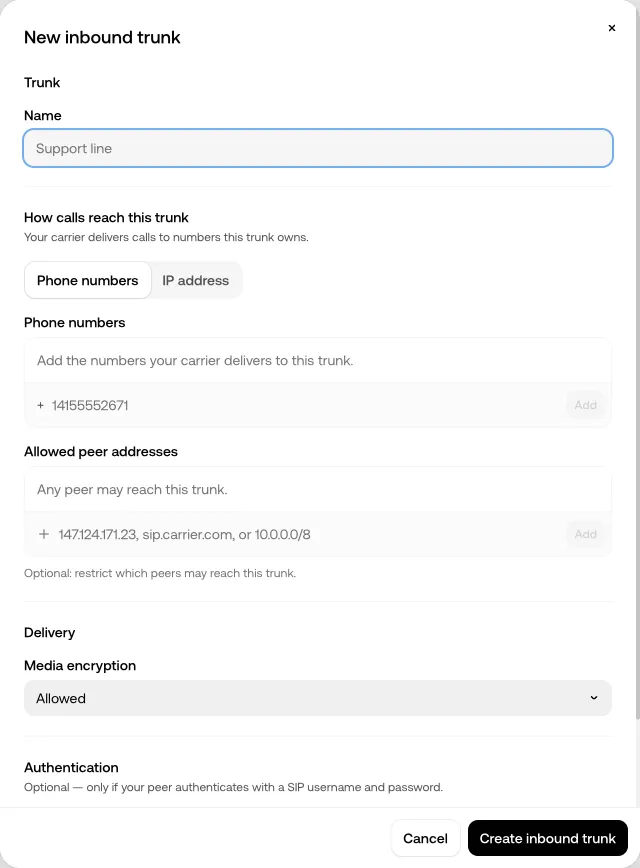
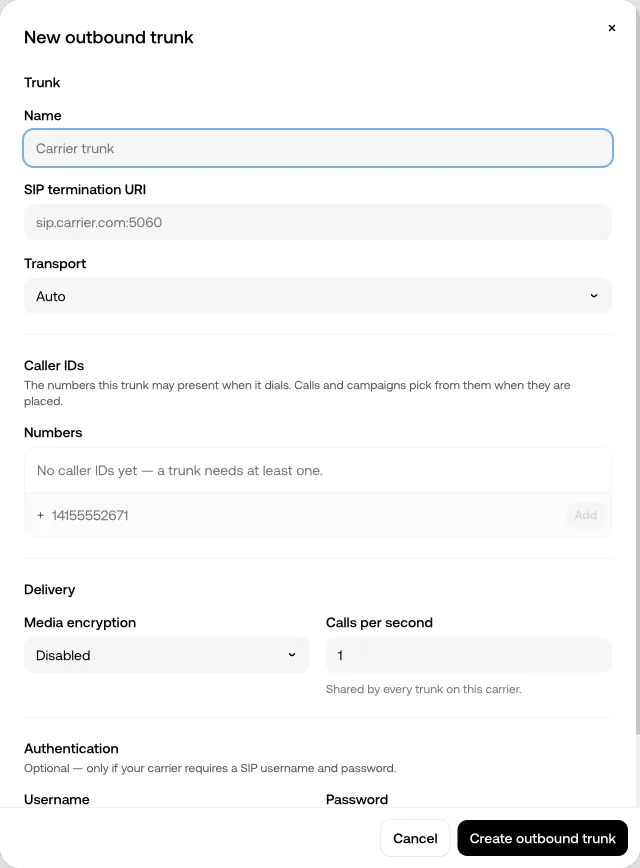
On the dashboard, open the SIP Trunks page (sidebar, under Deploy) and click New inbound trunk or New outbound trunk:
The inbound-trunk dialog:
The outbound-trunk dialog:
Via the API:
Field notes:
- Numbers: E.164 with the
+. Inbound numbers must match what your provider sends in theTo:header exactly. Outboundnumbersare the caller IDs the trunk may present. - Termination address (outbound): your provider’s SIP host, bare host or host:port (
sip.yourprovider.com:5060,203.0.113.10:5081). Fullsip:URIs are normalized to the bare host. Immutable after creation, liketransport. Changing carriers means delete and recreate. - Auth: digest username/password (both or neither), or leave blank for IP-based auth. For inbound,
allowedAddressesrestricts which hosts may send you calls. - The SIP Origination URL (the host your provider sends inbound INVITEs to) is
sip:5rdbhjuwtlk.sip.livekit.cloud, the same for every account; see the transport contract. Remember to append;transport=tls(or;transport=tcp) and the+-prefixed E.164 number when you configure your provider.
The previous single-call import endpoint, POST /product/import-phone-number, is deprecated but still works during the migration window and creates both trunks for you (responses carry a Deprecation: true header). Its dashboard counterpart, the “Import SIP” tab, has been removed. See the Telephony API migration guide.
Step 3: Attach the trunk to an agent
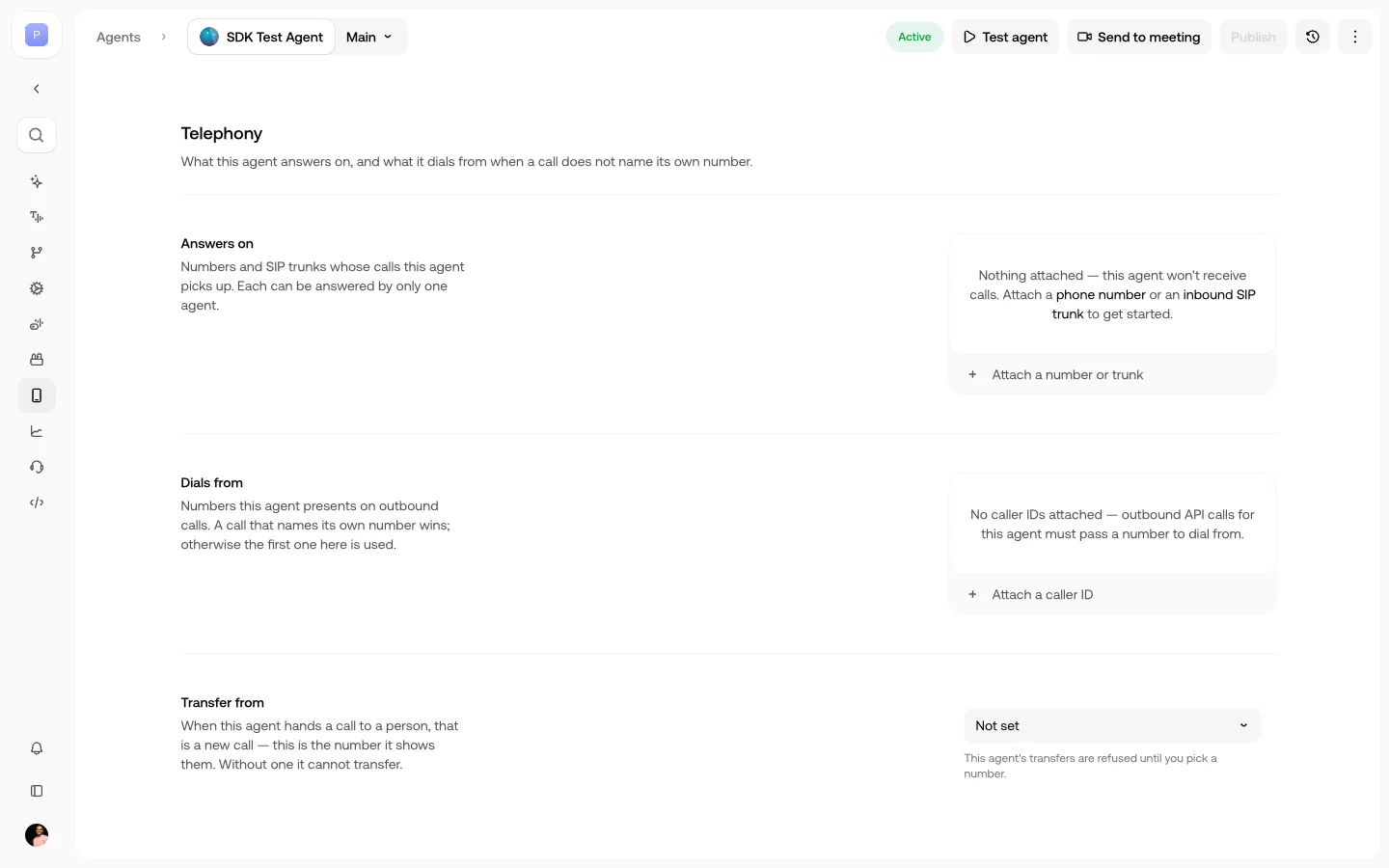
Inbound calls route to the agent that answers on the trunk. On the agent’s Telephony tab (the phone icon in the agent’s left sidebar), attach the trunk (or number) under Answers on, pick a caller ID under Dials from, and set the number transfers dial from under Transfer from:
Via the API:
The relationship is one-to-many: an agent can answer on any number of numbers and trunks, but each number or trunk is answered by exactly one agent. Until an agent answers on an inbound trunk, calls arriving on it are rejected. If the agent will transfer calls, also set its transfer caller ID (PUT /agent/AGENT_ID/transfer-source, or the Transfer from picker on the same tab). Transfers on inbound calls are refused without one.
For outbound, pass fromNumber on each call. Unlike inbound sources, caller IDs are shared: many agents may present the same number. (A deprecated caller-ID bridge, POST /agent/AGENT_ID/caller-ids, lets calls without a fromNumber dial from attached defaults during the migration window, first attached wins; it sunsets with the window.)
Step 4: Test
Once the trunks exist and the agent answers on the inbound one:
- Make an inbound test call from a real phone. If the agent picks up and audio flows both ways, you are done. If you hear silence or the call never connects, jump to Troubleshooting.
- Make an outbound test call from the agent (via the dashboard, or POST /conversation/outbound) to your own phone. Check that your provider bills the call to your termination trunk.
- On both directions, check call quality and audio symmetry.
Technical details
Supported features
Passing context with custom headers (inbound)
Any X-* header your provider adds to the inbound INVITE reaches your agent as a prompt variable. The header name is lowercased and runs of non-alphanumerics become underscores: X-Customer-ID: 4821 becomes x_customer_id. The reserved names call_id, user_number, agent_number, and conversation_type are ignored. Use this to pass your own call ID, campaign ID, or CRM context into the conversation.
SIP Origination URL (inbound to us)
The host your provider sends INVITEs to for calls arriving on your numbers. The URL from your dashboard (sip:5rdbhjuwtlk.sip.livekit.cloud) needs ;transport=tls or ;transport=tcp and the +-prefixed number:
SIP Termination URL (outbound from us)
The host we send INVITEs to for outbound calls your agent originates. You paste this at Step 2 above. It is your provider’s SIP host, optionally with a port. Not a full URI.
If you paste a full SIP URI (for example sip:sip.yourprovider.com:5060;transport=udp), the scheme, parameters, and any userinfo are stripped and only the bare host is stored. Values that cannot be normalised to a valid host are refused at import time.
IP allowlisting
Smallest does not require you to allowlist a specific inbound IP range on your provider side; use credential or IP-based auth at the SIP layer instead. If your setup does need our egress IPs (for example, a restrictive corporate firewall on your termination host), contact support.
Troubleshooting
Silence, no SIP response
The single most common cause: your INVITE is going over UDP and fragmenting. A full INVITE (SDP body, several codecs, your custom headers) can exceed the size a UDP datagram survives on the path; fragments get silently discarded by intermediate networks and firewalls, so nothing ever reaches us and nothing comes back. No reply, no ICMP, no rejection. Symptoms:
- Your SBC sends INVITE, retransmits per RFC 3261 (T1 backoff), all time out.
- Packet capture on your side shows outbound INVITE frames with no reply frames of any kind.
- An
OPTIONSrequest over UDP succeeds (it is small enough not to fragment), which falsely suggests the trunk is healthy.
Fix: add ;transport=tcp (port 5060) or ;transport=tls (port 5061) to the request URI, or configure the transport in your trunk’s SIP settings. TCP and TLS segment data and are immune to this failure mode.
Confirm with a sipsak OPTIONS ping after the change. Quote the URI, otherwise the shell splits at ; and sipsak falls back to UDP on port 5060.
You should see SIP/2.0 200 OK from the ingress. If OPTIONS times out on both TCP and TLS, the reachability problem is between your egress and our ingress (firewall, security group, routing), not on our side. If OPTIONS succeeds over UDP but your INVITEs still get no response, that is the fragmentation signature described above: switch the trunk to TCP or TLS.
Call rings but the agent never picks up (or vice versa)
Check the To: header on the INVITE against the number you imported. Two common mismatches:
- Missing
+prefix. Our ingress requires the leading+on the request URI. ATo: sip:91XXXXXXXXXX@...INVITE reaches us but does not match a mapped number, so the ingress does not route it to an agent. Rewrite your SBC to always sendsip:+91XXXXXXXXXX@.... - Wrong country code. The number you typed at import time must match the number in the INVITE exactly, digit for digit, including the country code.
One-way audio
- Confirm the
200 OKon the answered INVITE carries an SDP body with anm=audioline for RTP. In atcpdumpcapture:tcpdump -i any -s0 -w /tmp/sip.pcap port 5060 or port 5061, then open in Wireshark and inspect the200 OKSDP. - If RTP is present in the SDP but no audio flows, media (RTP over UDP) is blocked at your firewall or NAT. SIP signalling and media traverse separately.
- If SRTP is required on your side, verify the SDP negotiates
RTP/SAVPrather thanRTP/AVP.
Retransmission or duplicate INVITEs
TCP and TLS carry SIP signalling reliably; there is no need for the RFC 3261 UDP-style retransmit ladder. If you see duplicate INVITEs from your SBC, your transport is UDP on the wire (possibly a fallback from a config typo) and the retransmissions mean no response is arriving. Move signalling to TCP or TLS.
Kamailio
Adding TCP transport
In your kamailio.cfg:
Open port 5060 TCP inbound in your security group. Reload Kamailio and re-send INVITEs to sip:+E164@5rdbhjuwtlk.sip.livekit.cloud;transport=tcp.
Adding TLS transport
Requires the tls module compiled in and configured with certificates. Check whether TLS is compiled in:
If absent, rebuild Kamailio with --with-tls or install the kamailio-tls-modules package (Debian / Ubuntu). Then in kamailio.cfg:
Configure tls.cfg with your certificate chain and re-send INVITEs to sip:+E164@5rdbhjuwtlk.sip.livekit.cloud;transport=tls.
Still stuck
Capture a call attempt on your side:
Reproduce the failing call, then stop the capture. Email support@smallest.ai with:
- the pcap
- the exact
To:andRequest-URIfrom one failing INVITE (sanitise any secrets first) - our call ID if the call reached us: the
tagon theFromheader of any INVITE we sent (SCL_...) - the number you imported, and the phone number you dialled
- the transport you configured (
;transport=tcpor;transport=tls)
Every call that reaches us has a full capture on our side too; with the SCL_ call ID, support can pull it and compare against yours. Message-by-message expectations are on the SIP Wire Reference.
Common provider examples
<AccordionGroup> <Accordion title=“Twilio” icon=“file:docs/assets/icons/call.svg”> Twilio supports SIP trunking through Elastic SIP Trunking. Both inbound and outbound flow through their trunk.
Quick setup:
- Create an Elastic SIP Trunk in Twilio Console.
- On the trunk’s Origination tab, add the SIP URI
sip:5rdbhjuwtlk.sip.livekit.cloud;transport=tls. Twilio uses TLS on 5061 by default when you specifytransport=tls. - On the Termination tab, note the termination URI (a hostname ending
.pstn.twilio.com). That is your SIP Termination URL at Step 2 above. - Assign your numbers to the trunk.
- Create the trunks on Smallest AI (Step 2 above) with the Twilio termination host on the outbound trunk.
- Test both directions.
</Accordion>elisting, and DID configuration. </Card>
</Accordion> <Accordion title=“Telnyx” icon=“file:docs/assets/icons/live-full.svg”> Telnyx SIP Connections support both credential and IP-based auth. Both work here.
Quick setup:
- Create a SIP Connection in the Telnyx Portal.
- On Inbound, add the Smallest destination as an inbound SIP URI:
sip:5rdbhjuwtlk.sip.livekit.cloud;transport=tls. - On Outbound, note the outbound SIP URI Telnyx assigns. That is your SIP Termination URL for Step 2.
- Assign numbers to the connection.
- Create the trunks on Smallest AI (Step 2 above) with the Telnyx termination host on the outbound trunk.
</Accordion>ns, DID routing, and monitoring. </Card>
</Accordion>
<Accordion title=“Vonage” icon=“file:docs/assets/icons/call-outgoing.svg”>
Vonage Voice API supports SIP endpoints via the sip.connect NCCO action.
Quick setup:
- Create a Voice API application in Vonage Dashboard.
- In the answer URL webhook, use the
connectNCCO to send the call tosip:5rdbhjuwtlk.sip.livekit.cloud;transport=tls. - Note the outbound SIP endpoint Vonage assigns to your app. That is your SIP Termination URL for Step 2.
- Link your numbers to the application.
- Create the trunks on Smallest AI (Step 2 above) with the Vonage termination host on the outbound trunk.
</Accordion>setup, and SIP endpoint details. </Card>
</Accordion>
Own SBC (Asterisk, FreeSWITCH, Kamailio)
Configure your outbound trunk to 5rdbhjuwtlk.sip.livekit.cloud with transport=tls on 5061 (or transport=tcp on 5060 as a fallback). UDP is accepted but not recommended: full-size INVITEs can fragment and be lost silently. Set the request URI to sip:+E164@5rdbhjuwtlk.sip.livekit.cloud;transport=tls.
For Kamailio-specific listen= / TLS module setup, see the Kamailio accordion under Troubleshooting.
For your termination host (what we send outbound to), open the port you configure Smallest to send to. Both TCP and TLS are recommended; UDP is fine on your termination side but not required.
</AccordionGroup>
VPN-only providers
Some carriers cannot send SIP to cloud endpoints at all: they require a VPN, private IP addressing, or a fixed IP to whitelist. That case still needs the managed SIP gateway. Contact support@smallest.ai with your provider’s connectivity requirements.
Best practices
- Use TLS in production. Signalling in the clear over TCP is fine for staging; TLS is the norm on production trunks.
- Test both directions and both transports. If TLS is your primary, confirm TCP fallback works before you need it.
- Store SIP credentials in a secrets manager. Not in your provider’s plaintext trunk config where possible.
- Keep numbers in E.164 with the
+. Both when importing and in every INVITETo:header.
Limitations
- Signalling over UDP, while accepted, is not recommended: full-size INVITEs can fragment and be lost silently. Use TCP or TLS.
- SDP must be an early offer (included in the initial INVITE). Delayed offer is not supported.
- SRTP is optional, not required. If you require SRTP end to end, negotiate it in your SDP.
- No fixed inbound IP range is published for provider allowlisting. Contact support if your setup needs it.
Pricing
Imported numbers via SIP trunking:
- No monthly rental fee charged by Smallest AI
- You pay your telephony provider directly for number hosting
- Standard Smallest AI per-minute call rates apply
- No additional fees for SIP trunk configuration
See the Pricing page for current per-minute rates.
Need help?
- Email:
support@smallest.ai - Discord community
- FAQ
FAQ: SIP trunking with voice agents
Can I connect a voice agent to my existing SIP trunk from Twilio, Telnyx, or Plivo? Yes. Any provider that supports standard SIP trunking works; point your trunk’s origination at the URI above and create the matching inbound trunk here. Provider-specific steps are in the accordions above.
Can a voice agent take calls without a phone number? Yes, over a direct SIP connection: an IP-address trunk answers calls your PBX, SBC, or contact-center platform sends to its minted identity. No DID required.
Can I keep my current carrier and contact center? Yes. The trunk model is additive: your carrier keeps the numbers, your contact center keeps its queues, and calls route to the agent over SIP in whichever direction you configure.
Why do my calls fail with no error at all? Almost always transport: large INVITEs fragment over UDP and disappear silently, or a firewall drops unknown sources. See the transport contract and troubleshooting.
How do transfers to a human work? As a second outbound call bridged to the first, never SIP REFER. Details on the SIP Wire Reference.