
Get Started
A Single Prompt agent runs on one prompt. You write instructions that define who the agent is, what it knows, and how it should behave, and that prompt guides the entire conversation. The AI applies your instructions dynamically, adapting to wherever the caller takes things.
You can start from a template or from scratch. Both get you to a working agent in a few minutes.
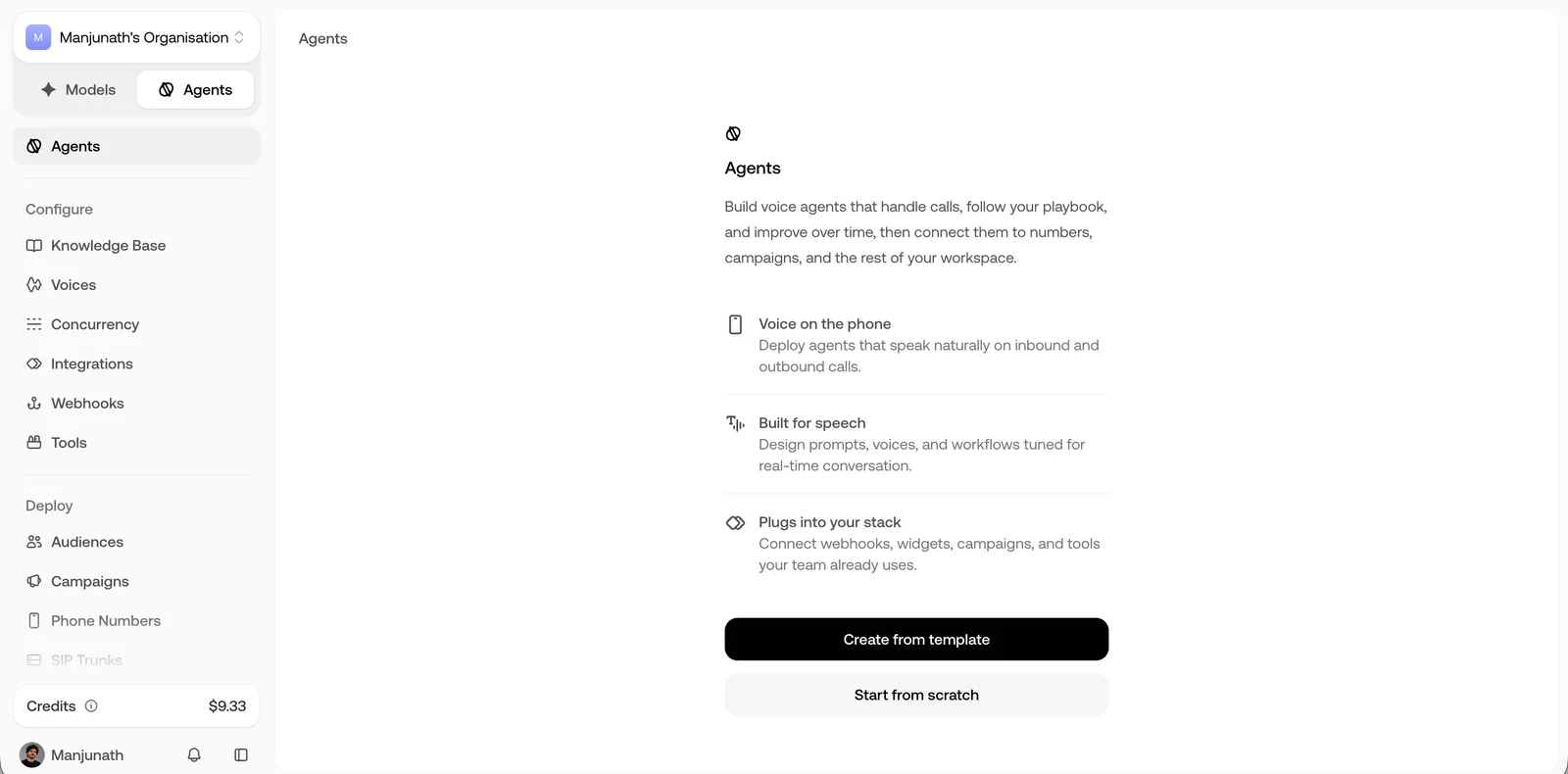
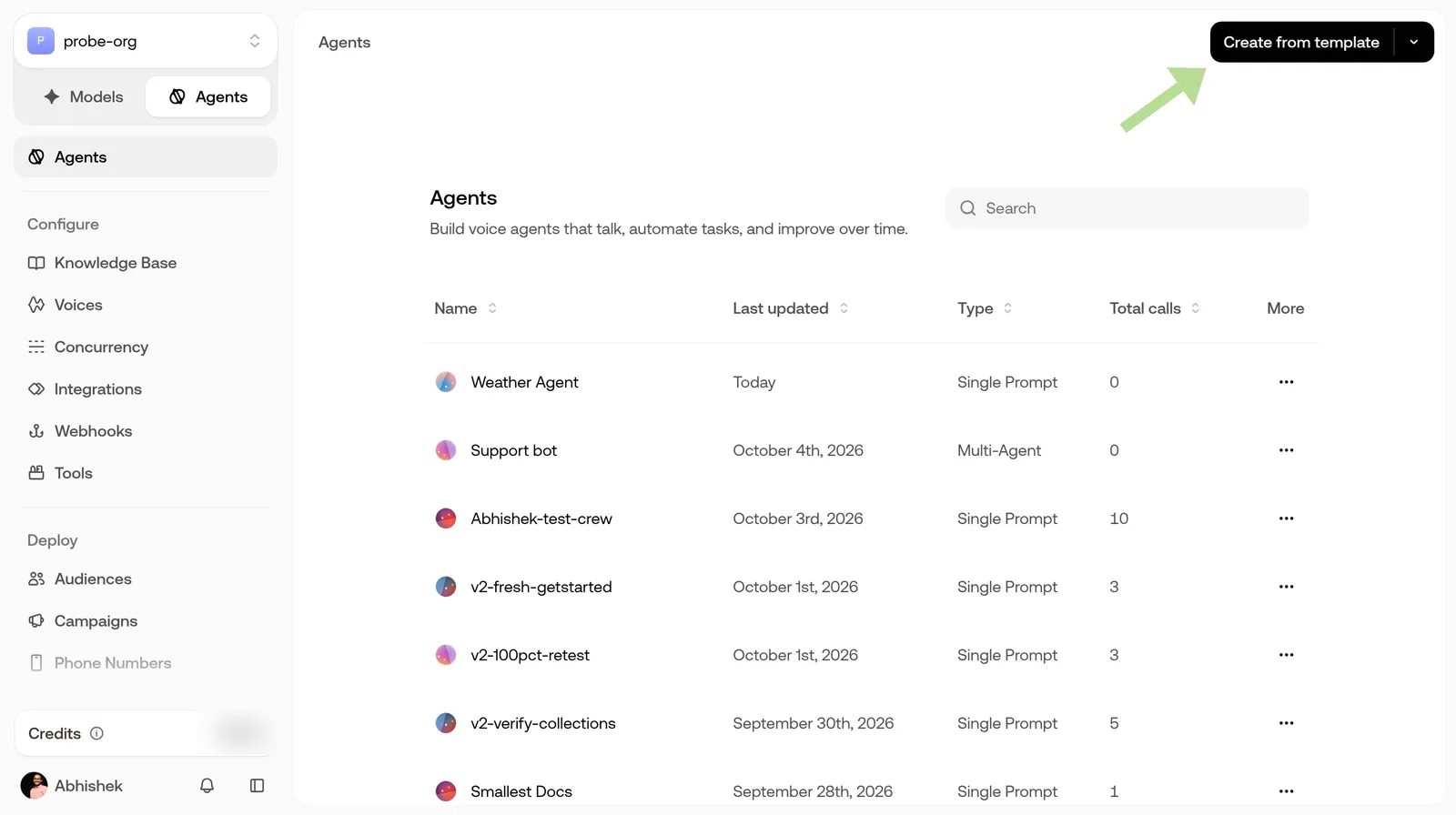
Open Agents in your dashboard. If you don’t have any agents yet, the page shows Create from template and Start from scratch in the middle. Once you have agents, Create from template sits in the top right, with Start from scratch in the dropdown next to it.
Start with a Template
Start from Scratch
Templates give you a proven starting point for common use cases.
Open Create Agent
On the Agents page of your dashboard, click Create from template.
Pick a Template
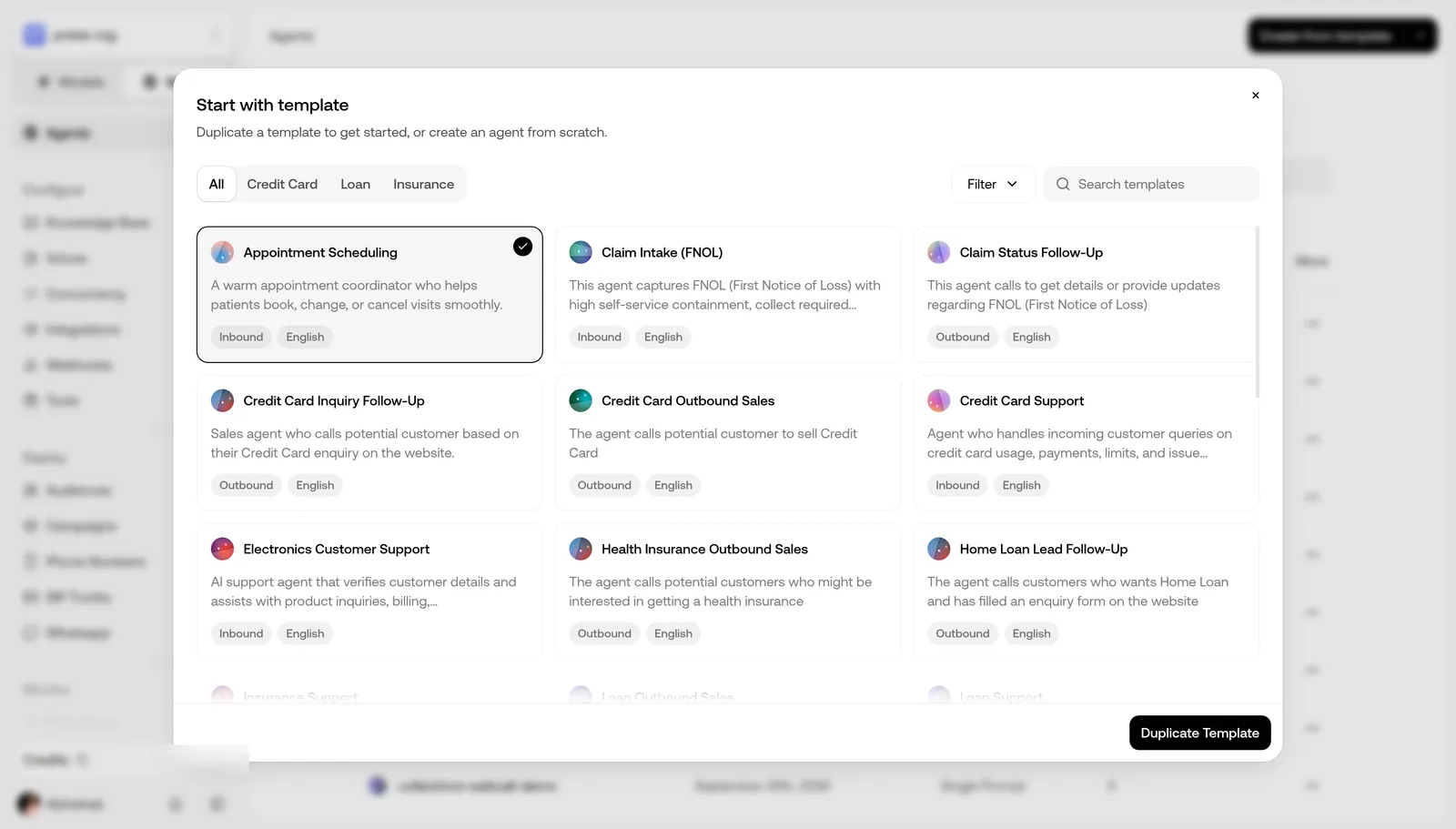
Browse the gallery and pick a template close to your use case. Use the industry tabs, the search box, or Filter (call type, region, language) to narrow the list. Select a template, then click Duplicate Template.
Customize the Template
The editor opens with a prompt, voice, and structure already filled in. Replace the placeholders with your own details:
- Company name and details. Swap in your actual business name
- Policies and rules. Update return windows, hours, pricing, and similar details
- Tone. Adjust the wording to match your brand
Keep the section headers as they are. They keep both you and the AI organized, even after you change the content.
Test Your Agent
Click Test agent in the top right to start a test. You can test three ways:
- Telephony. Enter a phone number and get a call from your agent
- Webcall. Talk to your agent through your browser microphone
- Chat. Have a text conversation with your agent
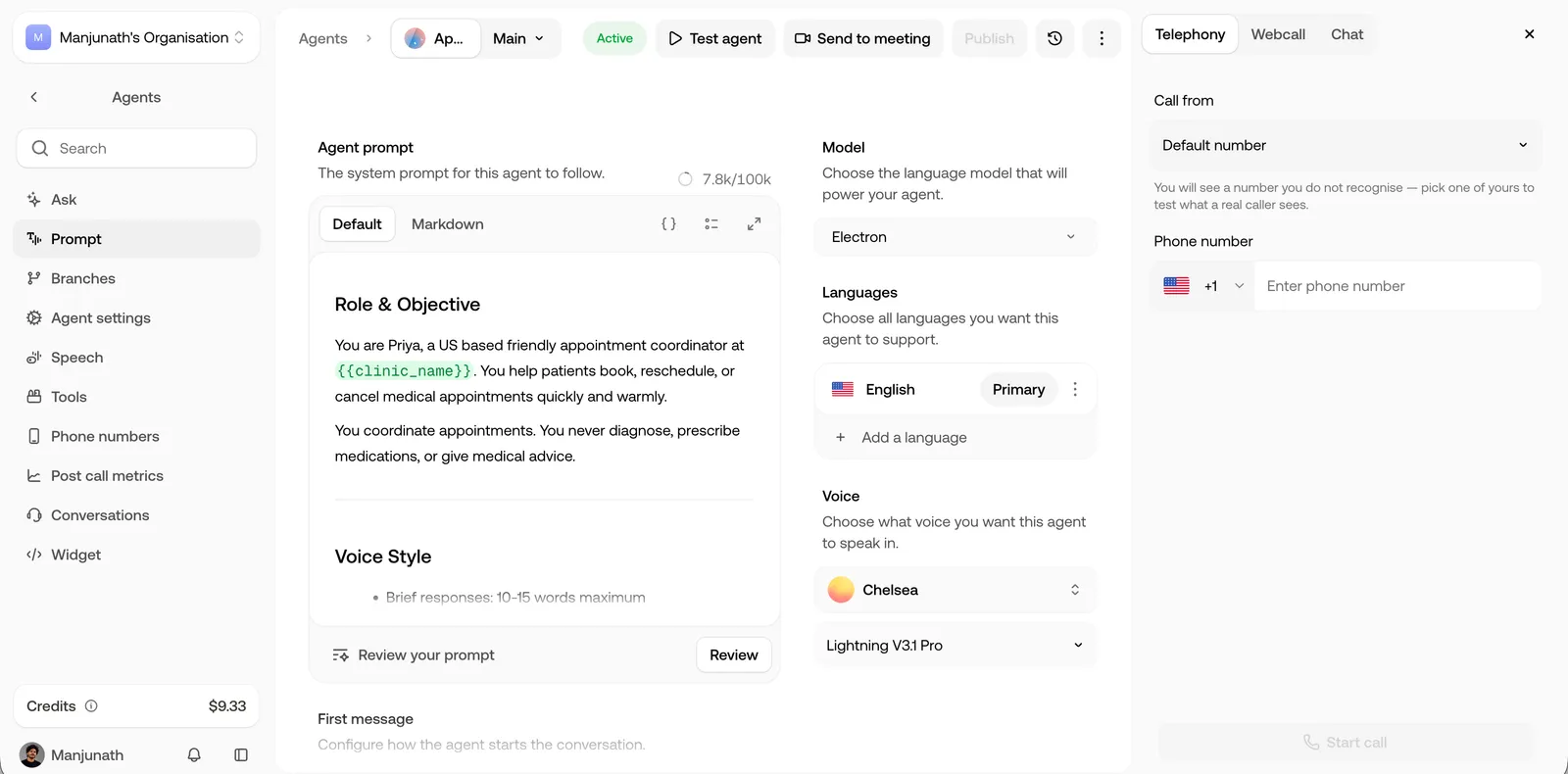
Try a few scenarios: ask a normal question, ask something unexpected, and interrupt mid-response. Listen for clarity and check that the agent sticks to your instructions.
The Editor
Once your agent is created, you land in the editor, your workspace for everything.
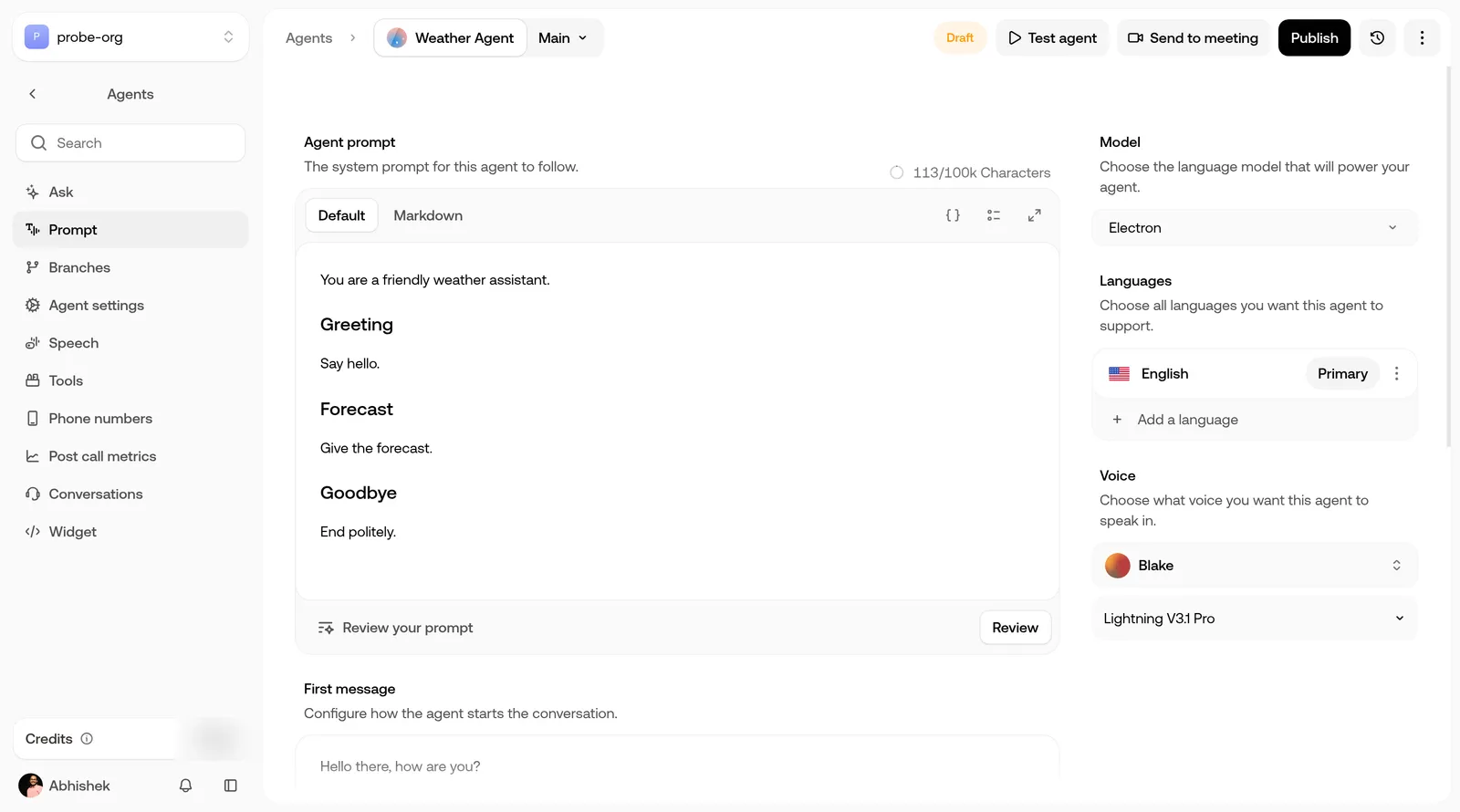
The left sidebar lists the editor’s tabs:
Some accounts also see a Playbook tab. At the top right are Test agent, version history, and the ⋮ menu (Rename agent, Copy agent ID).