
Manual Setup
Step-by-step config for Cursor, Claude Desktop, and Claude Code.
Requires Node.js 18+ - see Prerequisites if you need to install it.
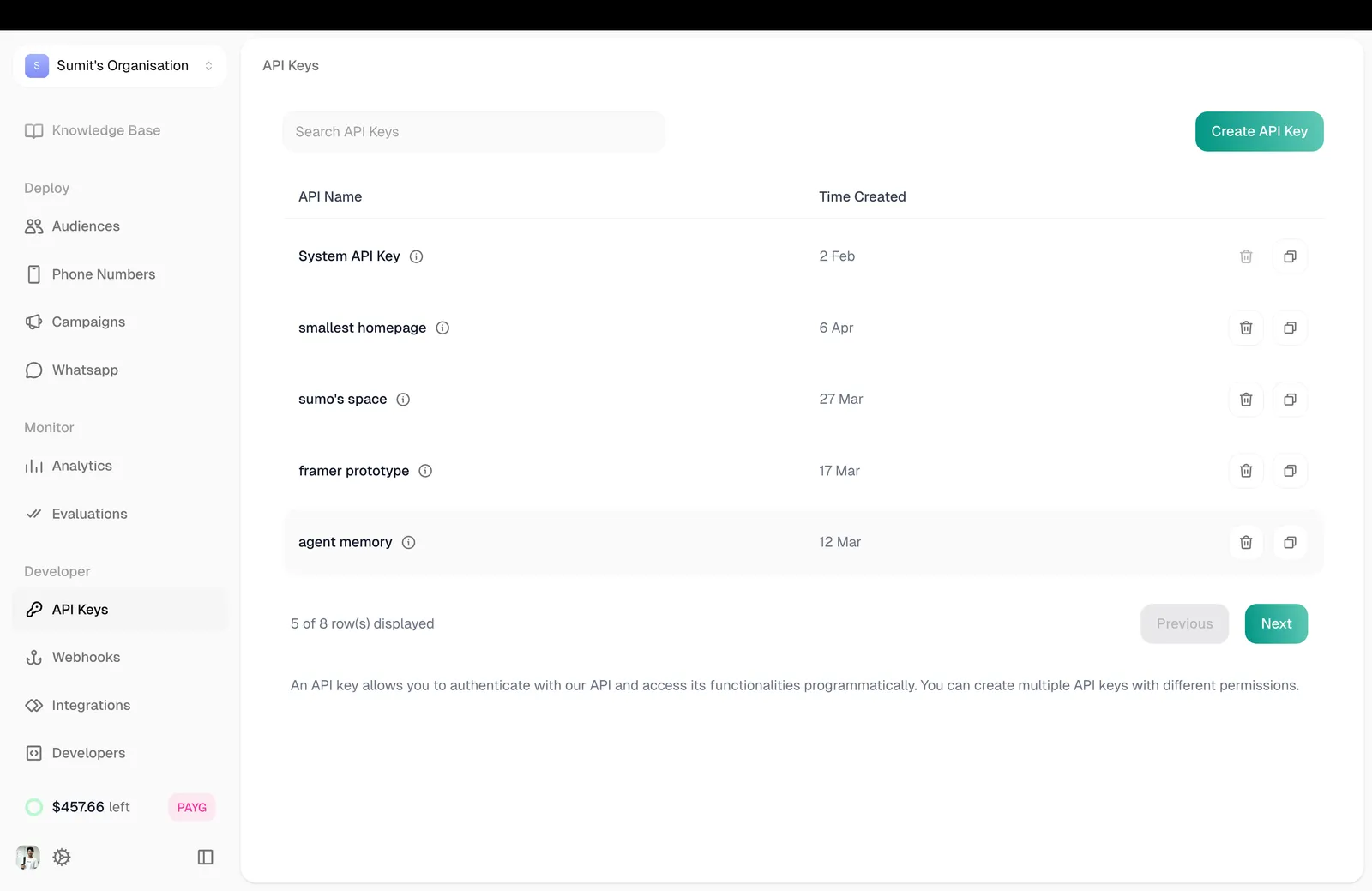
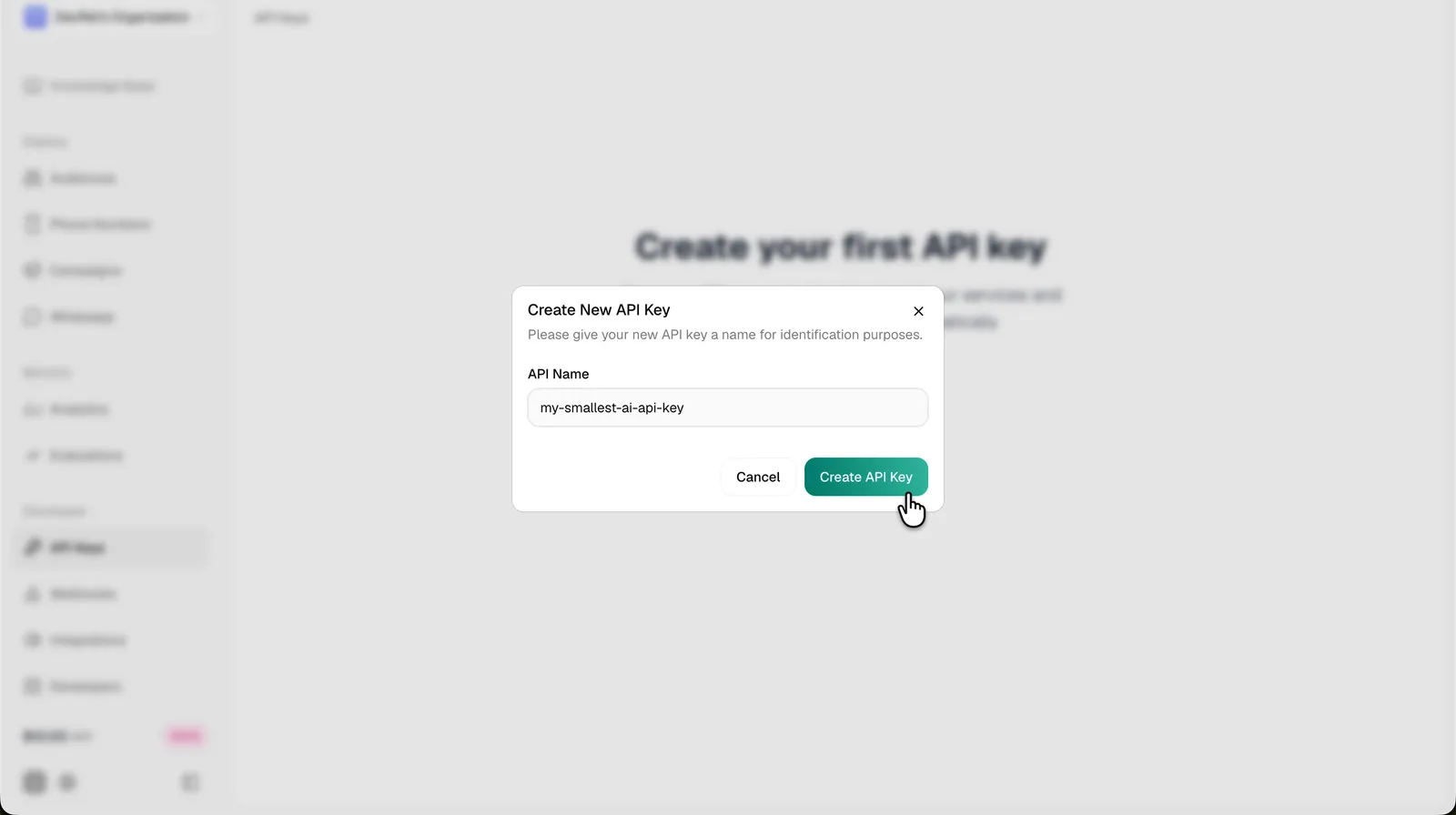
Get Your API Key
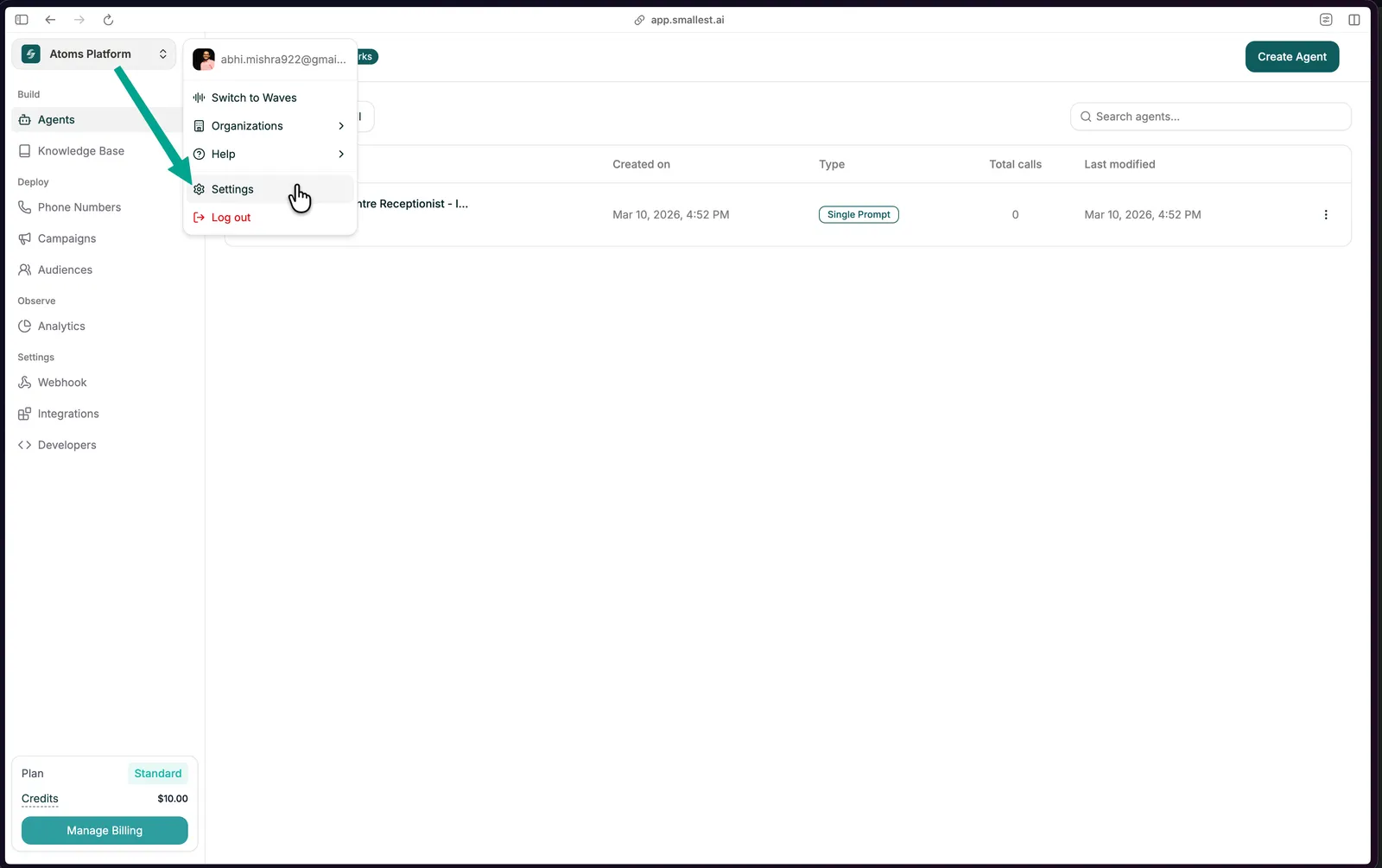
Open Settings
Click your profile in the top-left of app.smallest.ai and select Settings.
Install
Already have the Python SDK? smallestai mcp prints this config and the claude mcp add
command for you, and smallestai mcp run launches the server via npx. The manual steps
below do the same thing by hand.
Cursor
Claude Desktop
Claude Code
Open (or create) your Cursor MCP config file:
Paste this config. If you already have other MCP servers, just add the "smallest" entry inside "mcpServers".
Replace sk_your_api_key_here with your actual API key.
Don’t share your API key or commit it to git.
Restart your editor
Cursor
Claude Desktop
Claude Code
Cmd+Shift+P (Mac) or Ctrl+Shift+P (Windows) → Developer: Reload Window
Verify
Cursor
Claude Desktop
Claude Code
Go to Cursor Settings → MCP. You should see smallest listed with a green dot.
Open a new chat (make sure you’re in Agent mode, not Ask mode) and type:
You should see your agents listed back. If you do - you’re done!
Troubleshooting
npx: command not found
Node.js isn’t installed or isn’t in your PATH. See Prerequisites for installation instructions.
MCP server doesn't show up in Cursor
- Make sure the
mcp.jsonfile is valid JSON (no trailing commas) - Verify the file is at
~/.cursor/mcp.json(not inside a project folder) - Reload the window:
Cmd+Shift+P→ Developer: Reload Window
'Invalid or revoked API key' error
- Check that you copied the full key starting with
sk_ - Generate a new key from app.smallest.ai → Settings → API Keys
Next steps
Head to the Prompt Cookbook - it has copy-paste prompts for everything you can do.