
Run an AI Outbound Calling Campaign
Campaigns let you reach out to your audiences automatically. Set up an agent, pick an audience, and let Atoms call through your contact list.
Your Campaigns
Location: left sidebar → Deploy → Campaigns
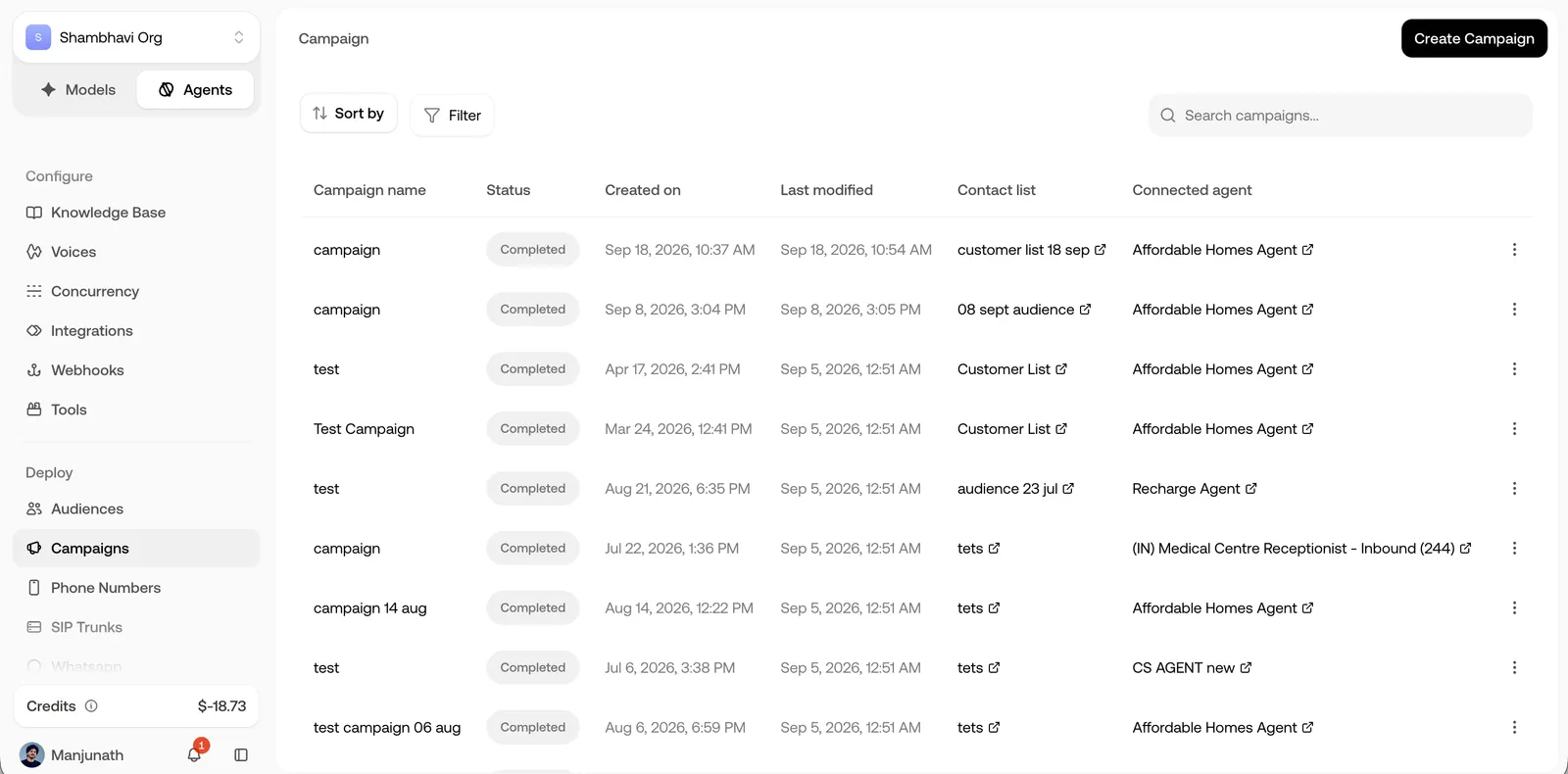
The Campaigns page shows all your outbound calling programs.
Sorting: Created on, Last modified
Filters: All, Draft, Scheduled, Active, Paused, Completed
Creating a Campaign
Click Create Campaign (top right).
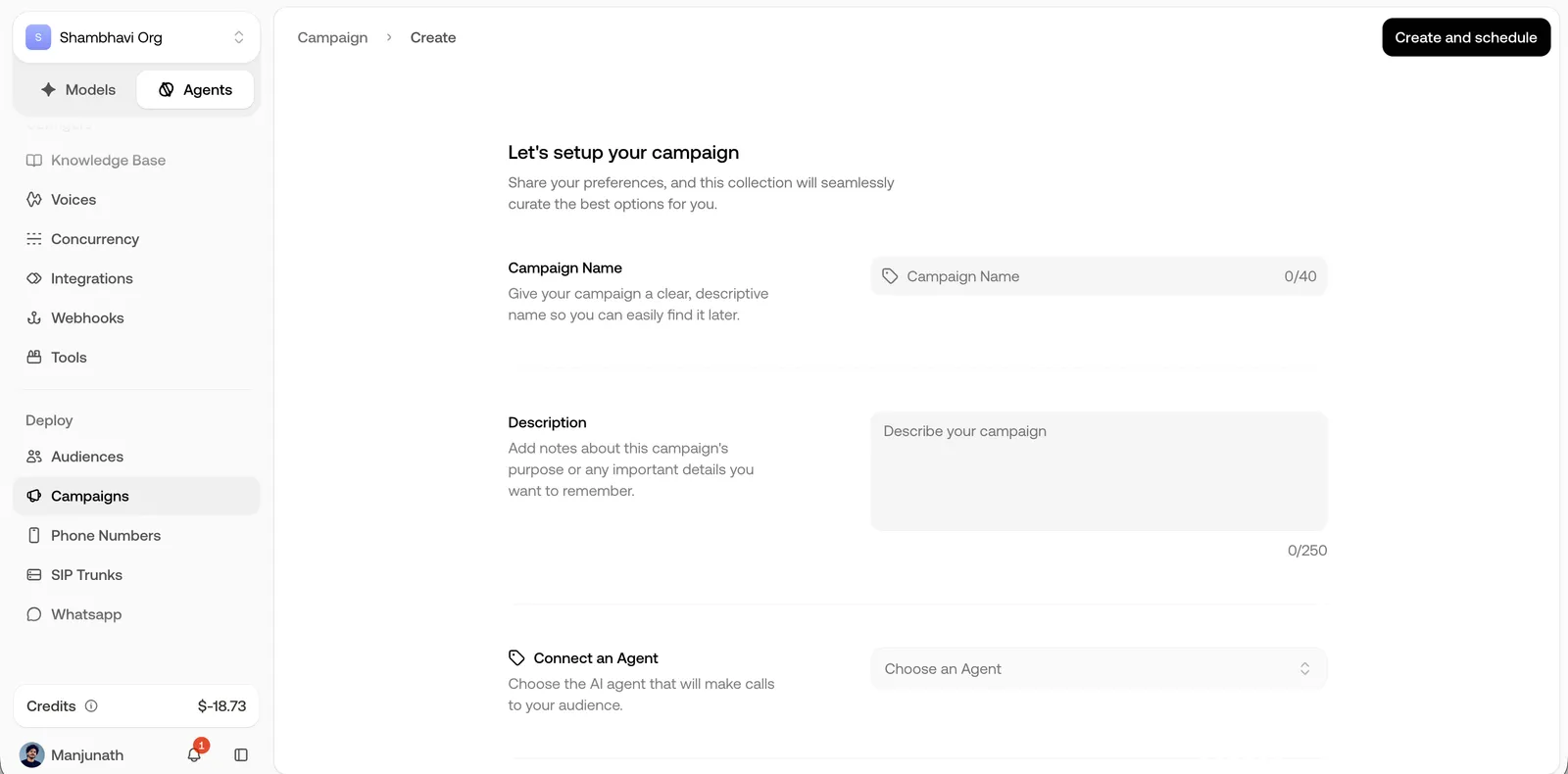
Click Create and schedule (top right) when done. If you picked Launch Immediately, the button reads Create and Run.
Creating campaigns over the API instead? Call from maps to fromNumbers (an
array of your E.164 numbers), and Max Retries / Retry Delay map
to maxRetries and retryDelay (REST) or max_retries and retry_delay
(SDK), both integers. See Creating campaigns
for the full request shape. The number list is frozen when the campaign is
created, so adding numbers elsewhere never reshuffles a run in flight.
Campaign Analytics
Click any campaign to view its performance. You’ll see summary cards at the top:
Below that, three tabs show detailed analytics:
Call Logs
Campaign Events
Executions
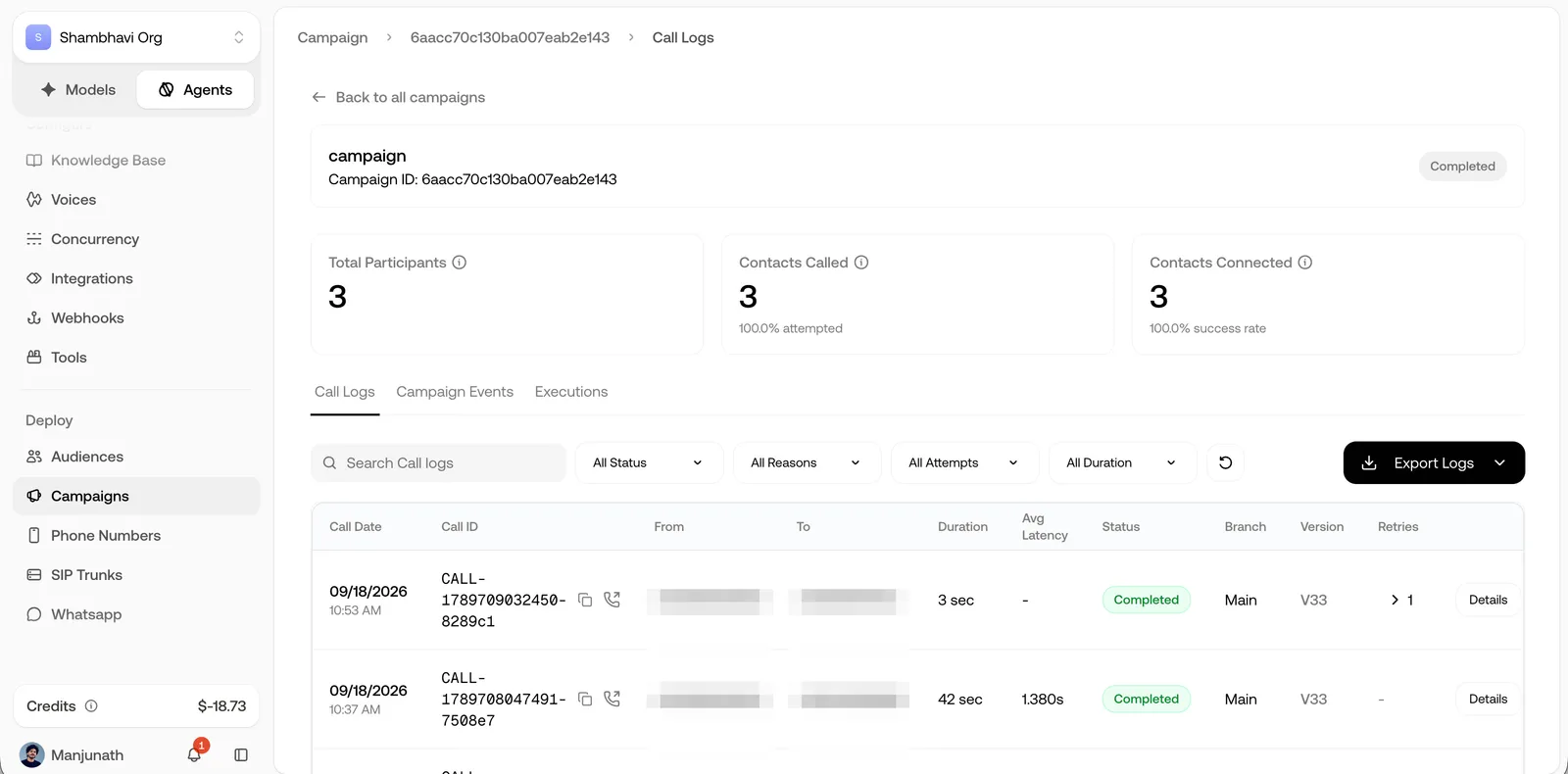
Individual call records for this campaign. Search, filter by status, reason, attempts or duration, or click Export Logs. Same interface as Conversation Logs-click any call to see the full transcript, events, and metrics.
Campaign Statuses
Related
FAQ: AI outbound calling campaigns
How do I start an AI calling campaign? Create the campaign: name it, pick the audience to call and the agent that calls, choose the caller ID numbers, then schedule it or start it manually from a draft.
Can the campaign retry unanswered calls? Yes, and it does by default: Retry Enabled is on, with Max Retries 1 to 10 (default 3) and a wait you pick from 15 Minutes, 1 Hour, 3 Hours, 24 Hours, or 72 Hours. Turn Retry Enabled off to skip retries. Retries reuse the number the contact already saw.
Can I spread calls across multiple phone numbers? Yes. Pick several Call from numbers and calls rotate through them, spreading volume instead of hammering one number.
Can I schedule a campaign to start later? Yes. Pick Schedule for later at creation (timezone, start date, start time) or Launch Immediately. A campaign saved without starting shows as a draft you can start manually.
How do I see how a campaign performed? Open the campaign for analytics: total participants, contacts called, contacts connected, and per-call logs.