
Variables
Variables insert values that change from call to call, like a customer’s name or today’s date, into your agent’s prompt.
Syntax
Wrap the variable name in double curly braces:
At runtime, each variable is replaced with its value for that call.
A variable name must:
- start with a lowercase letter
- contain only lowercase letters, numbers, and underscores
- be 40 characters or fewer
The editor marks anything else inside {{ }} as a validation error. For example, {{Customer_Name}}, {{1st_name}}, and {{customer_name|there}} are all rejected.
The Variables panel
On the Prompt tab, click the {} icon in the prompt toolbar to open the Variables panel. It has three tabs:
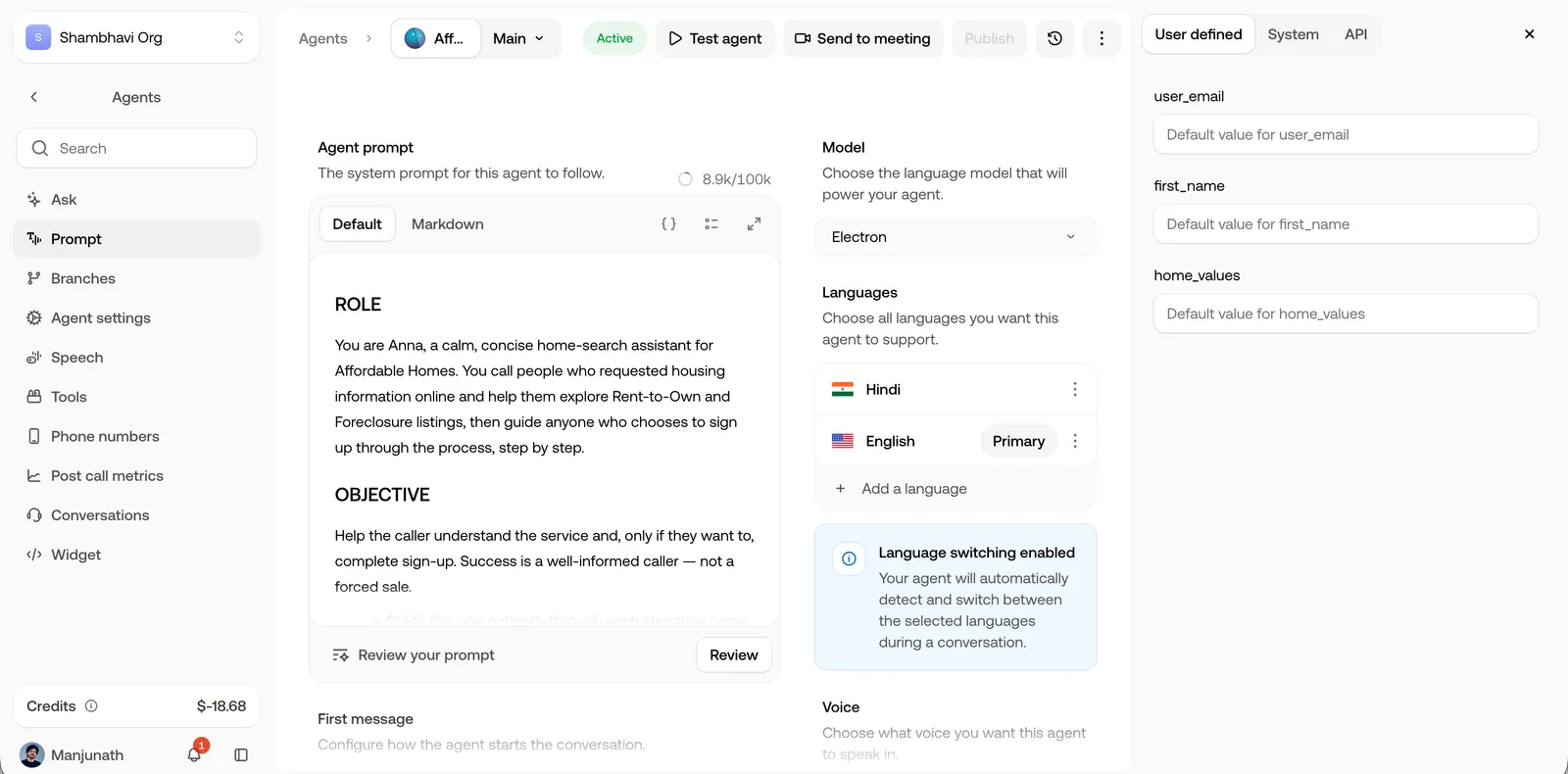
User-defined variables
Type {{variable_name}} in the agent prompt and the variable appears under User defined. Only the agent prompt is scanned. A variable you use only in the First message doesn’t show up in the list, so use it in the prompt too if you want to set a default for it.
Variables work in the agent prompt and the First message, and both are filled in at the start of each call. If a variable in the First message has no value, it’s left out of what the agent says rather than read aloud. Voicemail end text on the Speech tab is the exception: it’s spoken exactly as written, so variables there aren’t filled in.
There’s no inline fallback syntax such as {{customer_name|there}}. Set the default in the panel instead.
To pass a value for a single call, include it in the variables object when you start the call through the API. See Start an outbound call.
System variables
The platform sets these on every call. You can’t set them yourself: if you pass a value for one of these names when you start a call, it’s ignored.
API variables
An API call can save fields from its response as variables, which you then use in the prompt like any other variable. See API Calls.