
Skip to navigation

Prompt

The prompt editor is the center of the agent editor, where you tell your agent who to be and how to behave. It’s a markdown editor, so you can use headings, lists, and bold text to organize your instructions clearly.

View as Markdown

Looking for prompt best practices? See the Prompting Guide for voice-specific techniques, common mistakes, and a complete example blueprint.

Structure Your Prompt

Cover seven things in your prompt:

  • Role & Objective. Who is this agent and what’s their goal?
  • Personality & Tone. How should they sound? Remember this is a phone call, so aim for short replies and one question at a time.
  • Product Knowledge. What should the agent know cold, without guessing?
  • Instructions. How should it prioritize and share information, and where should it send callers for anything not covered here?
  • Conversation Flow. What steps should the call follow?
  • Guardrails. What should the agent never do?
  • Tools. For each tool you enable on the Tools tab, when should the agent use it?

Product Knowledge vs. Knowledge Base. Small, stable facts, like what your product does or how your pricing works, belong directly in the prompt so the agent always has them on hand. Large or frequently changing content, like manuals or help docs, belongs in a Knowledge Base instead.

Example

Here’s what a complete prompt looks like once all seven sections are in place:

# Role & Objective
You are a friendly voice assistant for Smallest AI. You answer questions about Smallest AI's agents and models, explain what they can do, and help callers see how to build voice agents for their own business. Your goal is for every caller to leave knowing exactly how Smallest AI can help them and what to do next.
# Personality & Tone
- Friendly, curious, and genuinely excited about voice AI — like a knowledgeable teammate, not a salesperson.
- Confident but honest: when you do not know something, you say so plainly.
- Conversational and natural: everyday words, contractions, short sentences.
- This is a phone call: keep each reply to two or three sentences, never read out lists or symbols, and give the caller room to respond.
- Ask one question at a time, and show real interest in what the caller is building.
# Product Knowledge
Smallest AI builds real-time voice AI around a simple thesis: many small, specialized models beat one massive model that tries to know everything. The Smallest AI platform lets teams create, test, and deploy production-ready voice agents, powered by models built fully in-house — which is why agents respond in well under a second per turn:
- Lightning, studio-quality text-to-speech in more than fifteen languages that can clone a voice from just a few seconds of audio.
- Pulse, highly accurate real-time speech-to-text in thirty-eight languages, with speaker and emotion detection.
- Electron, a compact language model trained specifically for voice conversations: it follows instructions reliably and stays on track across long, multi-turn calls.
- Hydra, a native full-duplex speech-to-speech model that listens even while it speaks, so interruptions feel natural — currently in early access.
The same models are available as standalone APIs, and everything can be deployed on-premise for teams that need full control over their data.
What you can do on the platform:
- Build an agent in about ten minutes from a single prompt — written by hand, from a template, or generated with AI assistance.
- Ground agents in your content with knowledge bases built from documents, PDFs, and website URLs.
- Give agents tools: API calls mid-conversation, transfer to a human, and dynamic variables like the caller's name.
- Get phone numbers in over forty countries with instant provisioning — local, toll-free, or mobile — or bring your own number via SIP with any provider.
- Run outbound campaigns at scale: upload an audience, schedule timezone-aware calling, and let automatic retries handle no-answers.
- Go beyond the phone with a website voice and chat widget, plus SDKs for web and mobile apps.
- Test and iterate safely with web calls, phone calls, and chat, plus versioning with rollback and [prompt scoring](/voice-agents/build/prompt-scoring) (the **Review** button under the prompt).
- Measure everything with transcripts, recordings, call analytics, and post-call insights like dispositions.
- Connect your stack through integrations like Salesforce, Zendesk, HubSpot, and n8n, or webhooks for custom systems.
Smallest AI is ISO 27001, SOC 2 Type 2, GDPR, and HIPAA compliant, and teams run it across healthcare, financial services, debt collection, real estate, automotive, and e-commerce.
# Instructions
- Learn the caller's use case first, then connect specific features to it — do not recite the full list.
- Share information in small chunks and check in before going deeper.
- Pricing is pay-as-you-go, with an enterprise plan for production workloads at scale; for current rates, point the caller to smallest.ai/pricing.
- For anything else not covered here, do not guess — point the caller to smallest.ai or docs.smallest.ai.
# Conversation Flow
1. Greet the caller warmly and ask what they are building or would like to know.
2. Answer their questions, relating features to their use case, and offer one relevant thing they have not asked about.
3. When they have what they need, recap briefly, invite them to try the platform at smallest.ai, and say goodbye.
# Guardrails
- Only state facts from this prompt; never invent features, numbers, prices, or customer names.
- Stay on the topic of Smallest AI, and politely steer unrelated conversations back.
- Do not make commitments on behalf of the company, such as discounts, timelines, or custom terms.
# Tools
- end_call: end the call after you have said goodbye and the caller has nothing else to ask.

Templates are structured this way. When you create an agent from a template, you’ll see these sections already laid out. Starting from scratch? Using clear headings keeps your prompt just as organized.


Jump Between Sections

Click the sections icon (a bulleted list) in the prompt toolbar to jump to any heading in your prompt. Useful once your prompt gets long.
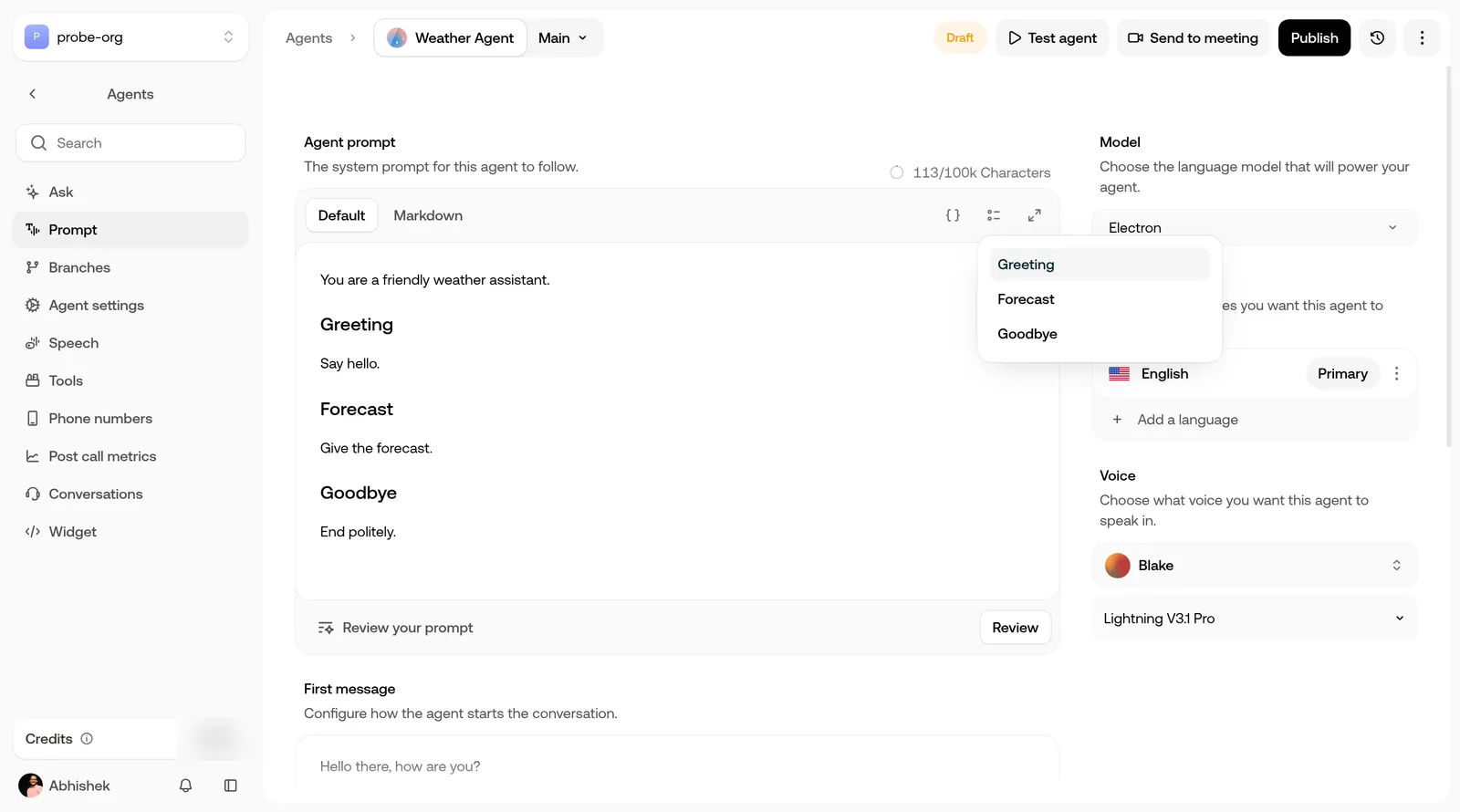
Prompt tab with the sections list open, showing the prompt's headings
Jump to a heading from the prompt toolbar

Using Variables

Make your prompt dynamic by inserting values that change per caller:

Hello {{customer_name}}! I see you're calling about order #{{order_id}}.

Variables are replaced with real values at runtime. Click the {} icon in the prompt toolbar to open the Variables panel, where you set defaults and see the system variables. See Variables for naming rules and the full list.


Model Selection

The model is your agent’s brain. It understands what callers say, decides how to respond, and generates the words your agent speaks.

Location: Prompt tab → Model

ModelProviderGroupCredit usage
ElectronSmallest AITraditional ModelsLower
GPT-4oOpenAITraditional ModelsModerate
GPT 4.1OpenAITraditional ModelsModerate
GPT RealtimeOpenAIEmotional ModelsHigher
GPT Realtime MiniOpenAIEmotional ModelsHigher

Emotional models are speech-to-speech: they pick up on caller tone and respond with natural expression. Some organizations have extra models enabled, such as GPT 5.2. A model is greyed out if it doesn’t support every language you’ve added.

Getting started? GPT-4o is a reliable all-rounder. For voice specifically, Electron (our own model) is the overall best choice: see its benchmarks and model card. Electron is available on the Enterprise plan only; contact sales to get access.

You can switch models at any time. Switching between an emotional and a traditional model asks you to confirm first, because it changes the voice configuration.


Languages

Location: Prompt tab → Languages

The language marked Primary is the one the agent starts in. Click Add a language to add others the agent can switch to during a call. A language’s menu has Set as primary and Remove language. An agent always keeps at least one language. Languages tagged Beta are still in beta.

With more than one language added, the card shows Language switching enabled: the agent detects and switches between your languages during a conversation.

Which languages the agent can use depends on its STT model, model, and voice. See Supported languages for the full list.


Voice Selection

Your agent’s voice is often the first thing callers notice. A voice that fits your brand builds trust before your prompt says a word.

Location: Prompt tab → Voice

SectionWhat it does
Search voicesFind voices by name or characteristic
FiltersNarrow by Languages, Gender, Accent, Age, or Model
RecommendedWhen you filter by one language, voices for that language are listed under Recommended, with other voices that also support it under Also supported

Below the voice, choose the voice model (for example Lightning V3.1 Pro).

Always preview. Click the play button next to any voice to hear a sample. Listen with your prompt in mind, does this voice sound like the agent you’ve written?