
Webhooks (new experience)
Signed, retried, replayable delivery of call events to your endpoints, with per-delivery history and endpoint health.
Rolling out: the new webhooks experience is rolling out by organization. If your dashboard still shows the older Webhooks page, your organization hasn’t been moved yet. Keep using the current Webhooks guide until it switches over.
Webhooks send an HTTP POST to your endpoint whenever something happens on a call. The new experience adds:
- Signed requests with rotating secrets and replay protection.
- Automatic retries: up to 7 attempts over about 31 hours.
- Per-delivery history: every attempt, status code, response body, and the exact payload sent.
- One-click retry and bulk replay for missed events.
- Per-agent field selection, so you only receive the data you need.
- Endpoint health and performance charts, plus an audit log of every change.
Events
All three events for a call share the same callId. Use it to join them.
How it fits together
- Endpoint: a URL that receives events. Each endpoint has its own signing secret, retention, and custom headers.
- Subscription: links an endpoint to an agent (or to all agents). It also chooses which events to send and which fields go into each payload.
- Delivery: one event sent to one endpoint. Each delivery has one or more attempts.
One endpoint can serve many agents, and one agent can send to many endpoints.
1. Open Webhooks
Location: Left sidebar → Configure → Webhooks
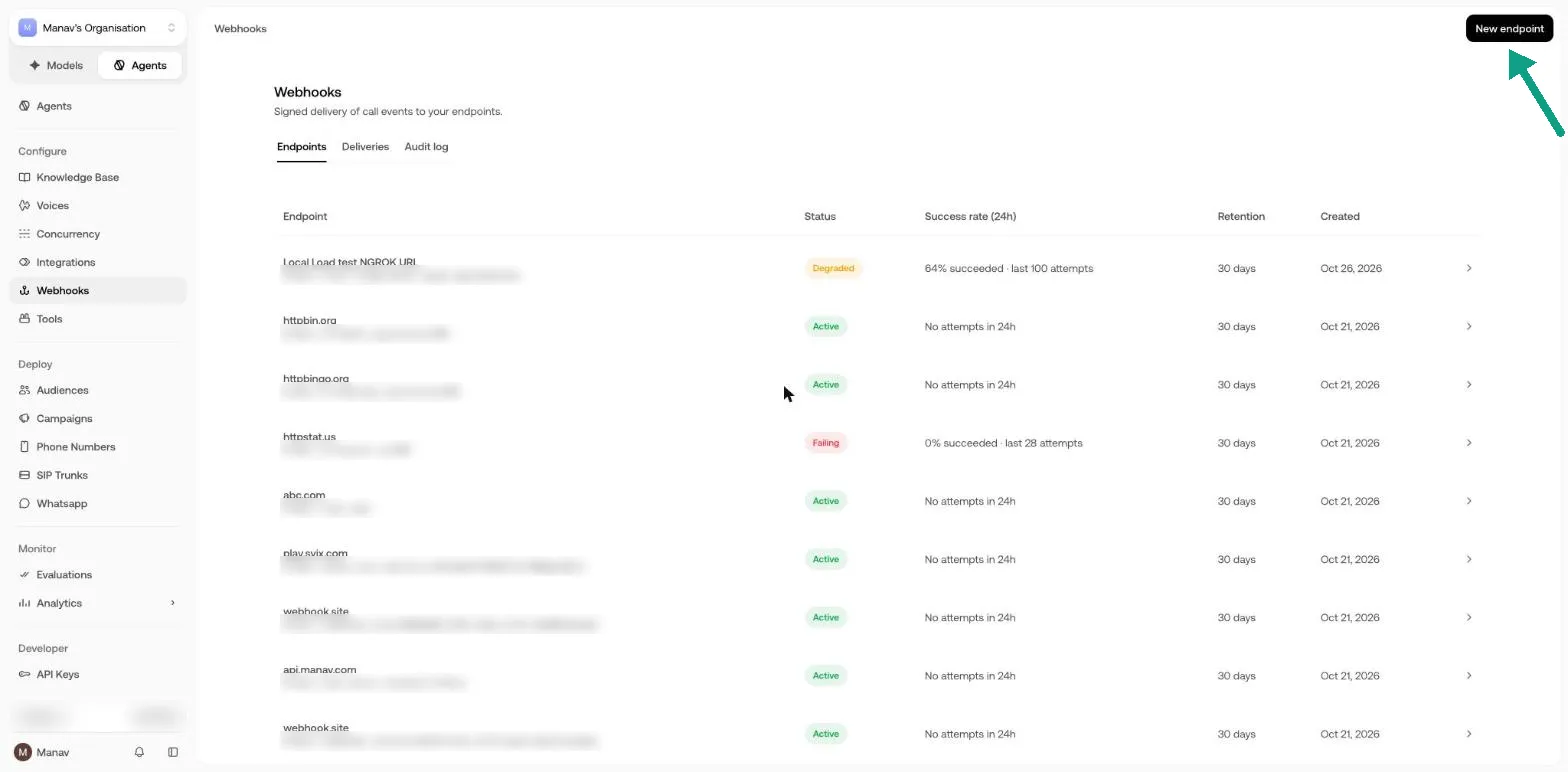
The page has three tabs:
- Endpoints: every endpoint with its health status, 24-hour success rate, retention, and created date. Click a row to open it.
- Deliveries: every delivery across all endpoints. See Organization-wide deliveries.
- Audit log: every webhook change made in your organization. See Audit log.
Endpoint status:
2. Create an endpoint
Click New endpoint.
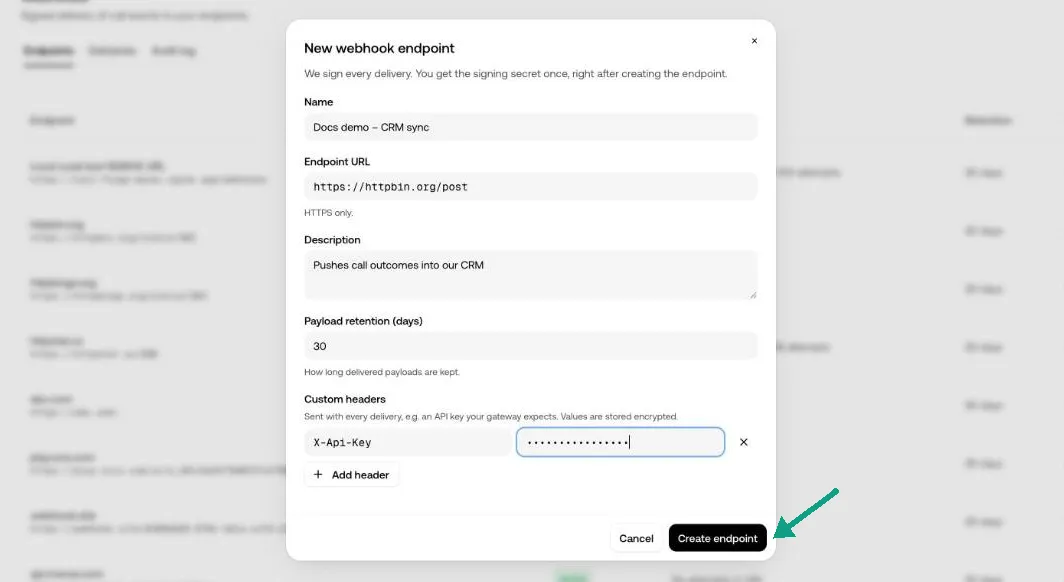
Custom header names can be up to 128 characters and values up to 1024. These names are reserved and can’t be used: content-type, content-length, user-agent, host, connection, transfer-encoding, webhook-id, webhook-timestamp, webhook-signature, x-signature.
Click Create endpoint. You can have up to 150 endpoints per organization.
Copy your signing secret
After you create an endpoint, the dashboard shows its signing secret (whsec_…) once. Copy it into your secret store right away. You won’t see it again. If you lose it, rotate the secret.
Then click Done, add a subscription to go straight to the Subscriptions tab.
3. Subscribe agents
An endpoint receives nothing until you subscribe at least one agent.
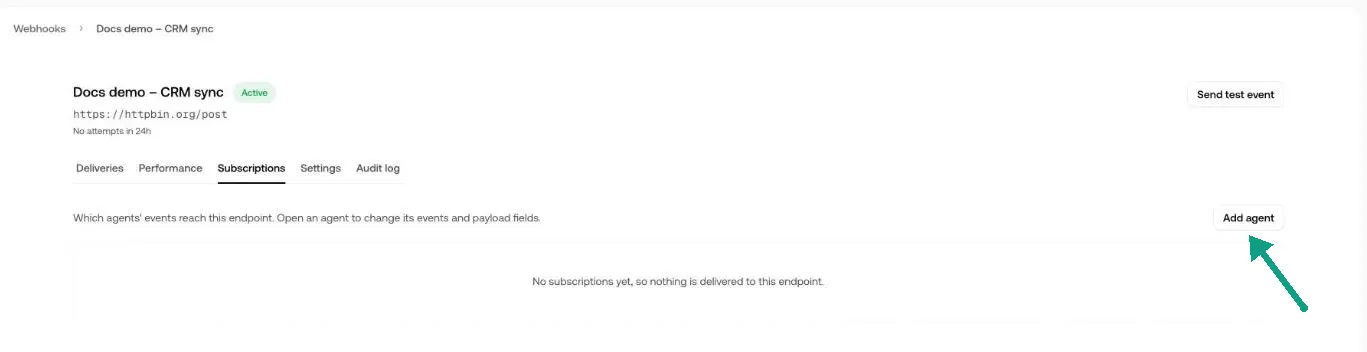
Open the endpoint, go to Subscriptions, and click Add agent.

Search for an agent, or choose All agents to cover every agent in the organization, including agents you create later.
Choose events and fields
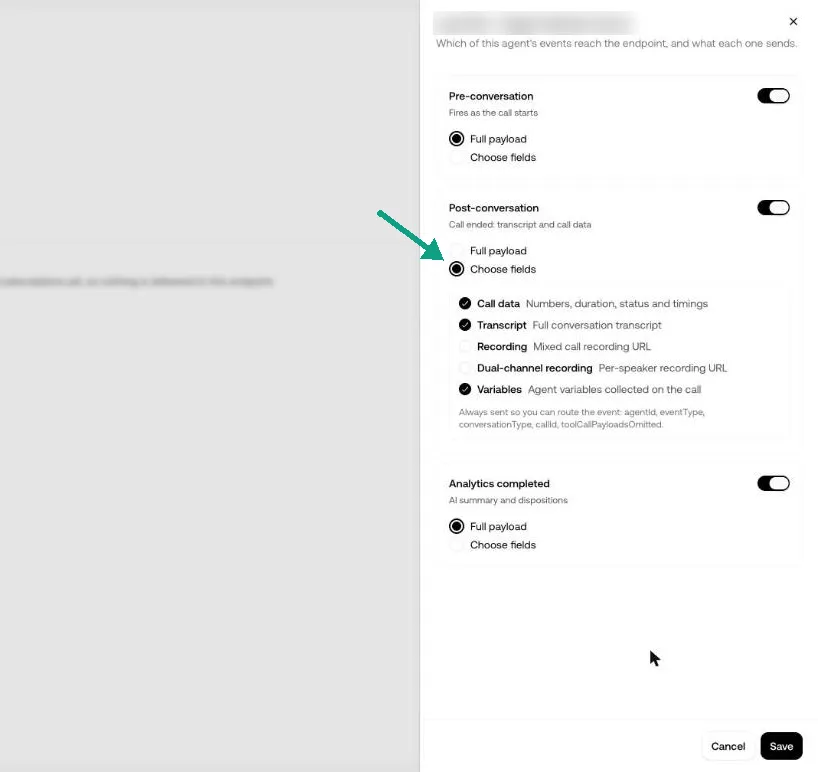
Each event has its own switch. For each enabled event, choose one of:
- Full payload: every field for that event, including fields added in the future.
- Choose fields: only the fields you tick.
These fields are always sent, whatever you choose: agentId, eventType, conversationType, callId, toolCallPayloadsOmitted.
Click Save. To unsubscribe, open the agent again and click Remove agent.
Leave out what you don’t use. For example, skip recordingUrl and recordingDualUrl if you only store transcripts. Smaller payloads are faster to deliver and expose less data.
Or: set it up from the agent
You can also connect a webhook from inside an agent.
Location: Agent → Tools → System triggers → Webhook
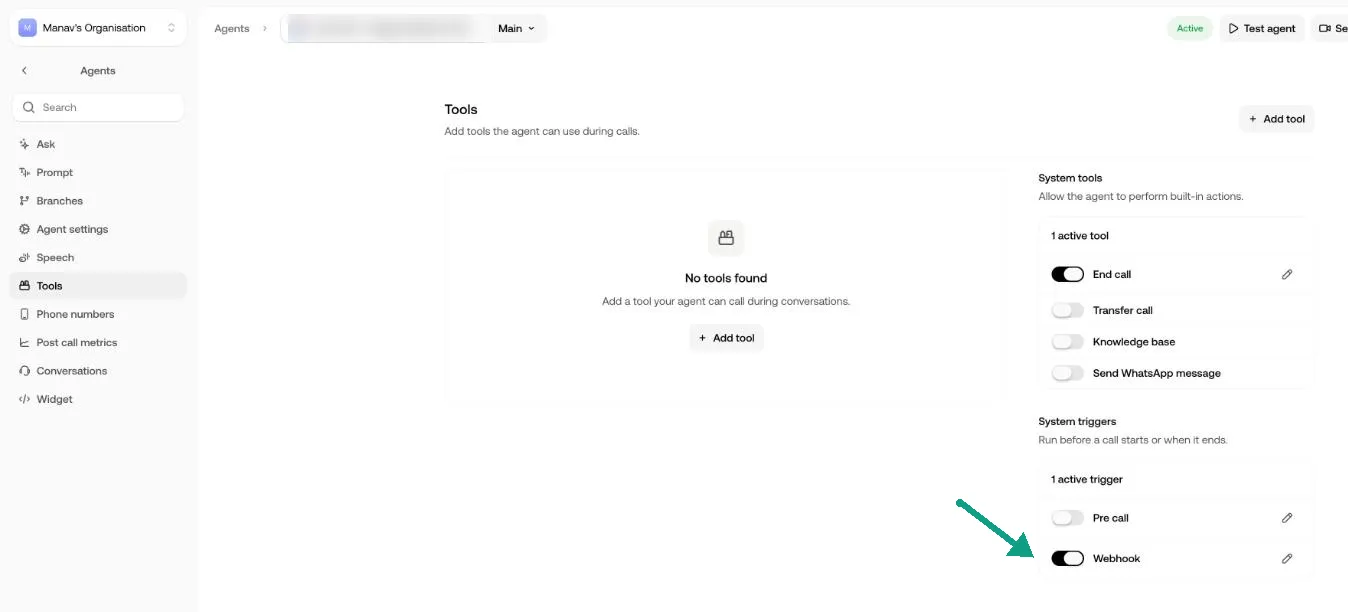
Turn on the switch, or click the pencil, to open the webhook panel.
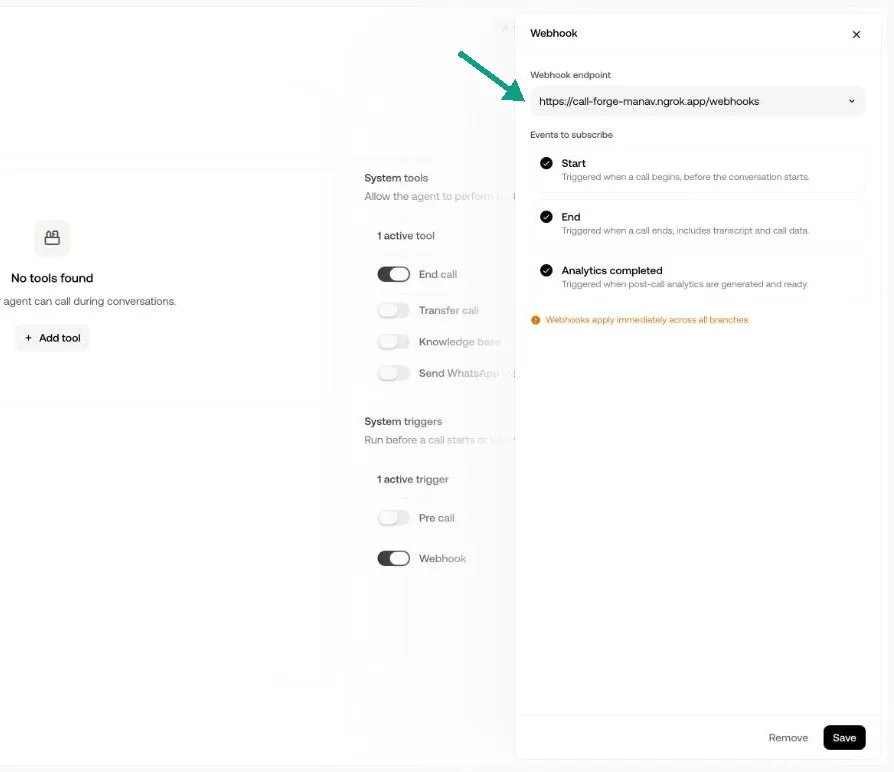
- Choose a Webhook endpoint. The endpoint must already exist under Webhooks.
- Tick the Events to subscribe: Start (
pre-conversation), End (post-conversation), and Analytics completed. - Click Save. Use Remove to unsubscribe the agent from that endpoint.
Webhook subscriptions apply immediately across all branches of the agent. They aren’t versioned with the agent.
4. Send a test event
Click Send test event on the endpoint page. This sends a signed sample payload to your endpoint and shows the result inline.
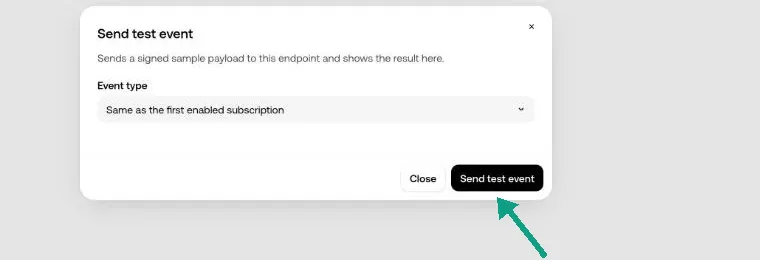
- Event type: the default is Same as the first enabled subscription. You can also pick a specific event.
- The dialog waits up to 60 seconds and then shows the HTTP status and response.
- Test deliveries appear in Deliveries with the trigger
TEST.
Use this to check your URL, custom headers, and signature verification before real calls arrive.
Deliveries
The Deliveries tab on an endpoint lists everything sent to it.
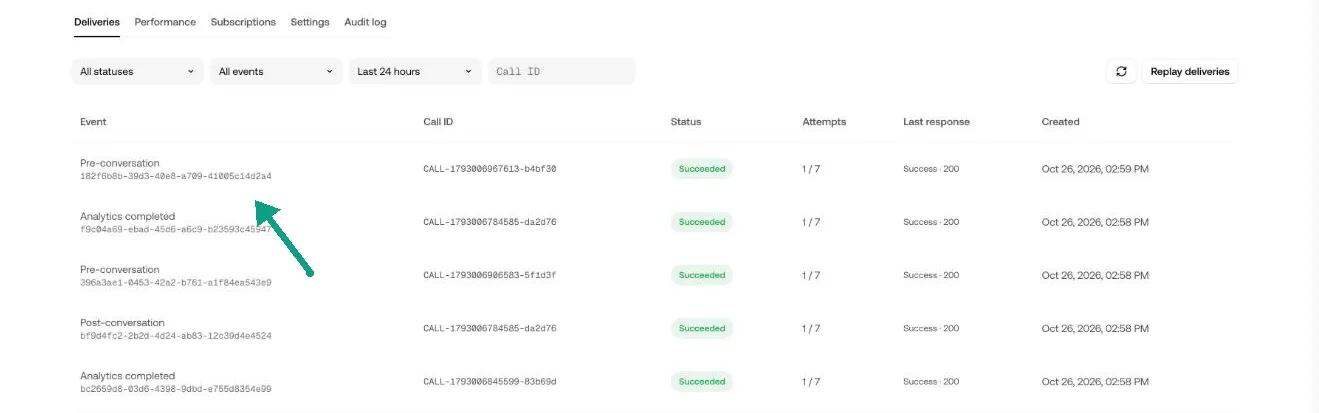
- Filters: status, event type, time range, and Call ID. Use Call ID to see every event for one call.
- Attempts: how many times this delivery has been tried.
- Replay deliveries: re-send many deliveries at once. See Replay.
- Click any row to open its details.
Delivery statuses:
Triggers: EVENT (a real call), TEST (Send test event), MANUAL (Retry delivery), REPLAY (bulk replay).
Delivery details
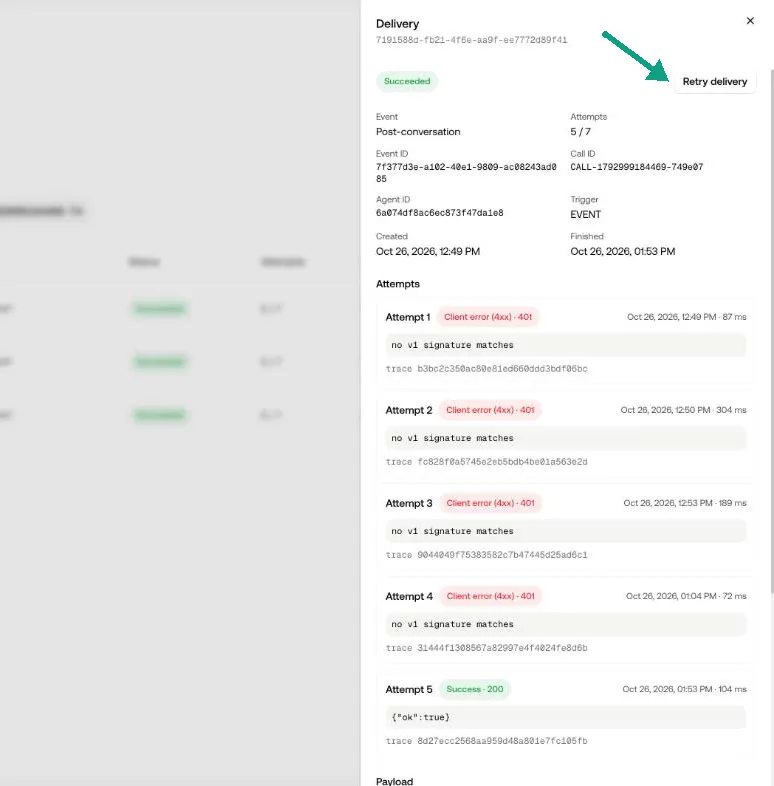
The detail view shows:
- The event, call ID, event ID, trigger, and created time.
- Every attempt: when it ran, the outcome, HTTP status, response time, and the first part of your response body.
- Retry delivery: sends this delivery again now. The event ID stays the same, so your deduplication still works.
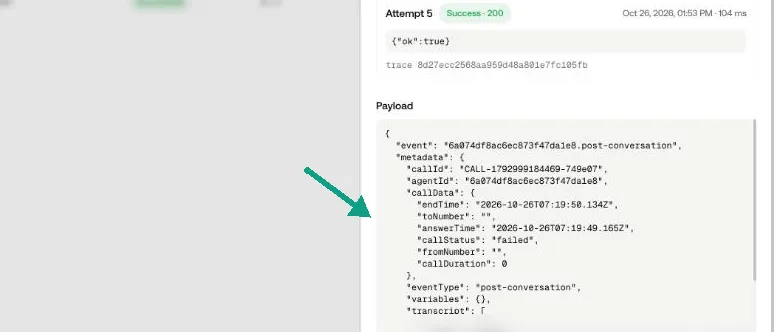
You can view the payload until the endpoint’s retention period ends. After that, the payload is purged and can’t be retried or replayed.
Attempt outcomes: SUCCESS, HTTP_3XX, HTTP_4XX, HTTP_5XX, TIMEOUT, CONNECTION_ERROR, TLS_ERROR, BLOCKED_URL, BODY_TOO_LARGE, ENDPOINT_BUSY, LEASE_EXPIRED, UNKNOWN.
Failure reasons (why a delivery ended as Failed):
Replay missed events
Use replay to recover after an outage. Click Replay deliveries.
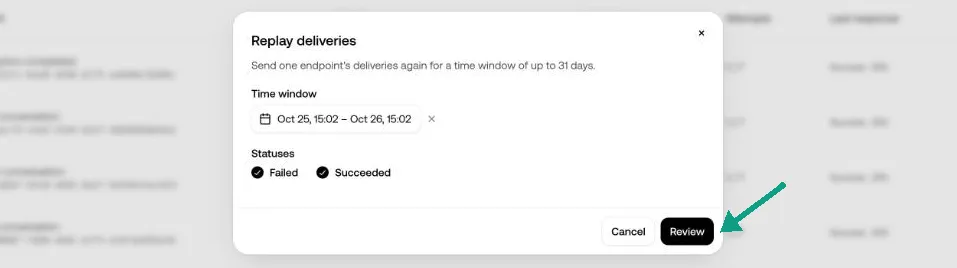
- Choose a time window. It can cover up to 31 days.
- Choose the statuses to include. The default is Failed. You can add Succeeded to re-send everything.
- Click Review.

Check the count and click Confirm. Replays keep the same event ID as the original, and deliveries whose payload has already been purged are skipped.
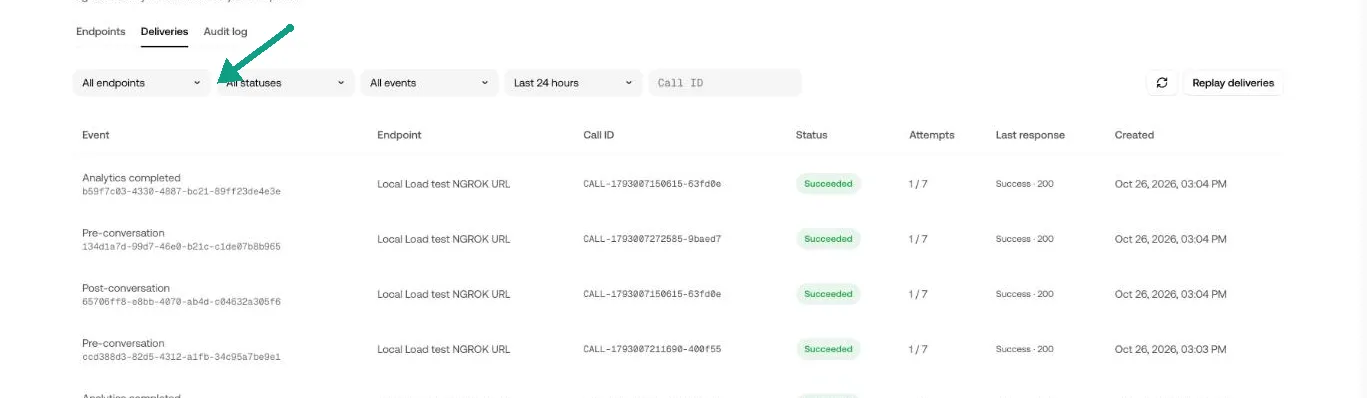
Organization-wide deliveries
Webhooks → Deliveries shows deliveries for every endpoint. Filter by endpoint, or use the Endpoint column to see where each one went.
Performance
The Performance tab shows how your endpoint is doing.
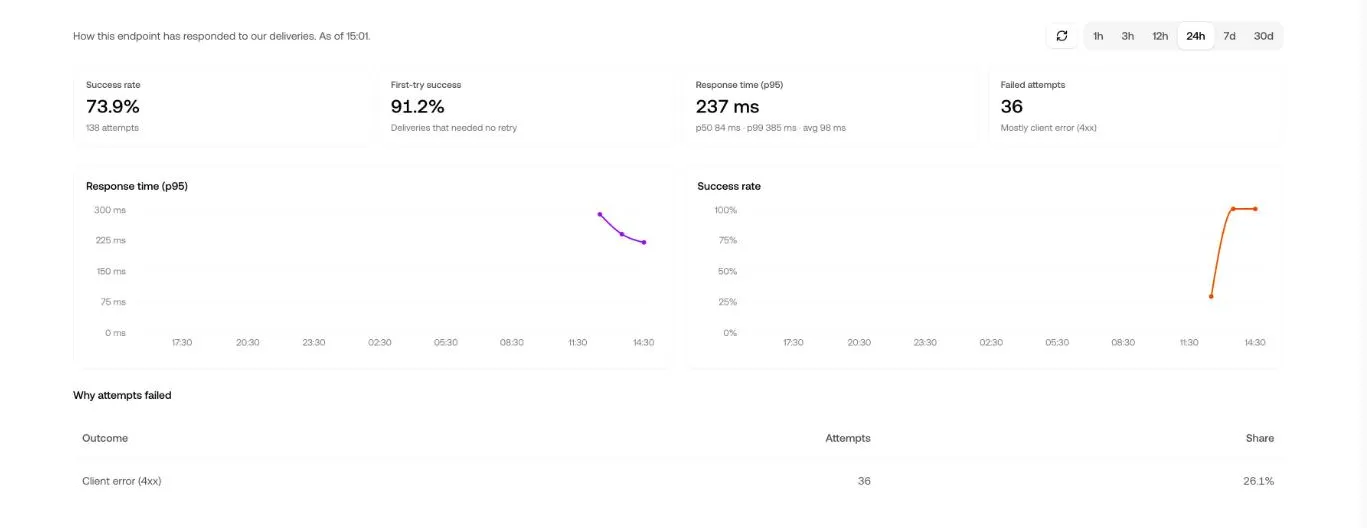
- Window: 1h, 3h, 12h, 24h, 7d, or 30d.
- Success rate: the share of deliveries that succeeded.
- First-try success: the share that succeeded on the first attempt, with no retry.
- Response time (p95): how fast your endpoint responds.
- Failed attempts: the number of attempts that failed in the window.
- Charts: p95 latency and success rate over time.
- Why attempts failed: failed attempts grouped by outcome, for example
HTTP_5XXorTIMEOUT.
Settings
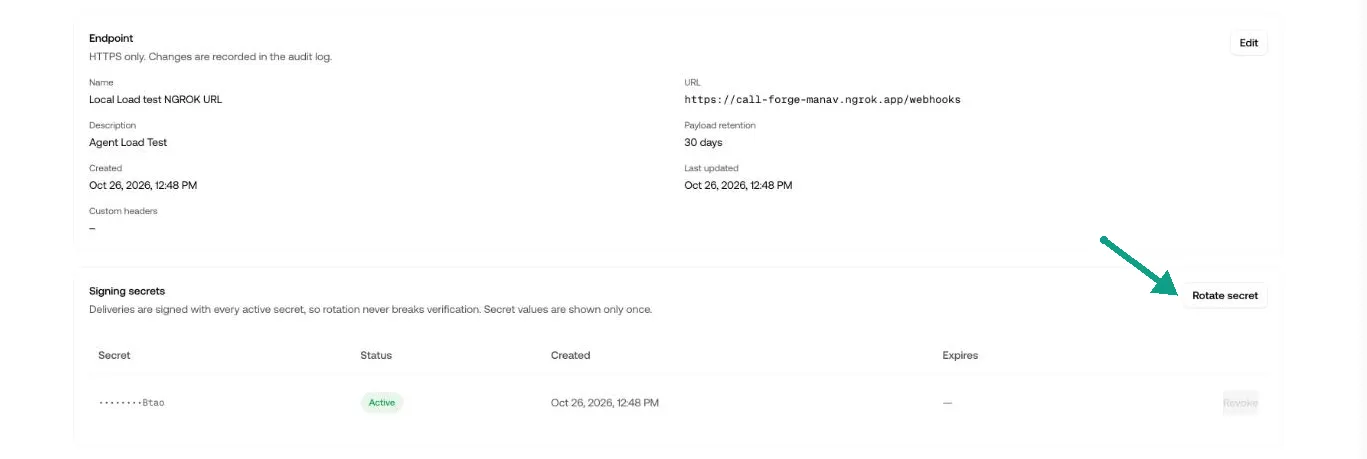
Edit the endpoint
Click Edit on the Endpoint card to change the name, URL, description, retention, or custom headers. Custom header values stay hidden. Type a new value to replace one.
Signing secrets
Rotate secret creates a new secret and shows it once.
- Expire previous secret in (hours) sets how long the old secret keeps signing: 0 to 24 hours, default 24. During that time, every request carries one signature per active secret. This lets you deploy the new secret without dropping requests.
- Set it to 0 if the old secret leaked. It stops being used right away.
Revoke turns off a secret immediately. You can’t revoke the last active secret. Rotate first.
Security & verification
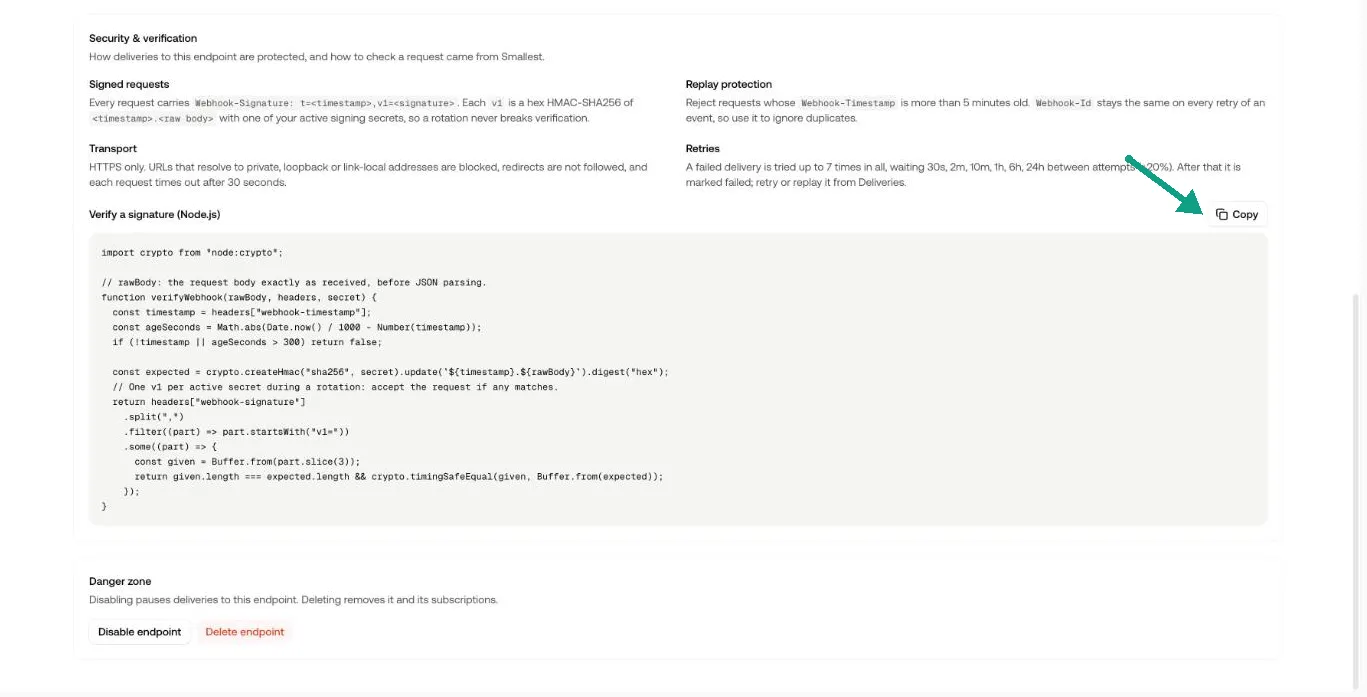
This section summarizes how requests are signed and includes a Node.js verifier you can Copy. Full details are in Verify signatures.
Disable or delete
- Disable endpoint pauses delivery. New events are recorded as failed with
ENDPOINT_DISABLED. After you Enable the endpoint again, replay them. - Delete endpoint stops all delivery and removes its subscriptions. The endpoint’s history stays in the audit log.
Audit log
Every webhook change is recorded, both per endpoint (Audit log tab) and for the whole organization (Webhooks → Audit log).
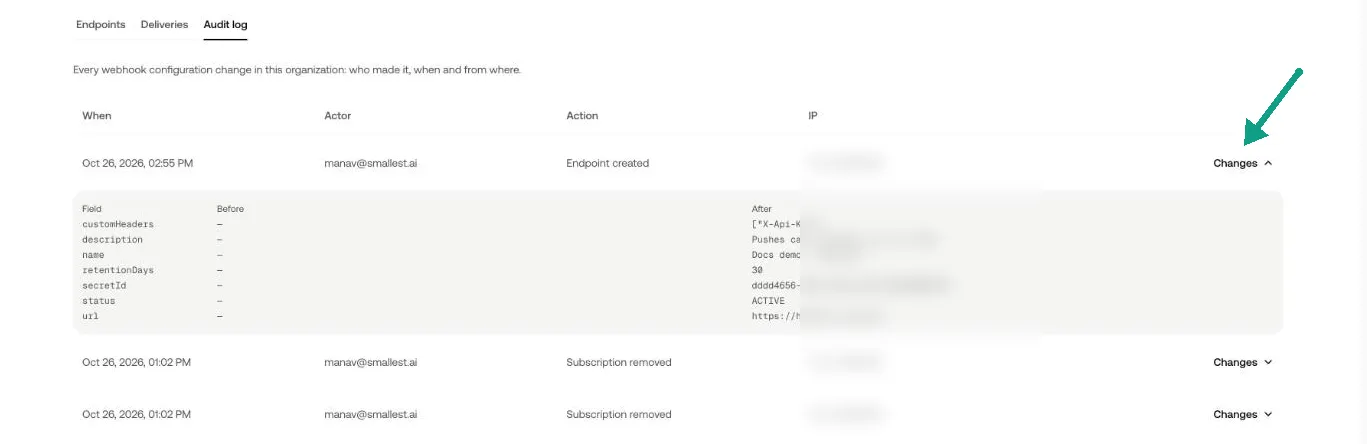
Each row shows When, Actor, Action, and IP. Expand Changes to see a before/after diff.
Recorded actions: endpoint created, updated, or deleted; subscription added, updated, or removed; secret rotated or revoked; test event sent; delivery retried; deliveries replayed.
Receiving webhooks
Request format
The body is a JSON envelope:
Verify signatures
Webhook-Signature has the form t=<timestamp>,v1=<hex>. Each v1 is an HMAC-SHA256 of "<timestamp>.<raw request body>", keyed with one of your active signing secrets. During a rotation there’s more than one v1. Accept the request if any of them matches.
Always:
- Verify against the raw body bytes, before any JSON parsing.
- Reject requests whose
Webhook-Timestampis more than 5 minutes old. - Compare signatures in constant time.
- Deduplicate on
Webhook-Id. Retries and replays reuse it.
Legacy X-Signature: for compatibility with existing integrations, requests also carry the older X-Signature header, signed with your oldest active secret. It will be turned off in a future release. Migrate to Webhook-Signature.
Respond quickly
- Return any
2xxwithin 30 seconds. Do slow work asynchronously after you respond. 3xxredirects are not followed and count as failures.- Any non-
2xx, timeout, or connection error triggers a retry.
Retries
A delivery gets up to 7 attempts. After the first attempt fails, retries follow roughly this schedule (each delay varies by ±20%):
If every attempt fails, the delivery is marked Failed about 31 hours after the event. You can then retry it or replay it.
Payload size
Payloads are capped at 1 MB. If a payload is larger, tool-call arguments and responses in the transcript are dropped and toolCallPayloadsOmitted is set to true. If it’s still too large, the delivery fails with BODY_TOO_LARGE.
Limits
FAQ
Can I manage webhooks with an API key?
Not yet. The new webhooks are managed from the dashboard only.
Will I receive the same event twice?
Possibly. Retries, manual retries, and replays all reuse the same Webhook-Id. Store the IDs you’ve processed and skip any you’ve already seen.
Are events delivered in order?
Not guaranteed. Events for a call are sent as they happen, but retries can reorder them. Use callId and eventType to put them back together.
My endpoint was down for a few hours. Did I lose events?
No. Retries cover about 31 hours. If deliveries already failed, use Replay deliveries with status Failed for the time window of the outage.
I lost my signing secret.
Open Settings → Rotate secret. Set the previous-secret expiry to cover your deploy, or set it to 0 if the secret leaked.
Why can't I use an http:// or internal URL?
For security, delivery goes only to public HTTPS endpoints. Use a tunnel such as ngrok for local testing.