Authentication

View as Markdown

Every API request requires an API key in the Authorization header.

Create Your API Key

1

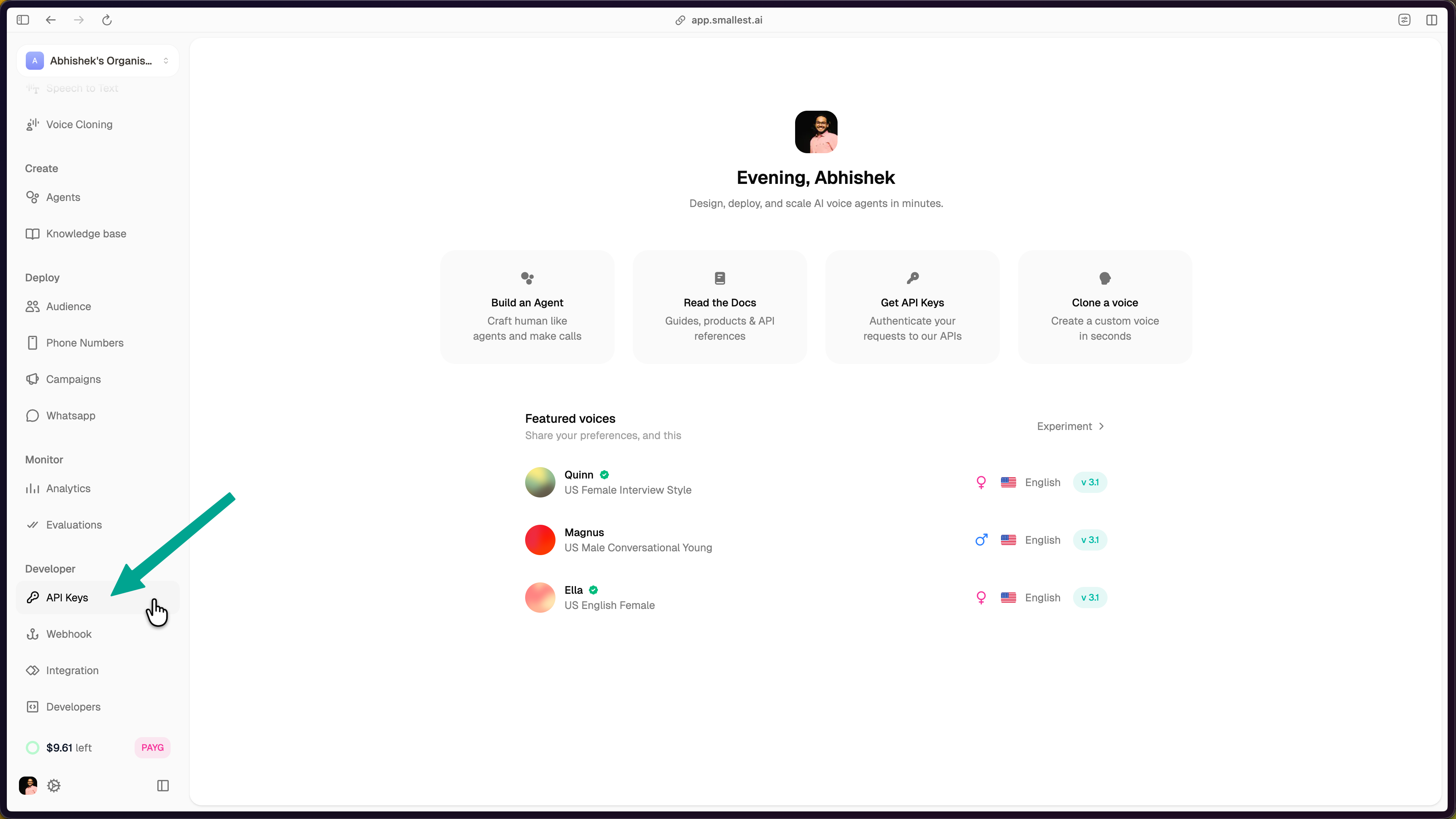
Go to Settings → API Keys

In the Smallest AI Console, click API Keys in the Settings sidebar.

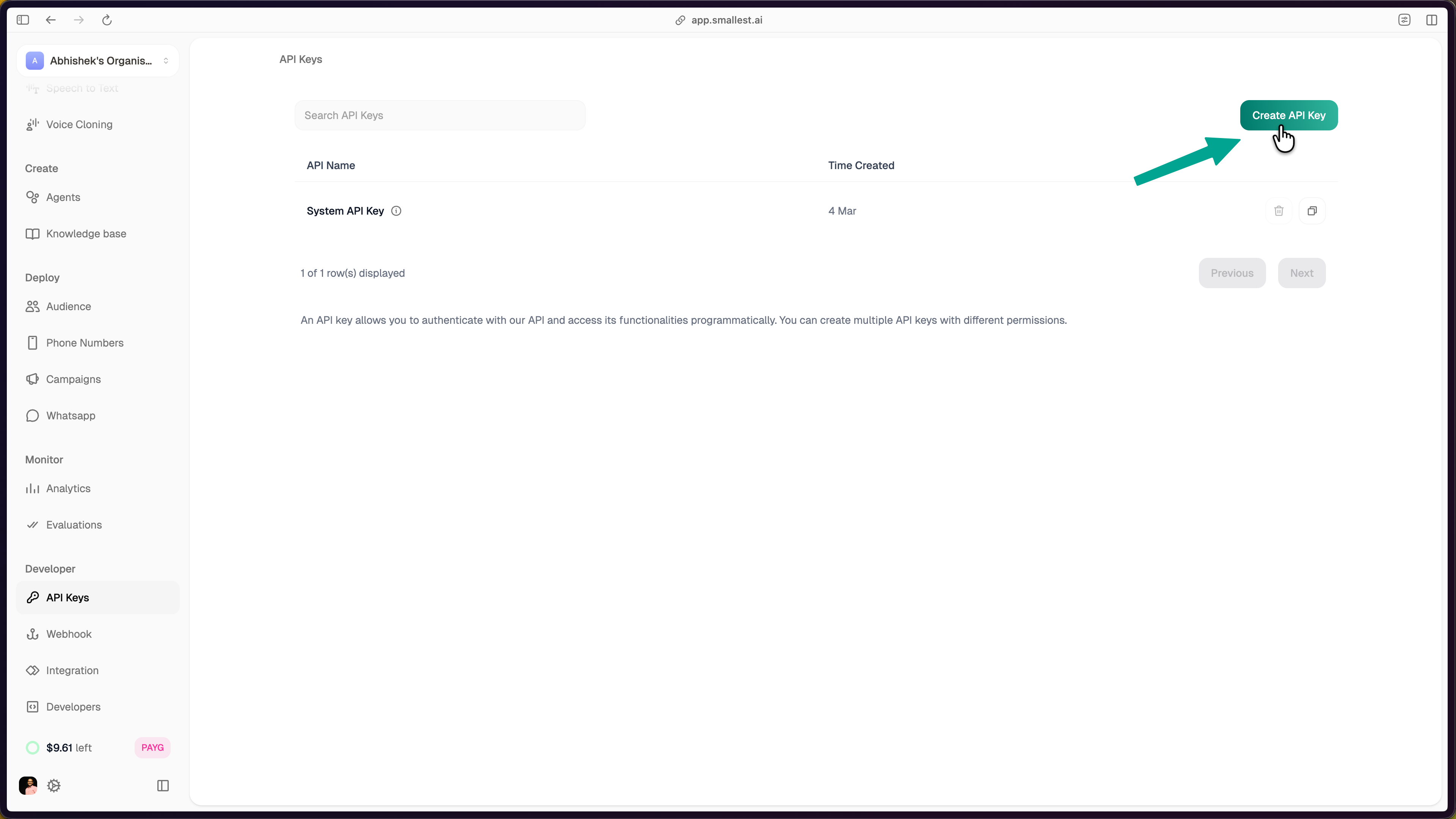
API Keys settings page with Create API Key button highlighted
2

Create a new key

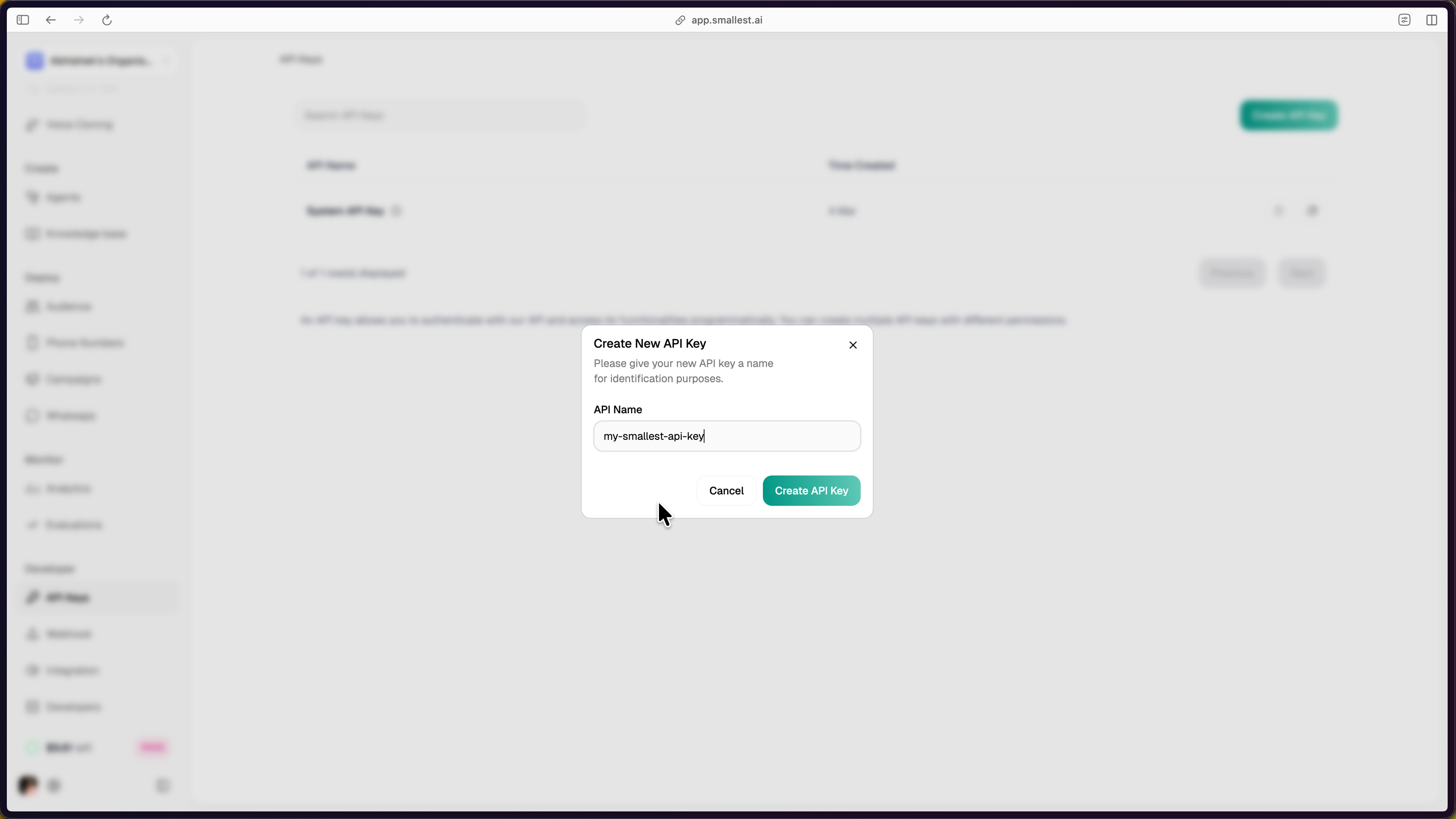
Click Create API Key, give it a descriptive name (e.g., my-tts-app), and click Create API Key.

Create New API Key dialog with name field and create button

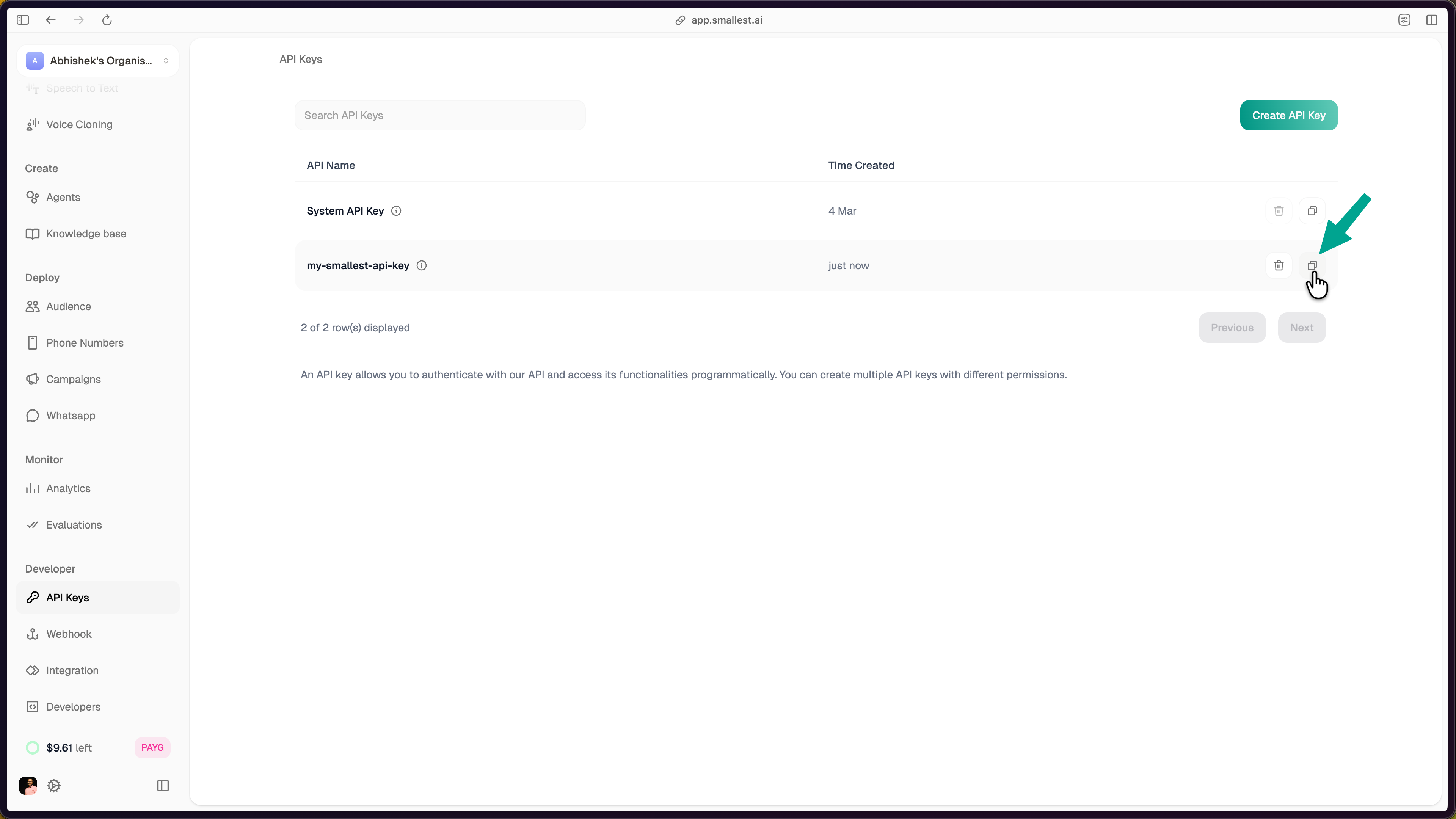
Copy the key immediately — it won’t be shown again.

3

Set it in your environment

$export SMALLEST_API_KEY="your-api-key-here"

Add this to your .bashrc or .zshrc to persist across sessions.

Using Your API Key

Include your key in the Authorization header with every request:

Authorization: Bearer YOUR_API_KEY
$curl -X POST "https://api.smallest.ai/waves/v1/lightning-v3.1/get_speech" \
> -H "Authorization: Bearer $SMALLEST_API_KEY" \
> -H "Content-Type: application/json" \
> -d '{"text": "Authentication test", "voice_id": "magnus", "output_format": "wav"}' \
> --output test.wav

Security

Your API key is a secret. Never expose it in client-side code, public repositories, or browser applications.

  • Store keys in environment variables, not in source code
  • Use .env files locally (add .env to .gitignore)
  • Rotate keys periodically via the console
  • Each key tracks usage against your account quota

Error Responses

StatusMeaning
401 UnauthorizedMissing or invalid API key
403 ForbiddenKey doesn’t have access to this resource
429 Too Many RequestsRate limit exceeded — wait and retry

For rate limits and concurrency details, see Concurrency and Limits.