
Instant Voice Clone (Web UI)
Instant Voice Clone (Web UI)
Clone any voice from 5-15 seconds of reference audio using the web console. No code required. Upload a sample, preview the clone, and get a voice_id to use in your TTS API calls immediately.
Prerequisites
- A Smallest AI account
- A clean audio recording (5-15 seconds,
.mp3,.wav, or.mp4)
For recording guidelines, see Voice Cloning Best Practices.
Step 1: Navigate to Voice Cloning
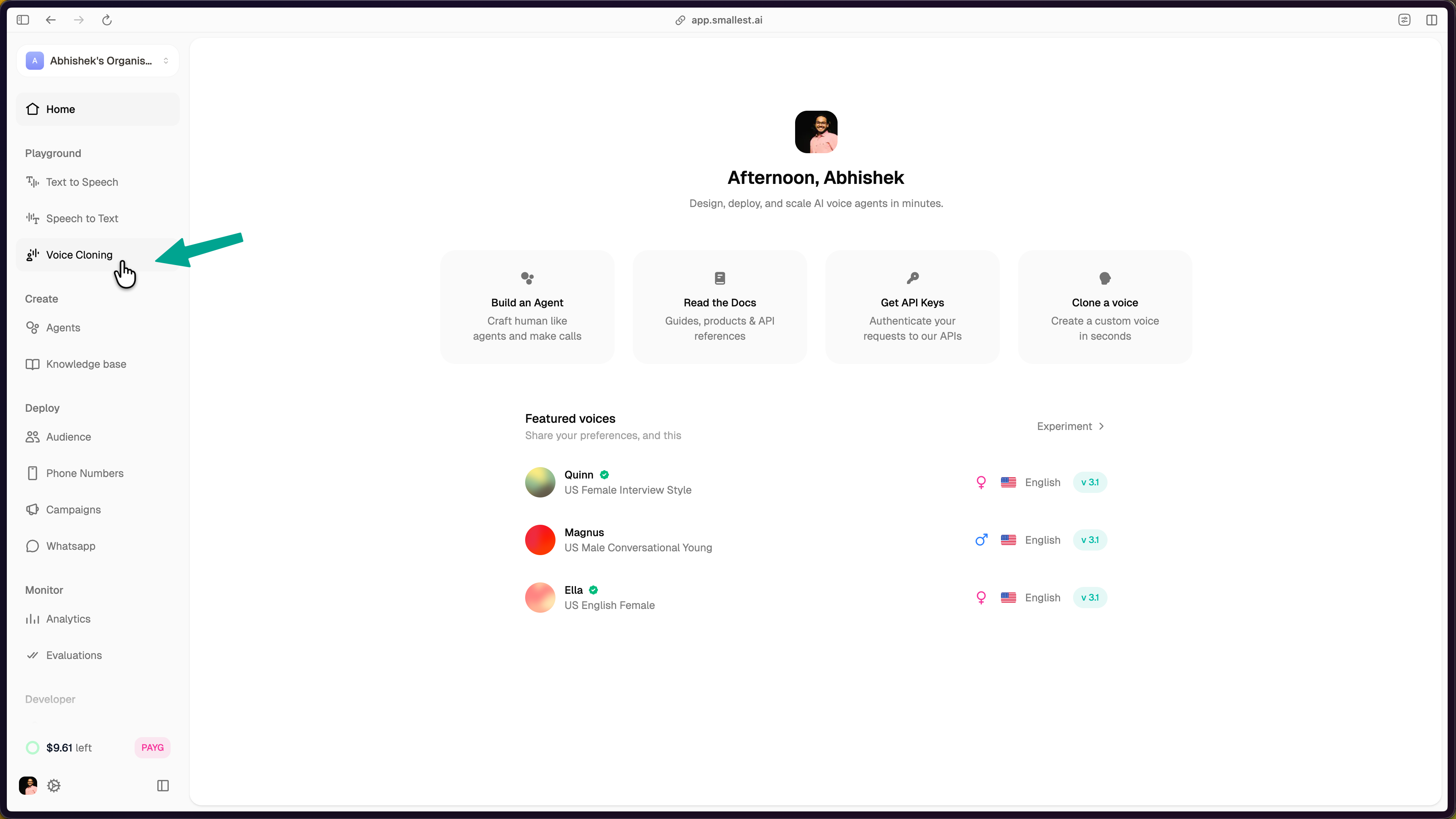
Log in to app.smallest.ai and select Voice Cloning from the left sidebar under Playground.
Step 2: Start a New Clone
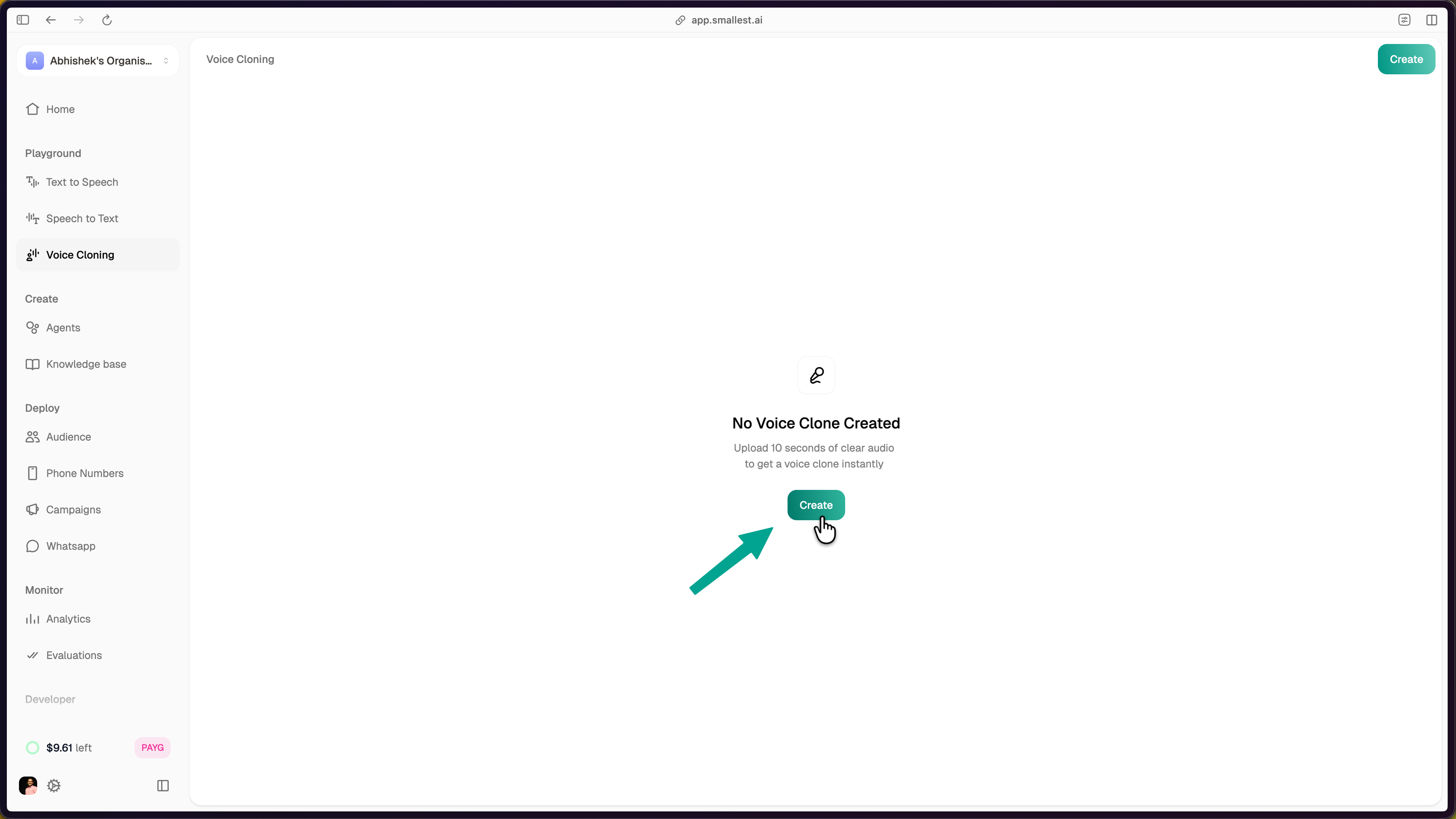
Click the Create button. If this is your first clone, the button is displayed in the center of the page. Otherwise, use the Create button in the top-right corner.
A guide dialog appears with best practices for reference audio:
- Use a quiet environment to avoid background noise, hiss, or rumble.
- Record clean, high-quality reference audio of your natural speaking voice.
- Speak normally. The model captures timbre, accent, emotional tone, rhythm, and pacing automatically.
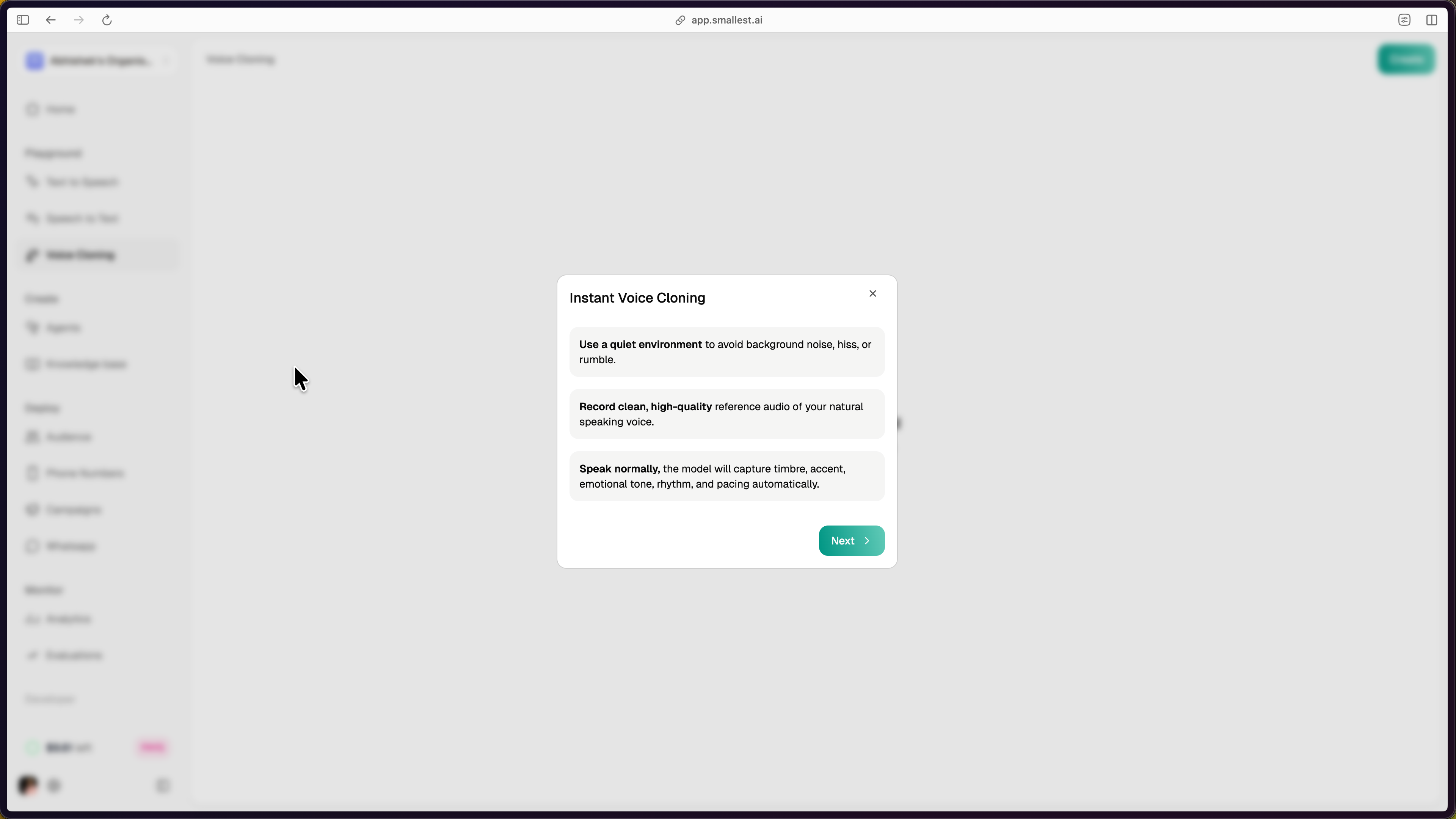
Click Next to proceed.
Step 3: Provide Reference Audio
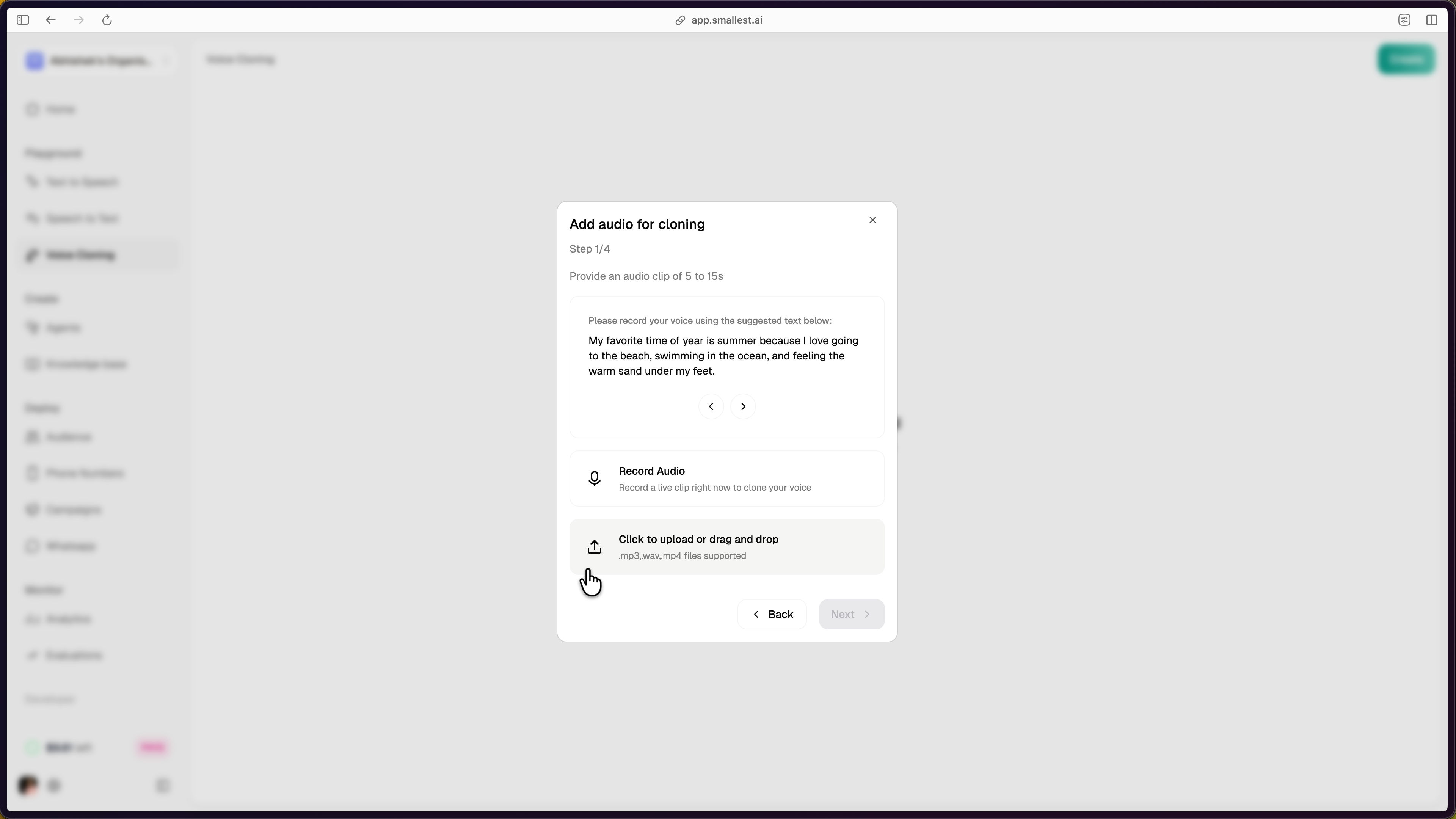
Provide an audio clip of 5 to 15 seconds. Two options are available:
- Record Audio — Record a live clip directly in the browser. Allow microphone access when prompted.
- Upload or drag and drop — Upload a pre-recorded file. Supported formats:
.mp3,.wav,.mp4.
The console provides a suggested text prompt to read aloud if you choose to record live.
Step 4: Preview and Select Language
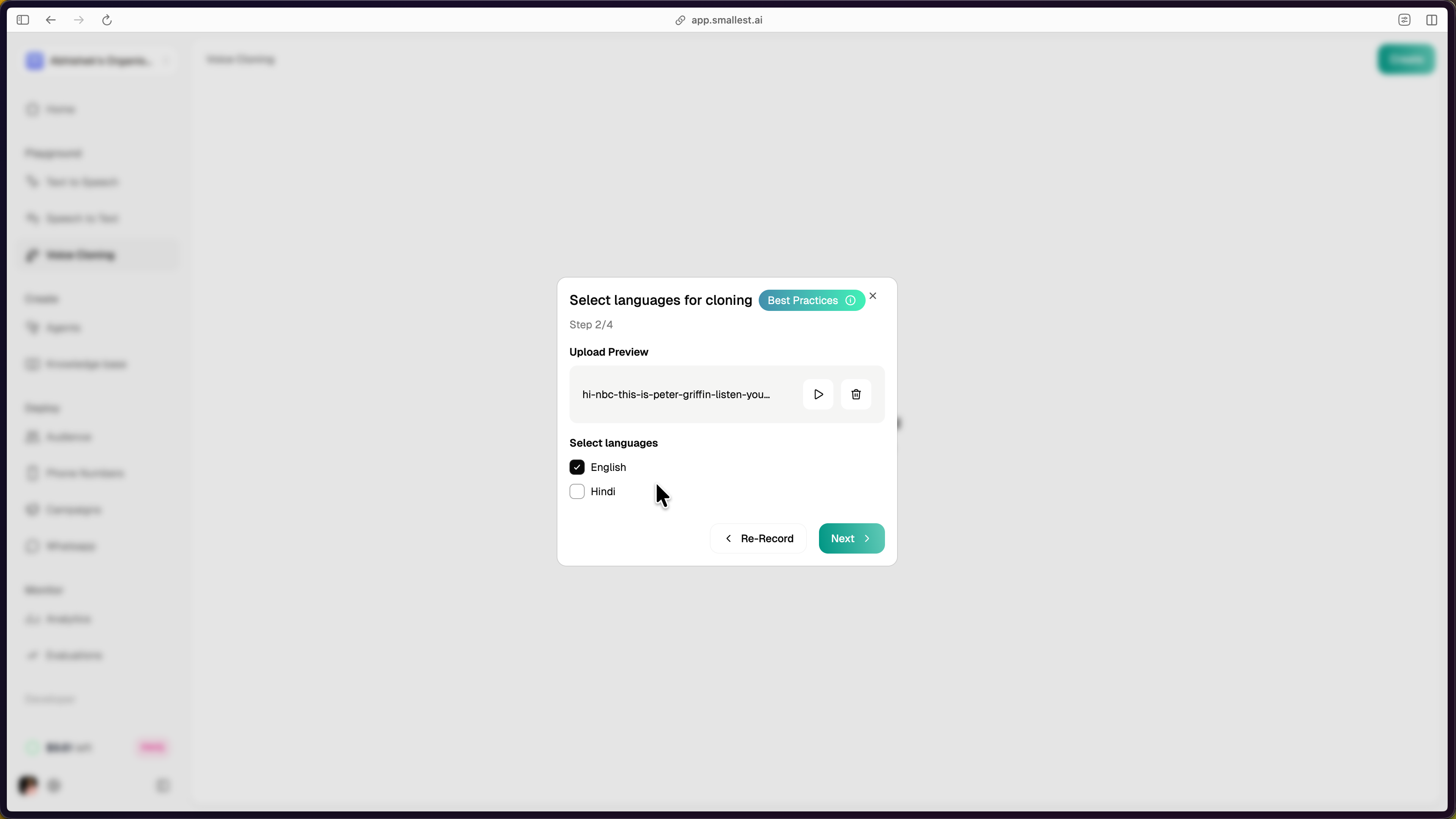
After uploading or recording, preview your audio using the playback controls. Select the target language(s) for the clone. English is selected by default; Hindi is also available.
For best results, record reference audio in the same language as your intended output. See Voice Cloning Best Practices for multi-lingual cloning guidance.
Click Next to proceed.
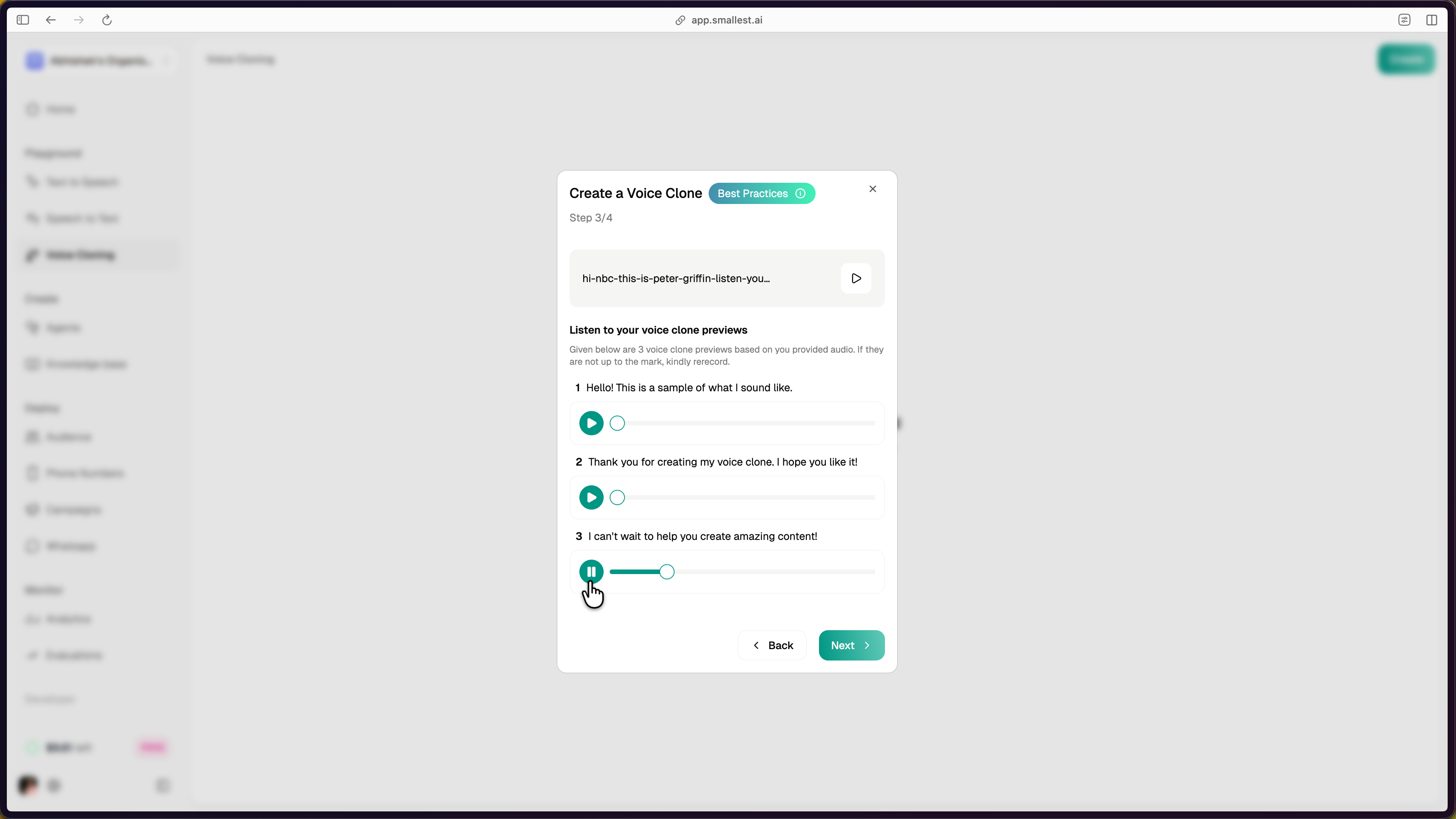
Step 5: Listen to Clone Previews
The platform generates sample audio clips using your cloned voice. Listen to the previews to verify the voice matches your expectations. If the quality is not satisfactory, click Back to re-record or upload different reference audio.
Click Next to proceed.
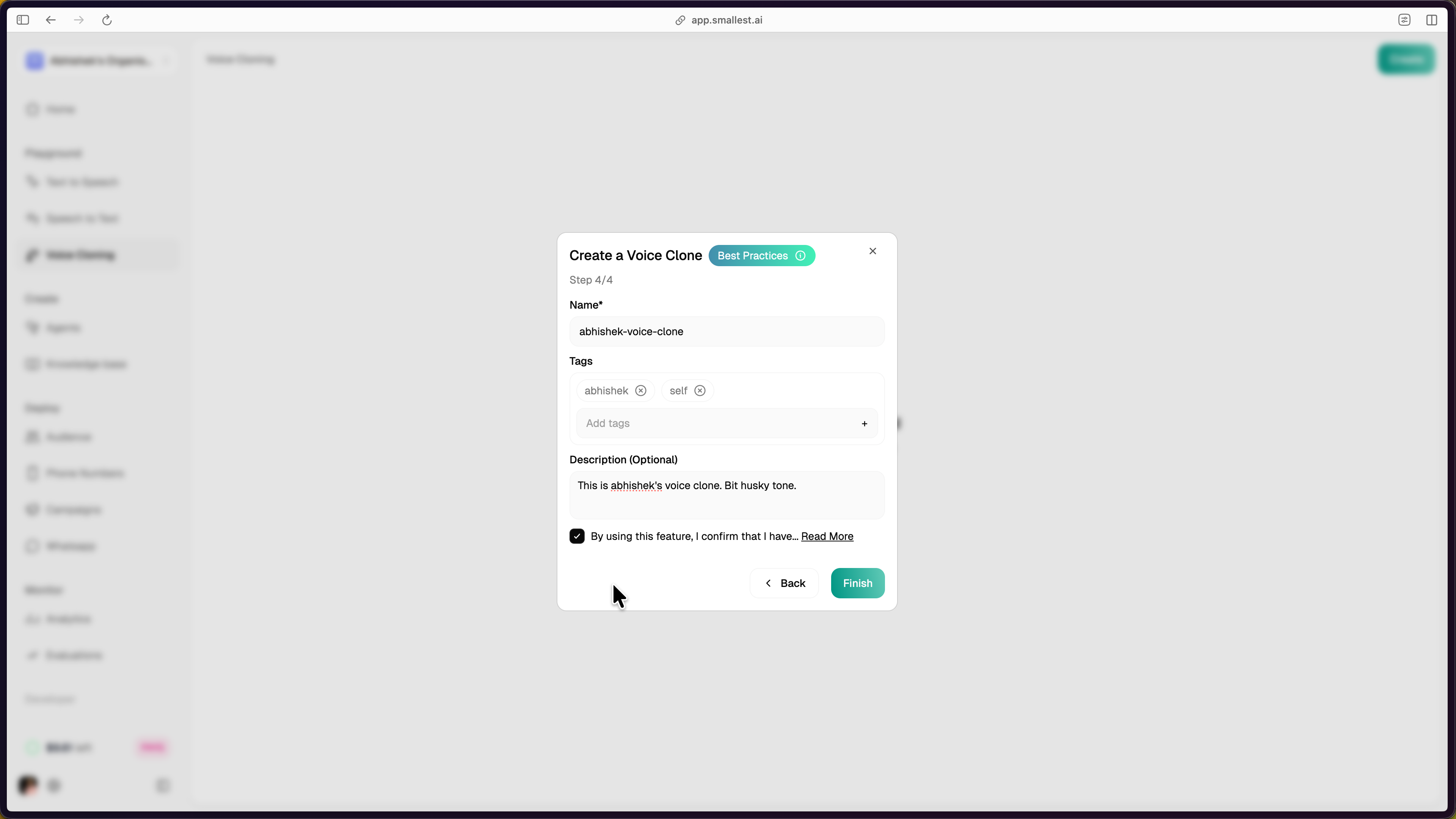
Step 6: Name and Save
Provide a Name, Tags, and optional Description for the cloned voice. Accept the terms and conditions, then click Finish to save.
Using Your Cloned Voice
After saving, the cloned voice appears in your Voice Cloning dashboard with its voice_id, type, tags, accent, and creation date.
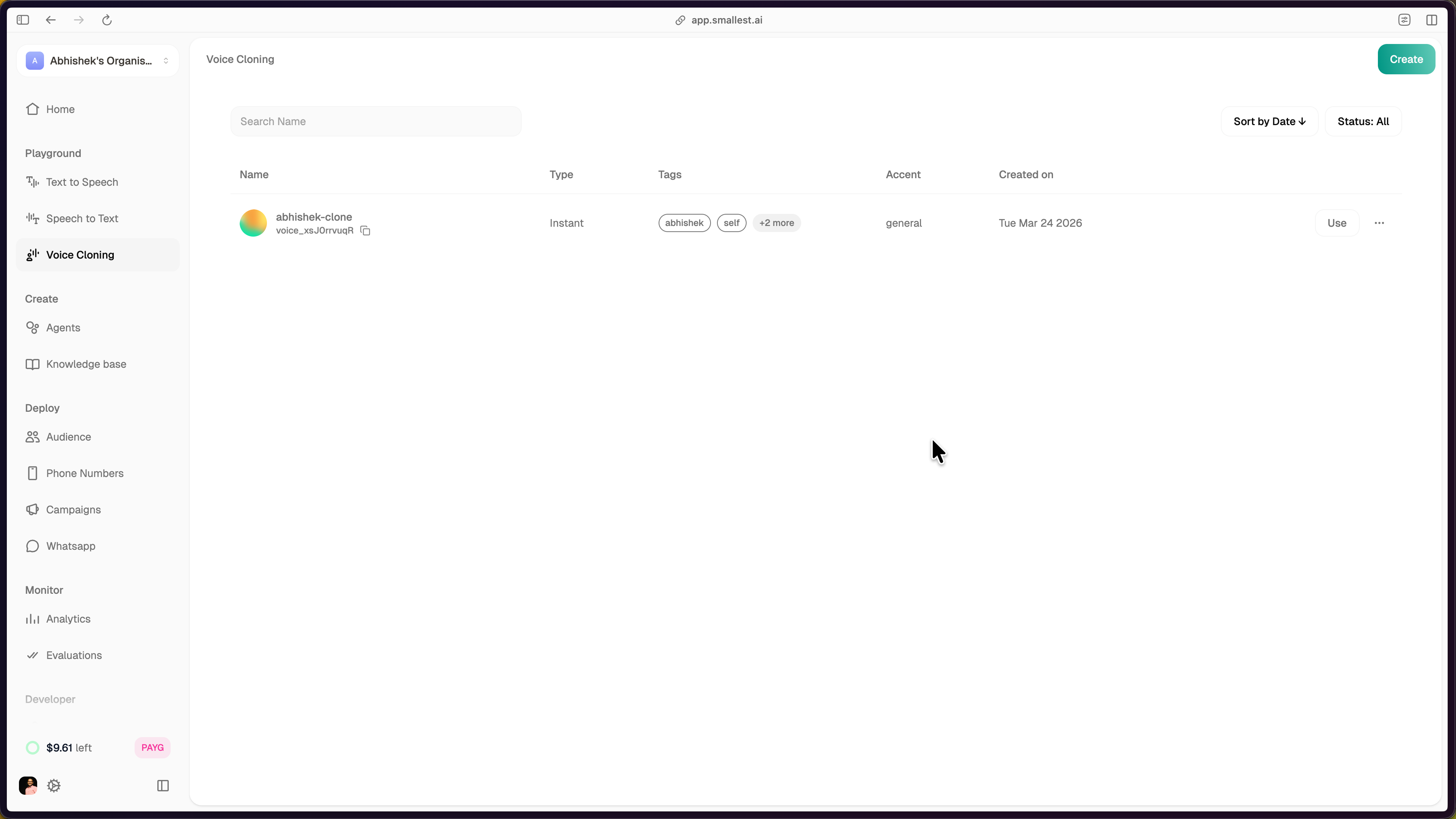
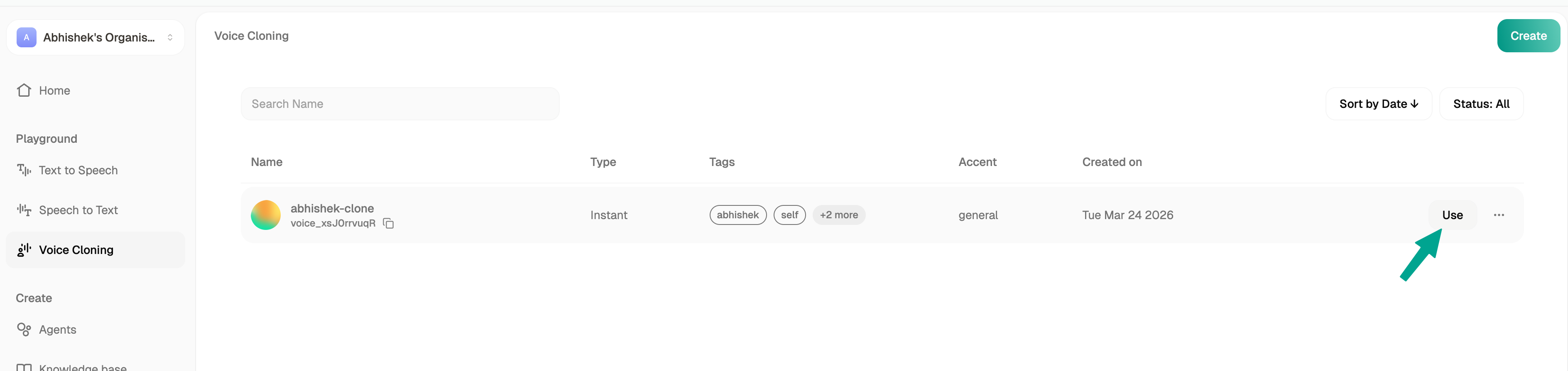
Click the Use button next to your clone to open the Text to Speech playground with your cloned voice pre-selected.
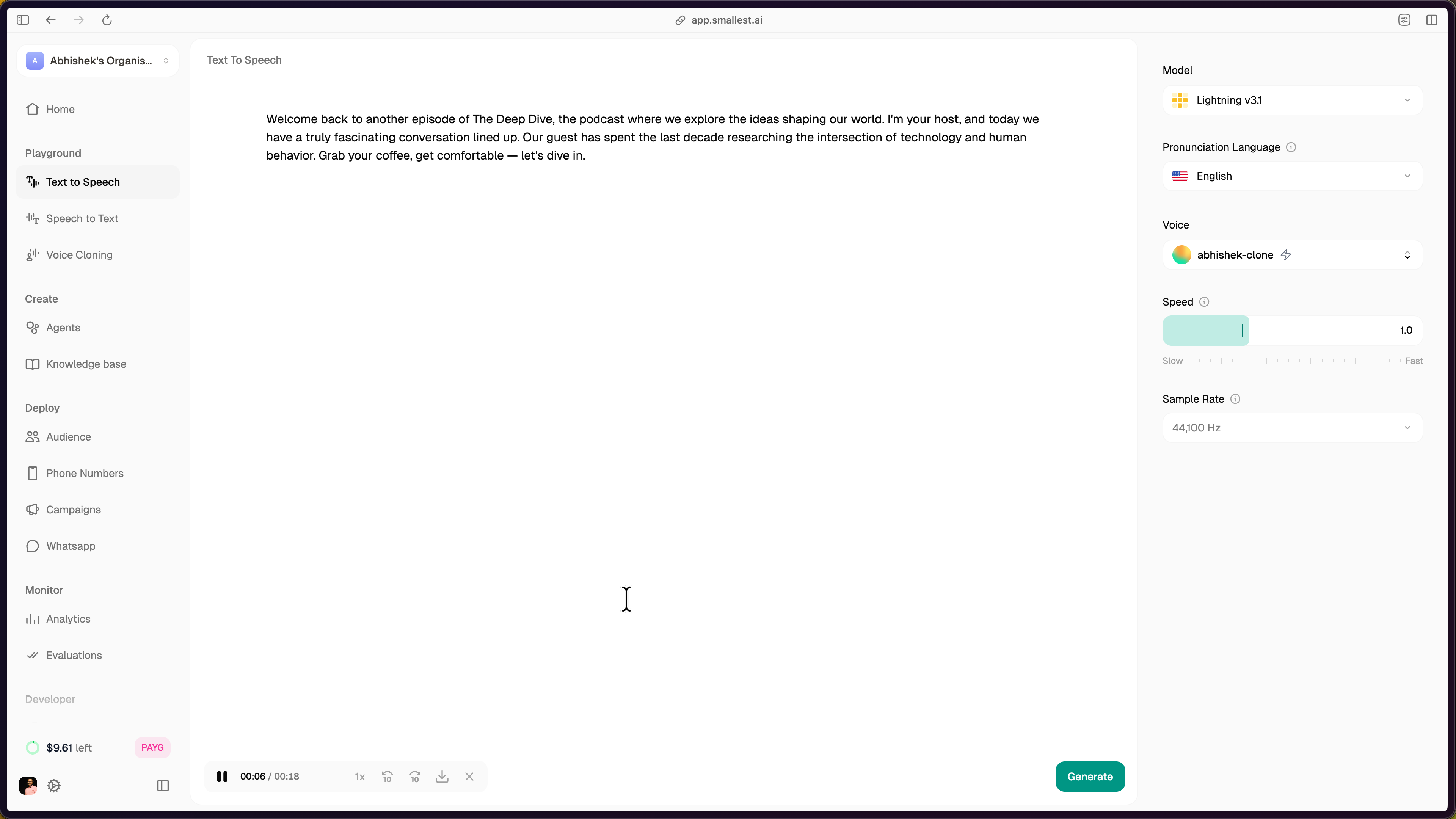
The TTS playground opens with your cloned voice selected under Voice, the model set to Lightning v3.1, and controls for pronunciation language, speed, and sample rate. Enter text and click Generate to synthesize speech with your cloned voice.
Using the Clone via API
Pass the voice_id from your dashboard in any TTS API call:
For programmatic voice cloning (create clones via code), see Voice Cloning via API.
Need help? Contact support@smallest.ai or ask on Discord.