
Manual Setup
Step-by-step config for Cursor, Claude Desktop, and Claude Code.
Requires Node.js 18+ — see Prerequisites if you need to install it.
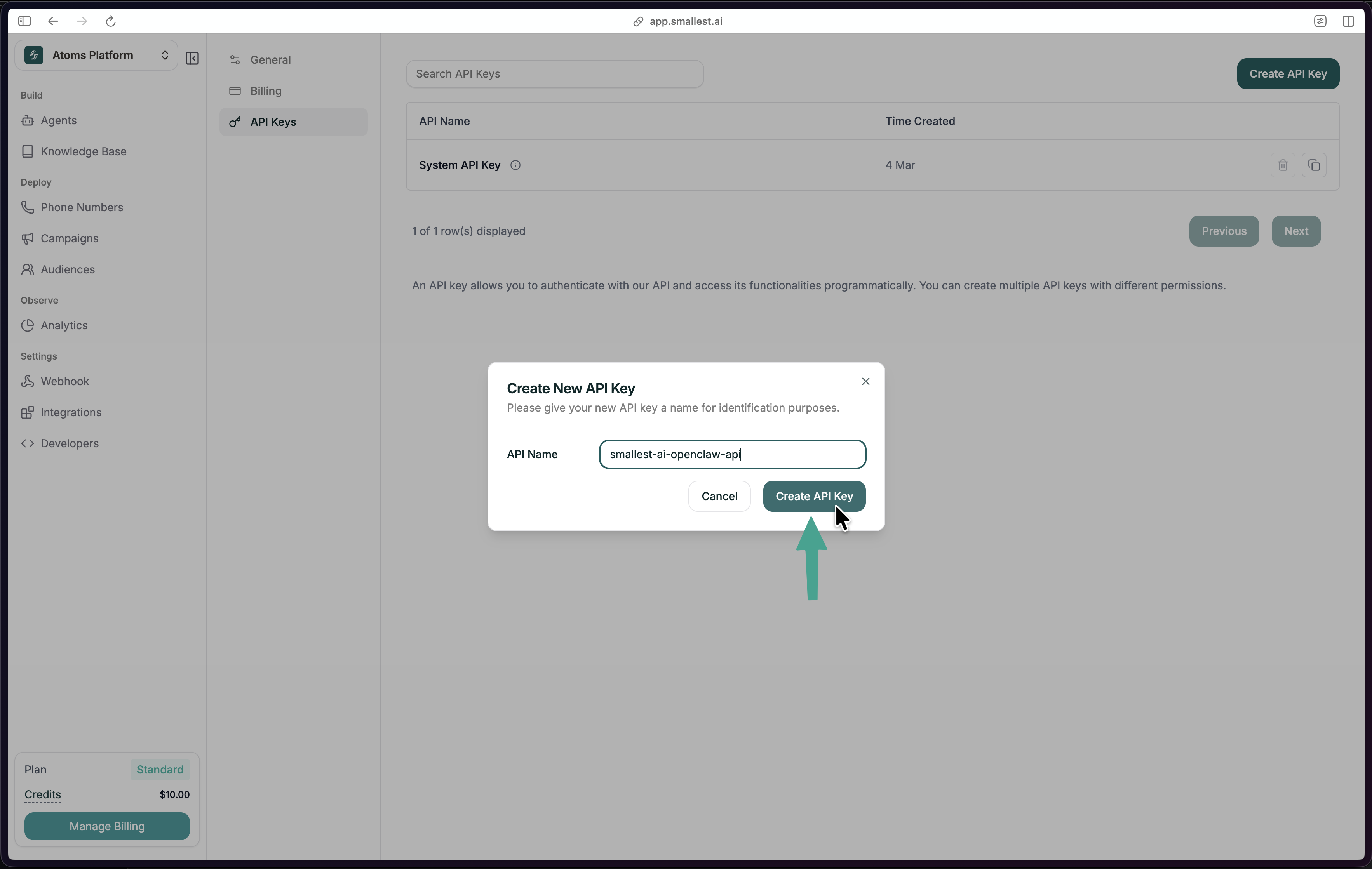
Get Your API Key
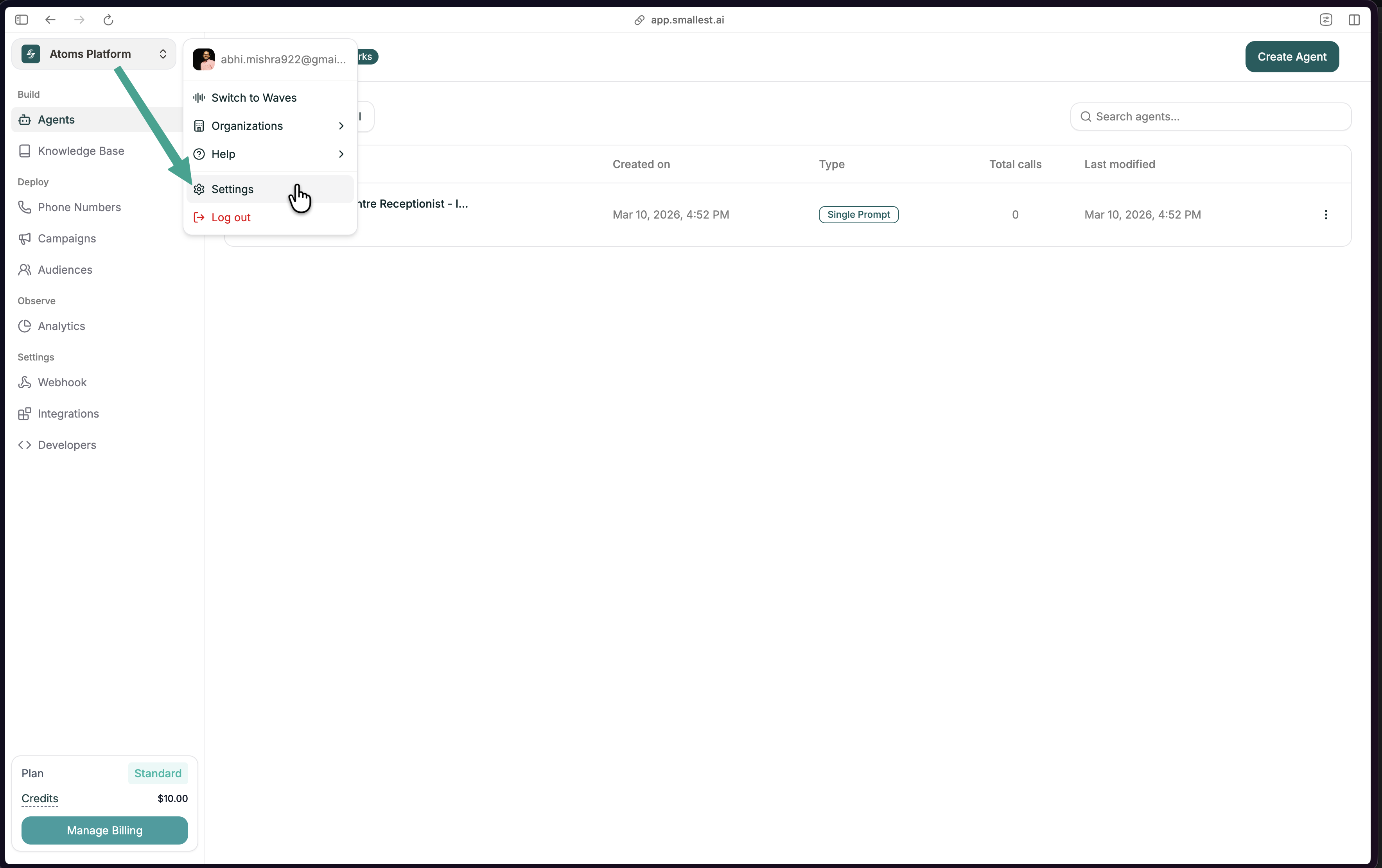
Open Settings
Click your profile in the top-left of app.smallest.ai and select Settings.
Install
Cursor
Claude Desktop
Claude Code
Open (or create) your Cursor MCP config file:
Paste this config. If you already have other MCP servers, just add the "smallest" entry inside "mcpServers".
Replace sk_your_api_key_here with your actual API key.
Don’t share your API key or commit it to git.
Restart your editor
Cursor
Claude Desktop
Claude Code
Cmd+Shift+P (Mac) or Ctrl+Shift+P (Windows) → Developer: Reload Window
Verify
Cursor
Claude Desktop
Claude Code
Go to Cursor Settings → MCP. You should see smallest listed with a green dot.
Open a new chat (make sure you’re in Agent mode, not Ask mode) and type:
You should see your agents listed back. If you do — you’re done!
Troubleshooting
npx: command not found
Node.js isn’t installed or isn’t in your PATH. See Prerequisites for installation instructions.
MCP server doesn't show up in Cursor
- Make sure the
mcp.jsonfile is valid JSON (no trailing commas) - Verify the file is at
~/.cursor/mcp.json(not inside a project folder) - Reload the window:
Cmd+Shift+P→ Developer: Reload Window
'Invalid or revoked API key' error
- Check that you copied the full key starting with
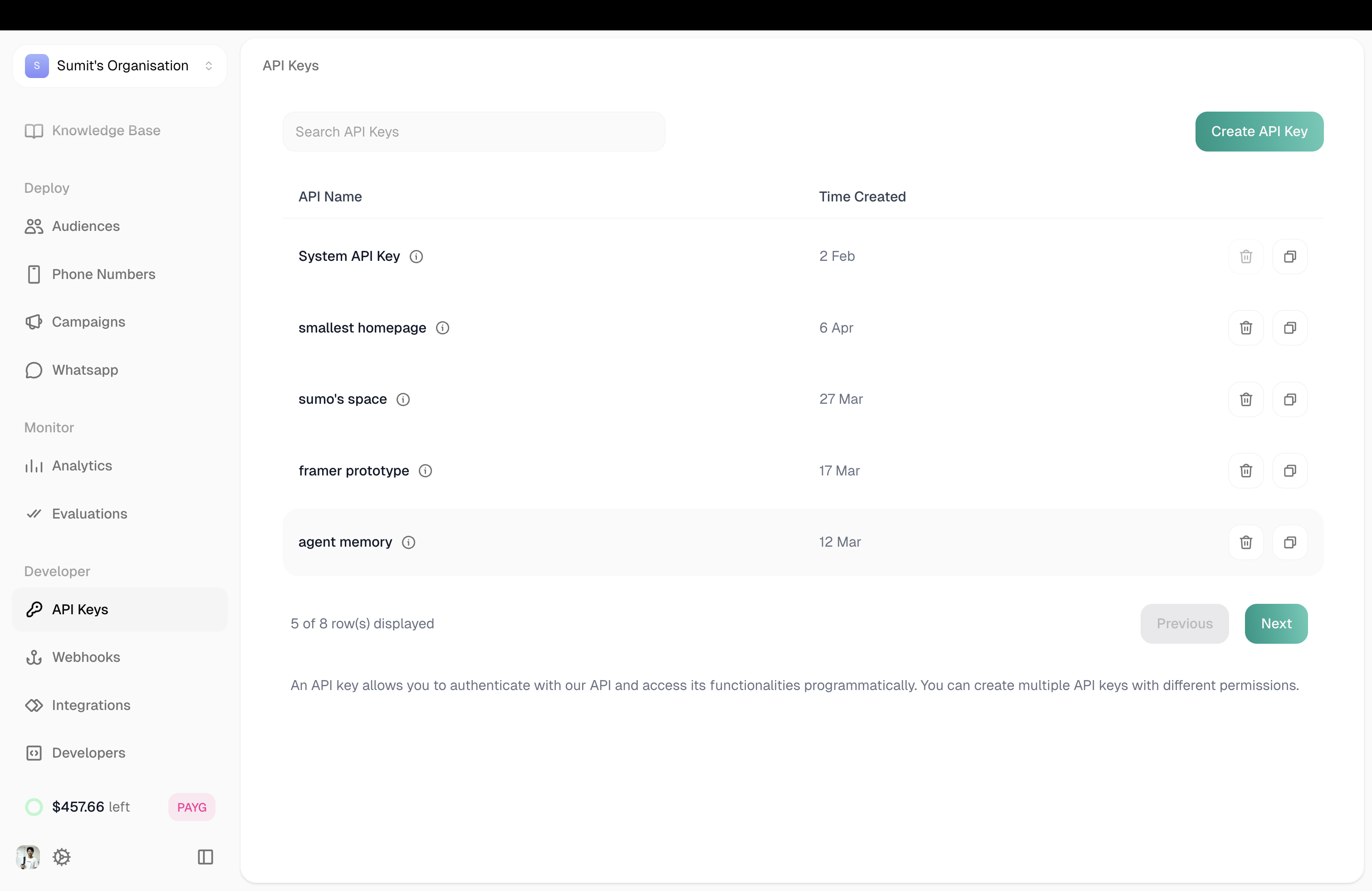
sk_ - Generate a new key from app.smallest.ai → Settings → API Keys
Next steps
Head to the Prompt Cookbook — it has copy-paste prompts for everything you can do.