
Projects
Introduction
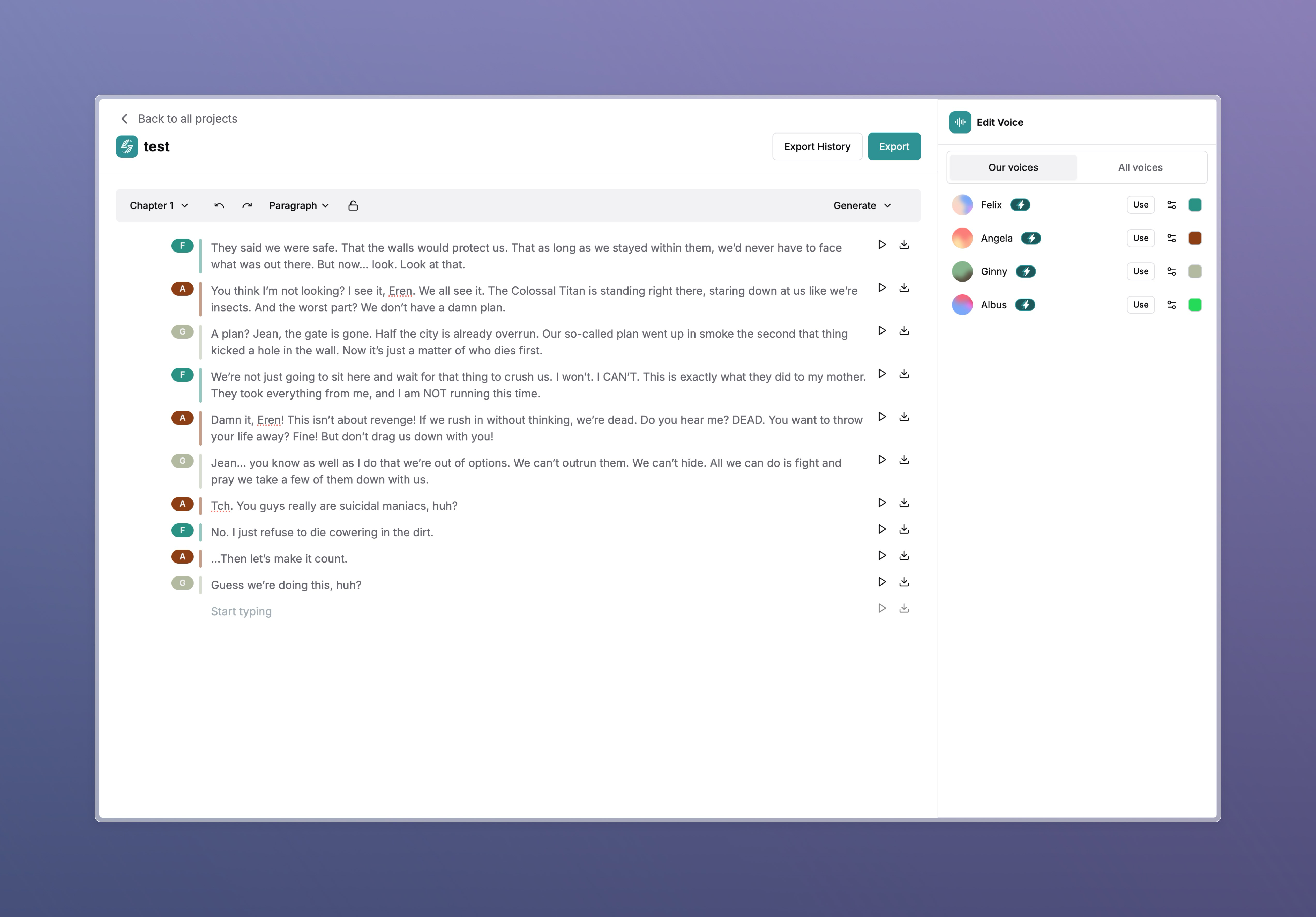
Welcome to the official documentation for our text-to-speech (TTS) project. Our platform is a state-of-the-art audio synthesis tool designed to convert written text into high-quality, natural-sounding speech. It is particularly useful for content creators, authors, educators, and businesses looking to create voice-driven experiences efficiently.
Key Features
Multiple Voices
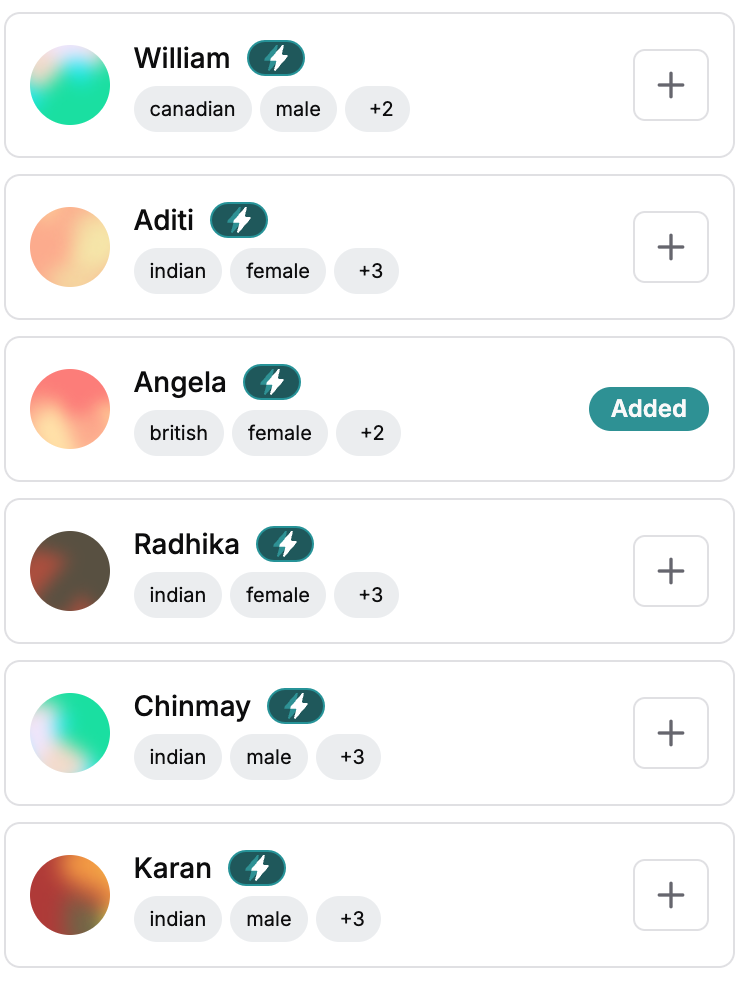
Access a diverse selection of AI-generated voices tailored for different use cases. Choose from various genders, age groups, and accents to find the perfect match for your project.
Click on a voice avatar to preview it.
Click the + icon to add it to your project.
Drag-and-Drop Content Management
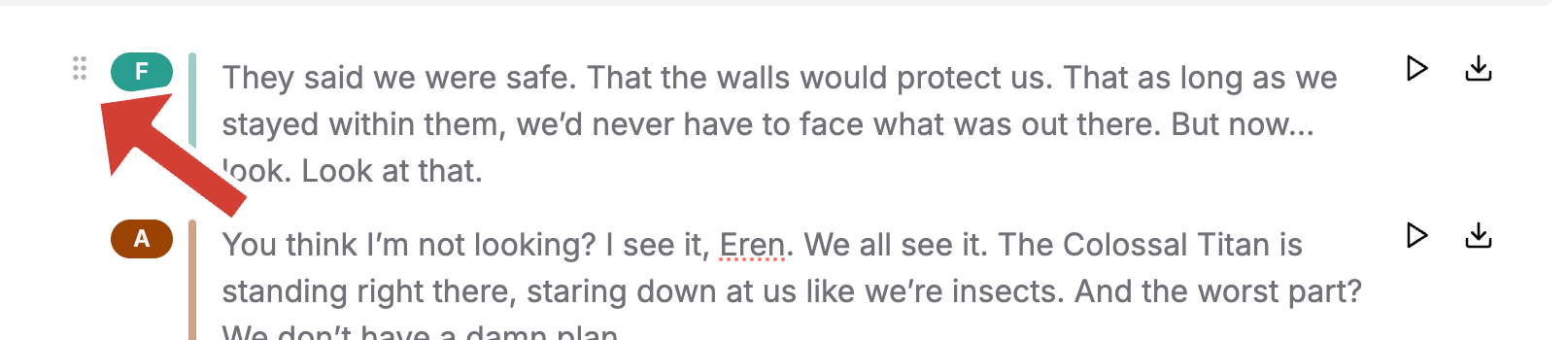
Easily organize your content with an intuitive block-based editing system. Simply click and drag to rearrange content blocks for a seamless editing experience.
Flexible Audio Generation
Easily transform text into speech with flexible conversion options. Generate audio for the entire text or select specific blocks as needed.
Click on the play button to preview the generated audio.
Click on the Generate Selected button to convert the selected text to speech.
Click on the Generate Till End button to convert the entire text to speech.
Chapter Management
Organize your content into chapters for better management and navigation.
Cloned Voices
Easily integrate cloned voices into your projects. Simply add the cloned voice to your project and start using it in your content seamlessly.
Advanced Voice Settings
Fine-tune your voice output with advanced settings. Use the gear icon to adjust speed, consistency, and enhancement options for a more customized experience.
Secure Block Locking
Protect finalized content from unintended modifications by locking blocks. Ensure important sections remain unchanged.
One-Click Export Options
Easily download individual voice outputs with a single click. Streamline your workflow with quick export options.
Use Cases
Content Creation
- Transform blog posts, articles, and scripts into engaging audio content.
- Enhance storytelling with dynamic voice narration.
Education and Accessibility
- Convert textbooks and educational materials into audio formats.
- Improve accessibility for visually impaired users.
Business and Marketing
- Create audio advertisements and voiceovers for promotional content.
- Generate automated voice responses for customer support systems.
Getting Started
Installation & Setup
- Register for an account and log into the platform.
- Create a new project or open an existing one.
- Add or paste your text content to the project.
- Select a voice, adjust settings, and generate speech.
- Use the drag-and-drop editor to organize your content.
- Export the final output in your preferred format.
Best Practices
- Use chapters to organize your content.
- Lock finalized blocks to prevent accidental edits.
- Experiment with different voice settings for the best results.
- Use the preview to check the generated speech before exporting.
- Use the clone feature to create a new voice with your own style.
- Use the gear icon to adjust speed, consistency, and enhancement options for a more customized experience.
Get in Touch
Join our community and stay connected with the latest developments:
- Support: Reach out to our support team at support@smallest.ai for any queries or assistance.
- Community: Join our Discord server to connect with other developers and get real-time support.
- Blog: Follow our blog for insights, tutorials, and updates.
Thank you for choosing Waves. We look forward to helping you create amazing voice experiences!