***
title: API Calls
sidebarTitle: API Calls
description: Connect your agent to external services and data.
--------------------------------------------------------------
API Calls let your agent fetch and send data during conversations. Look up customer information, check order status, book appointments, create tickets — all in real-time while the conversation is happening.
**Location:** Config Panel (right sidebar) → API Calls toggle
***
## Setup
1. Toggle **API Calls** ON
2. Click ⚙️ to open settings
3. Click **+ Add API Call**
***
## Configuration
The API Call modal has two main sections.
### Basic Setup & API Configuration
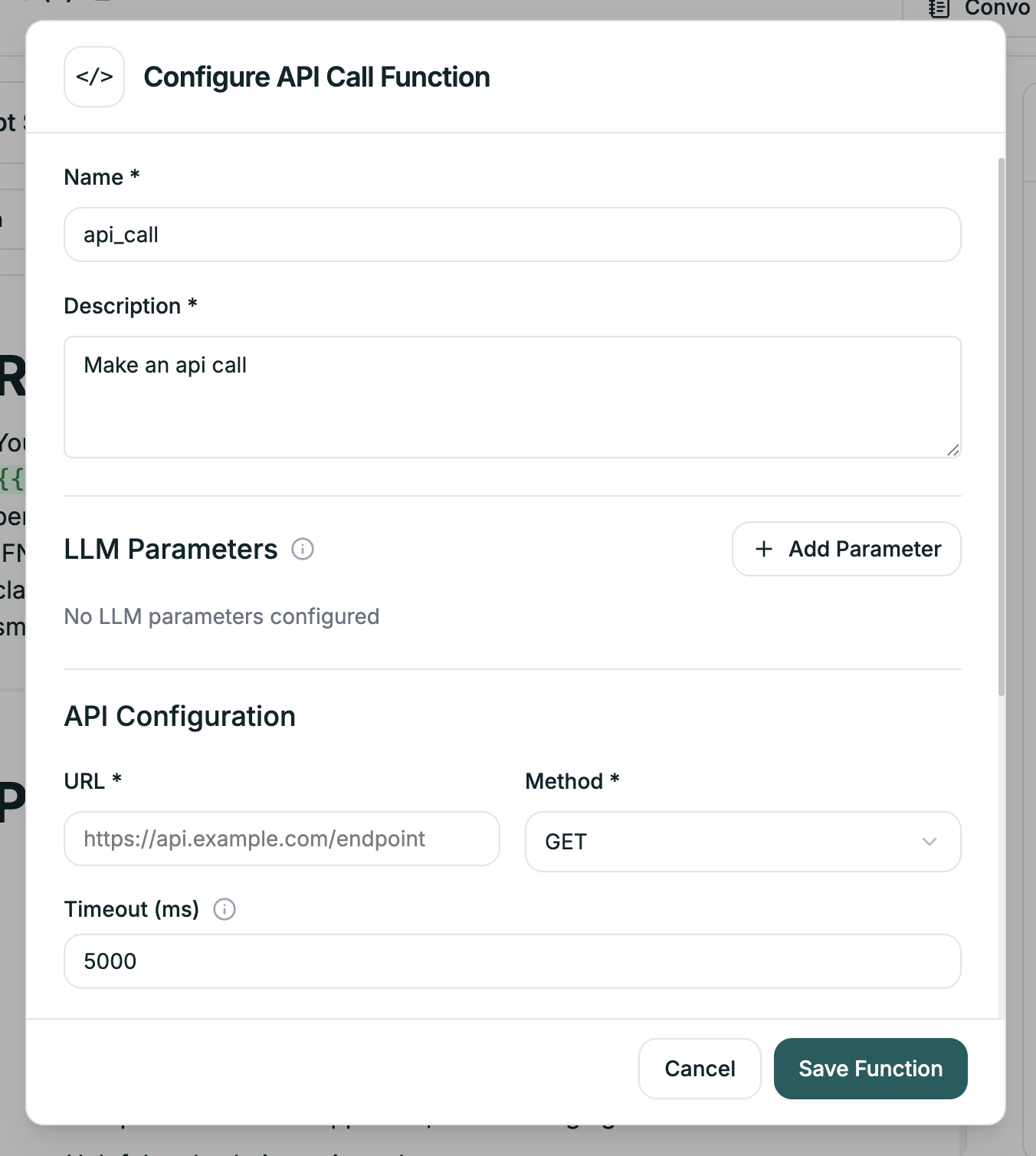
| Field | Required | Description |
| ------------------ | -------- | ------------------------------------------------------ |
| **Name** | Yes | Identifier for this API call (e.g., `lookup_customer`) |
| **Description** | Yes | Tells the AI when to trigger this call |
| **LLM Parameters** | No | Parameters the LLM can populate dynamically |
| **URL** | Yes | The API endpoint |
| **Method** | Yes | GET, POST, PUT, or DELETE |
| **Timeout (ms)** | Yes | How long to wait before failing (default: 5000) |
### Headers, Parameters & Response Extraction
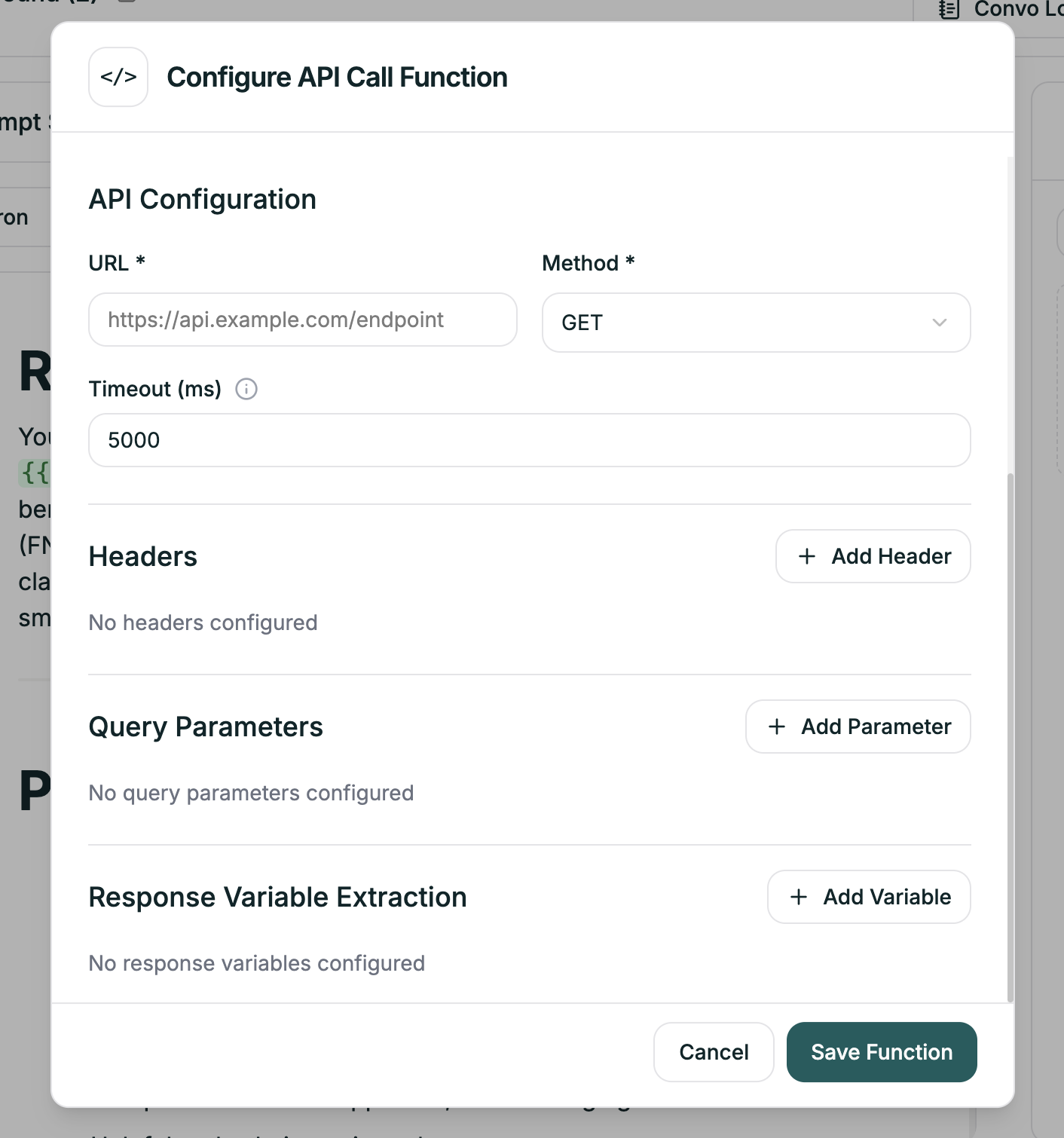
| Field | Purpose |
| -------------------------------- | ------------------------------------------------------- |
| **Headers** | Request headers (Authorization, Content-Type, etc.) |
| **Query Parameters** | URL parameters for GET requests |
| **Response Variable Extraction** | Map response fields to variables you can use in prompts |
***
## LLM Parameters
These are values the AI determines during conversation and passes to your API. Click **+ Add Parameter** to define what the AI should collect.
For example, if you need an order ID to look up status, add a parameter called `order_id` — the AI will extract it from the conversation and include it in the request.
***
## Response Variable Extraction
This is where the magic happens. Map fields from the API response to variables you can use in your prompts.
Click **+ Add Variable** and specify:
* The path in the JSON response (e.g., `customer.name`)
* The variable name (e.g., `customer_name`)
Then use `{{api.customer_name}}` in your prompt.
***
## Example: Customer Lookup
| Field | Value |
| -------------------- | --------------------------------------------------- |
| **Name** | `lookup_customer` |
| **Description** | "Look up customer information when the call starts" |
| **URL** | `https://crm.example.com/api/customers` |
| **Method** | GET |
| **Query Parameters** | `phone: {{caller_phone}}` |
| Response Path | Variable |
| --------------------- | ----------------------- |
| `customer.name` | `{{api.customer_name}}` |
| `customer.tier` | `{{api.tier}}` |
| `customer.last_order` | `{{api.last_order}}` |
```
Hello {{api.customer_name}}! I see you're a {{api.tier}}
member. Your last order is {{api.last_order}}.
```
***
## Using Variables in API Calls
You can use variables anywhere in your API configuration:
**In URL:**
```
https://api.example.com/orders/{{collected.order_id}}
```
**In Headers:**
```
Authorization: Bearer {{api_key}}
```
**In Query Parameters:**
```
phone: {{caller_phone}}
```
***
## Tips
The description tells the AI when to make this call. Be specific:
| Vague | Specific |
| -------------- | ---------------------------------------------------------------------------- |
| "Get customer" | "Look up customer information using their phone number when the call starts" |
| "Check order" | "Fetch order status when the customer provides an order number" |
APIs can fail. In your prompt, tell the agent what to do:
"If customer data isn't available, greet generically and ask for their name. Don't mention that a lookup failed."
Default is 5000ms (5 seconds). For slow APIs, increase this — but remember the caller is waiting.
***
## Related
Use API response data in prompts
Send data after calls complete