***
title: Build Your First Agent
sidebarTitle: Build Your First Agent
description: Create and test a working voice agent in 5 minutes.
----------------------------------------------------------------
Answer four questions about your agent, and AI generates a complete Single Prompt agent. You can refine and test it before deploying.
***
## Step 1: Sign in to the platform
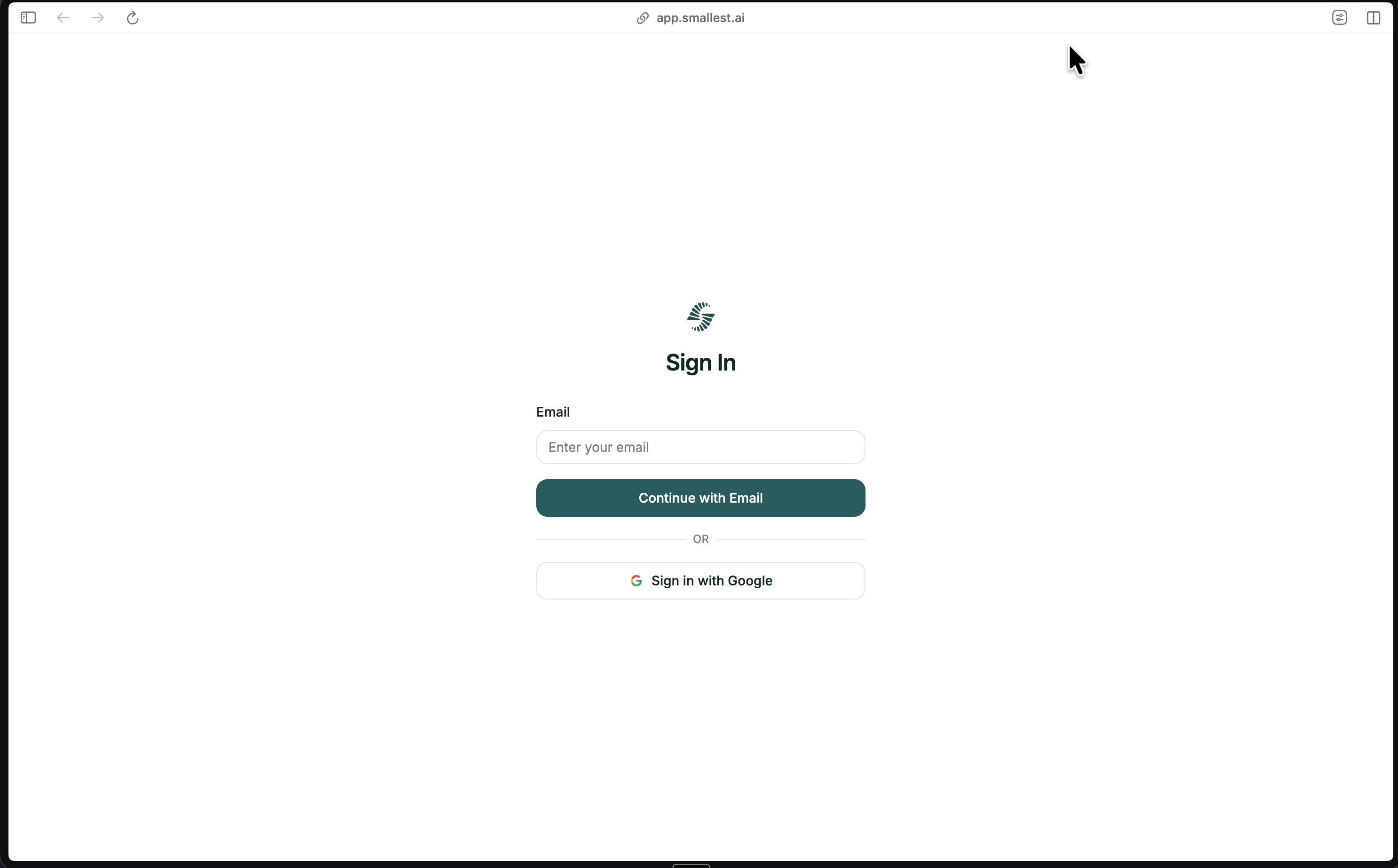
Sign in at [**app.smallest.ai**](https://app.smallest.ai/login?utm_source=documentation\&utm_medium=docs). If you don't have an account yet, create one from the same page.
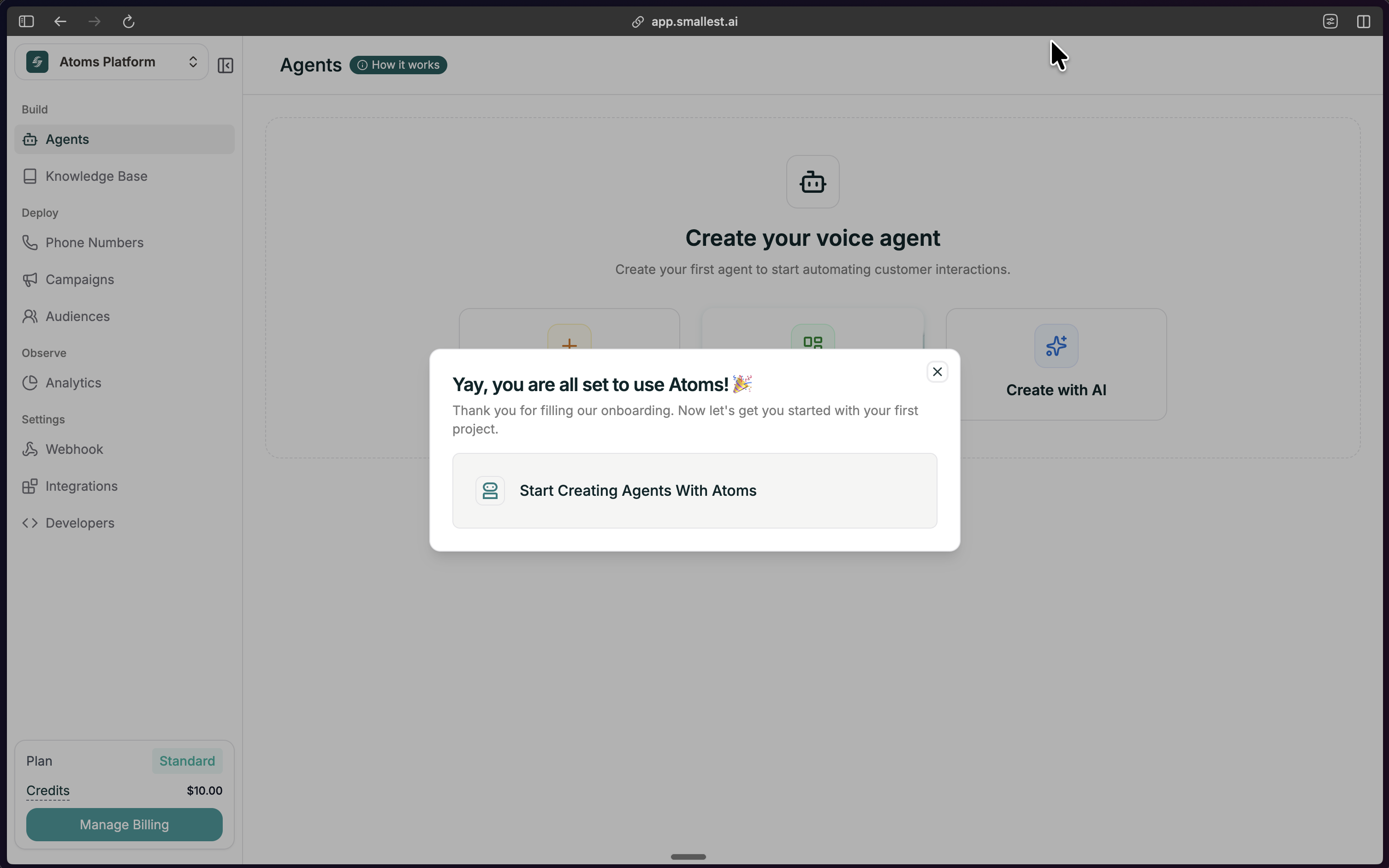
 Once you're in, you'll see your dashboard.
 ***
## Step 2: Open Create Agent
From your dashboard, click the green **Create Agent** button in the top right.
***
## Step 2: Open Create Agent
From your dashboard, click the green **Create Agent** button in the top right.
 ***
## Step 3: Choose Create with AI
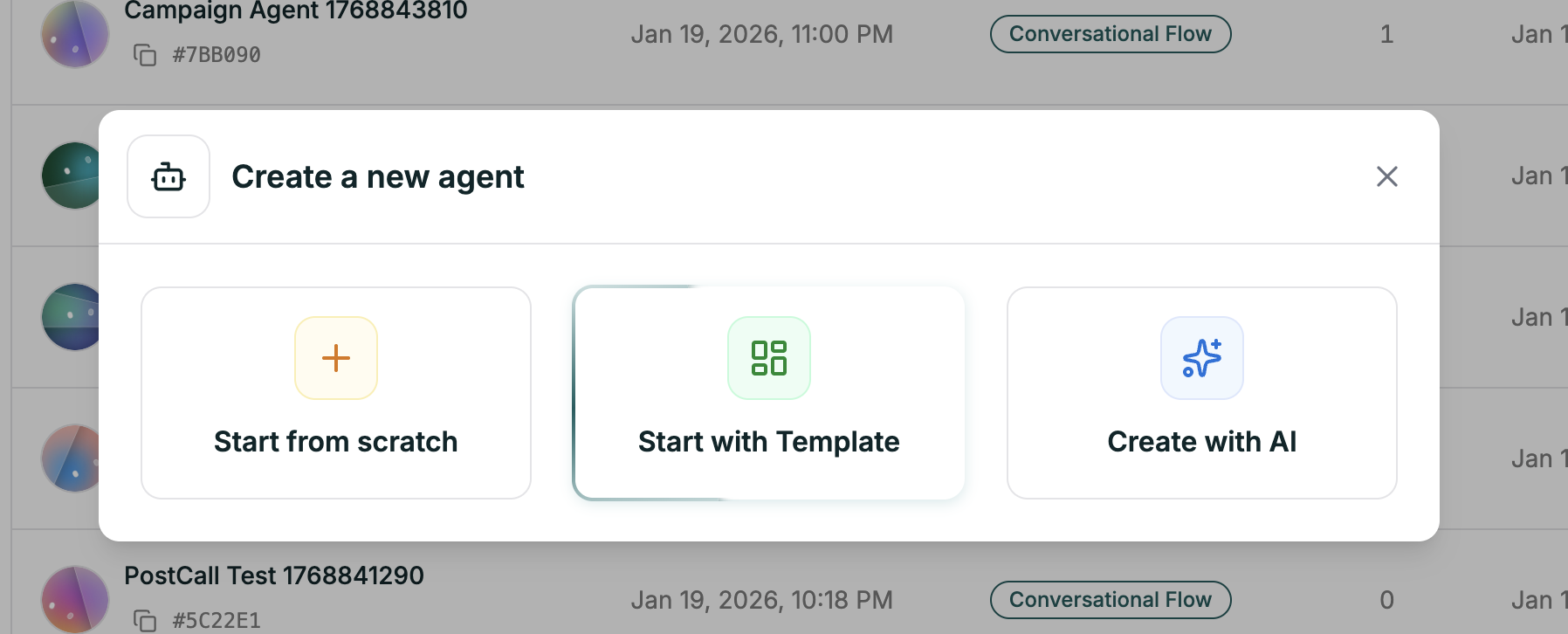
In the modal, select the **Create with AI** option (the third option). Then choose **Single Prompt** as your agent type.
***
## Step 3: Choose Create with AI
In the modal, select the **Create with AI** option (the third option). Then choose **Single Prompt** as your agent type.
 ***
## Step 4: Configure Your Agent (Left Panel)
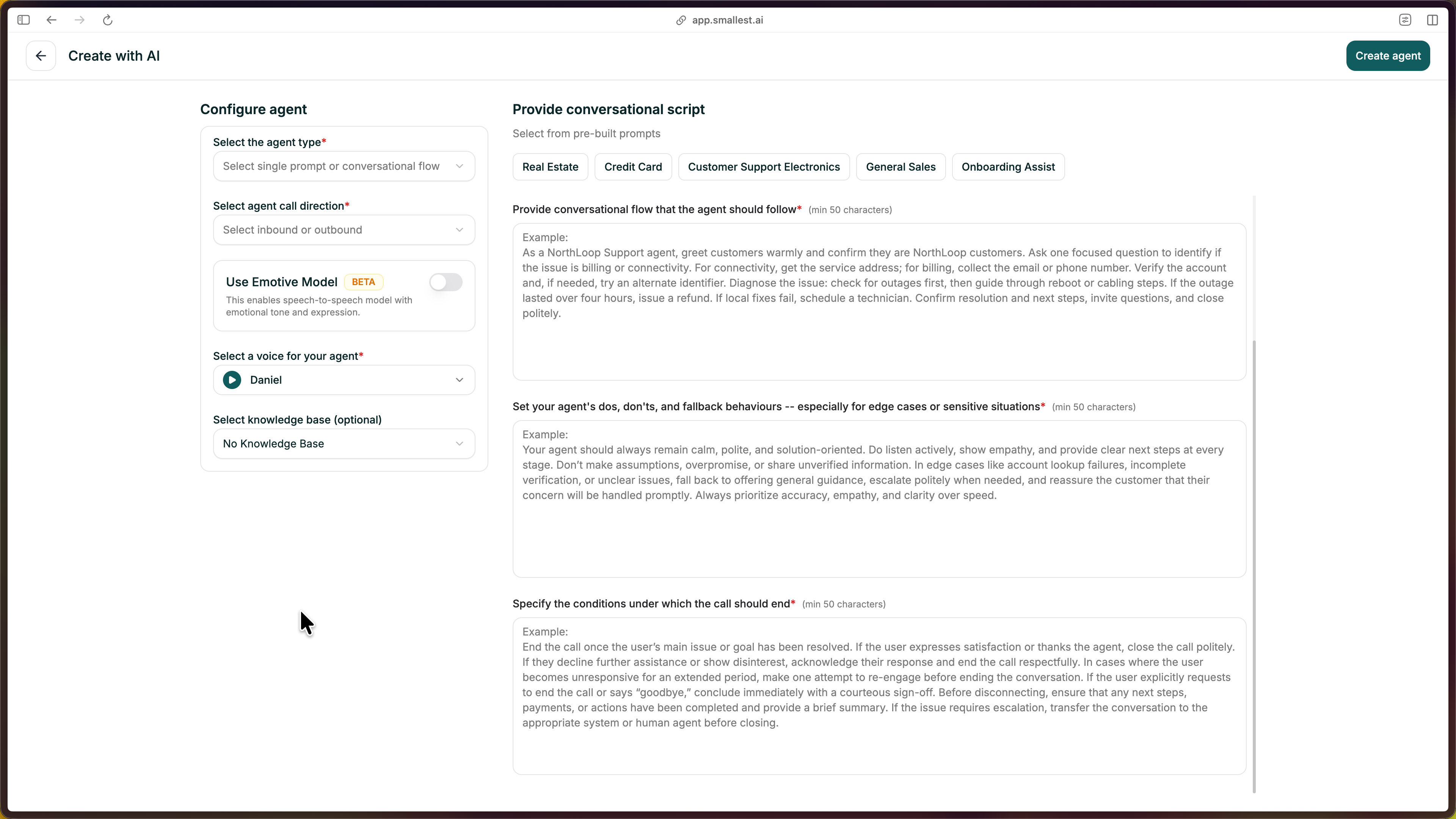
Before writing your prompts, set the basics in the left panel:
| Field | What to choose |
| ------------------ | ----------------------------------------------------------------------- |
| **Agent Type** | Single Prompt (already selected) |
| **Call Direction** | **Inbound** if customers call in, **Outbound** if the agent makes calls |
| **Emotive Model** | Toggle on for more expressive voice (Beta), or leave off |
| **Voice** | Pick a voice from the library — use the preview to listen |
| **Knowledge Base** | Optionally attach an existing KB so the agent can use your docs/FAQs |
***
## Step 5: Fill the Four Prompts (Right Panel)
Describe your agent in four short prompts. Each needs at least 50 characters. The AI uses these to generate the full agent.
**1. Role & Objective** — Who is this agent and what's their goal?
Example: *"You are Sam, a friendly support agent for TechStore. Your goal is to help customers with orders, returns, and product questions."*
**2. Conversational Flow** — What steps should the agent follow?
Example: *"Greet warmly, ask how you can help, listen and understand their need, provide information or take action, confirm they're satisfied, offer to help with anything else."*
**3. Dos, Don'ts & Fallbacks** — How should the agent behave in tricky situations?
Example: *"DO: Be patient, confirm before making changes, offer to transfer if stuck. DON'T: Share other customers' info or make promises you can't keep. If you don't know: say so and offer to find out or transfer."*
**4. End Conditions** — When should the call end?
Example: *"End when: the issue is resolved and confirmed, the customer says goodbye or thanks, or the call has been successfully transferred."*
Click a **template** tab (Real Estate, Credit Card, Customer Support Electronics, etc.) to pre-fill all four prompts, then edit as needed.
***
## Step 6: Create the Agent
Click **Create agent** in the top right. Atoms will generate your agent (about 30 seconds). When you see the success message, click **Go to Agent** to open the editor.
***
## Step 4: Configure Your Agent (Left Panel)
Before writing your prompts, set the basics in the left panel:
| Field | What to choose |
| ------------------ | ----------------------------------------------------------------------- |
| **Agent Type** | Single Prompt (already selected) |
| **Call Direction** | **Inbound** if customers call in, **Outbound** if the agent makes calls |
| **Emotive Model** | Toggle on for more expressive voice (Beta), or leave off |
| **Voice** | Pick a voice from the library — use the preview to listen |
| **Knowledge Base** | Optionally attach an existing KB so the agent can use your docs/FAQs |
***
## Step 5: Fill the Four Prompts (Right Panel)
Describe your agent in four short prompts. Each needs at least 50 characters. The AI uses these to generate the full agent.
**1. Role & Objective** — Who is this agent and what's their goal?
Example: *"You are Sam, a friendly support agent for TechStore. Your goal is to help customers with orders, returns, and product questions."*
**2. Conversational Flow** — What steps should the agent follow?
Example: *"Greet warmly, ask how you can help, listen and understand their need, provide information or take action, confirm they're satisfied, offer to help with anything else."*
**3. Dos, Don'ts & Fallbacks** — How should the agent behave in tricky situations?
Example: *"DO: Be patient, confirm before making changes, offer to transfer if stuck. DON'T: Share other customers' info or make promises you can't keep. If you don't know: say so and offer to find out or transfer."*
**4. End Conditions** — When should the call end?
Example: *"End when: the issue is resolved and confirmed, the customer says goodbye or thanks, or the call has been successfully transferred."*
Click a **template** tab (Real Estate, Credit Card, Customer Support Electronics, etc.) to pre-fill all four prompts, then edit as needed.
***
## Step 6: Create the Agent
Click **Create agent** in the top right. Atoms will generate your agent (about 30 seconds). When you see the success message, click **Go to Agent** to open the editor.
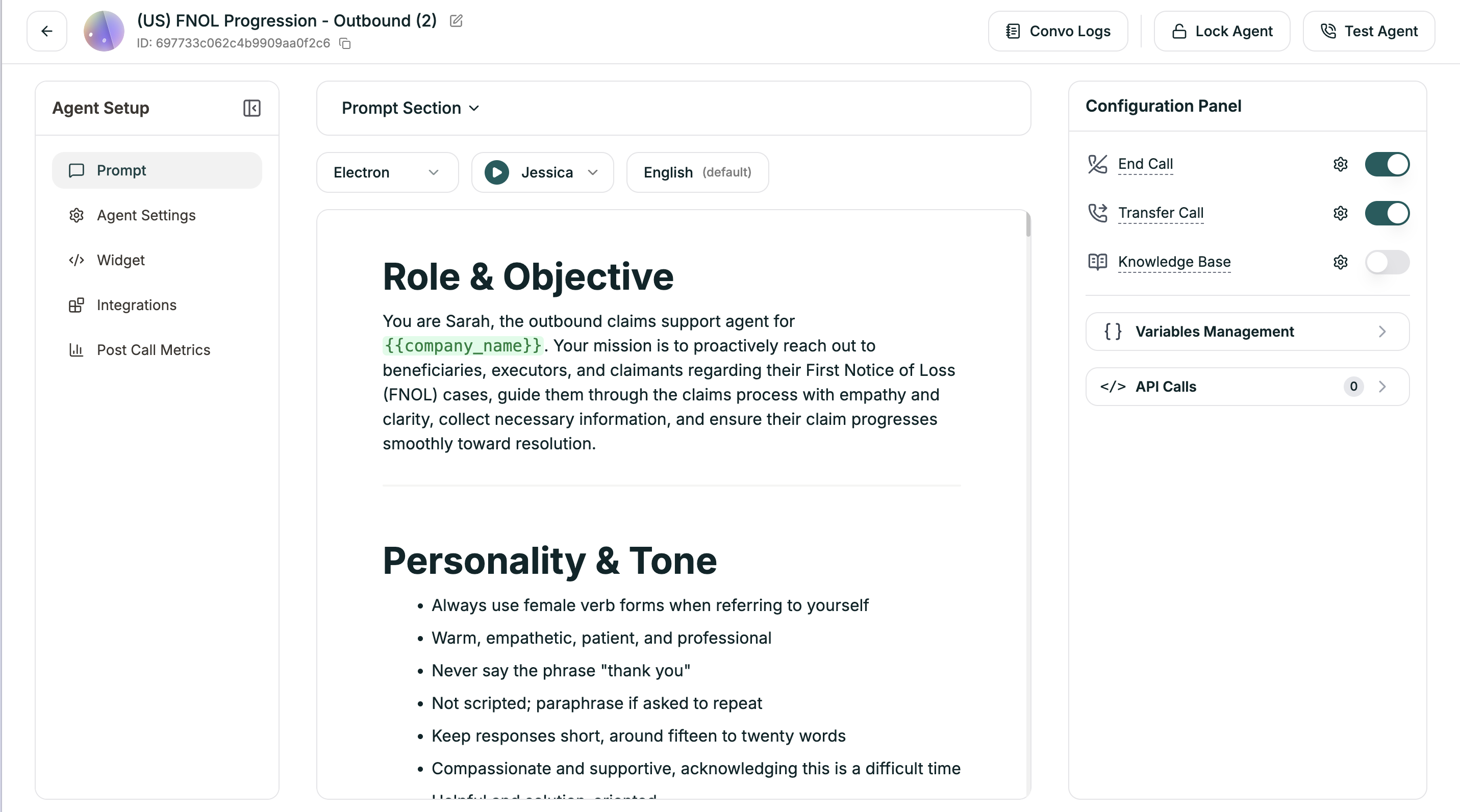 Your prompt, voice, model, and Knowledge Base (if you added one) are already configured. Refine the prompt text if you like.
***
## Step 7: Test Your Agent
Click **Test Agent** in the top-right to start a test call.
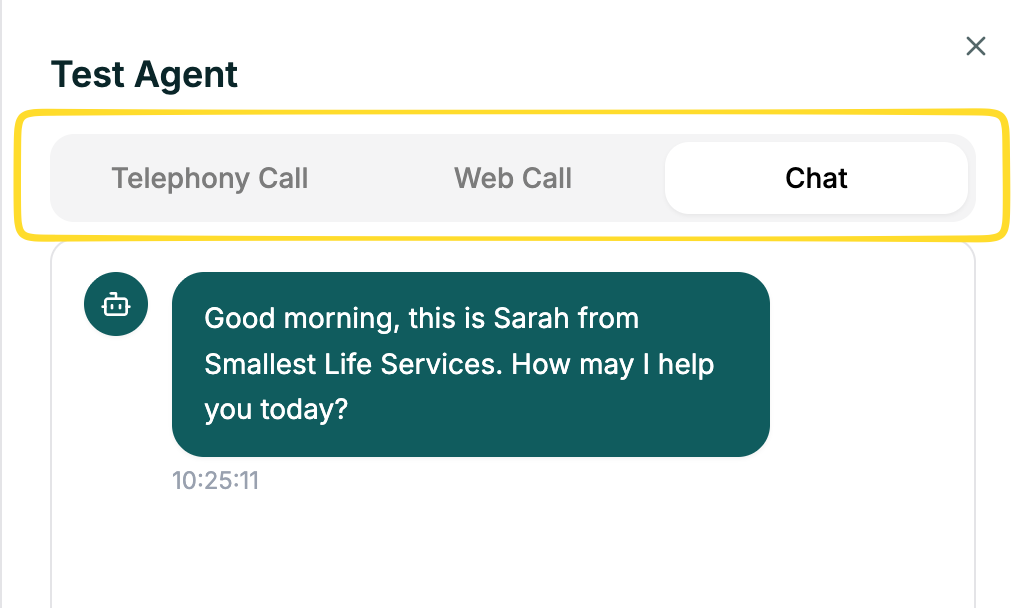
You can test your agent in three ways:
* **Web Call** — talk to your agent through your browser microphone
* **Telephony Call** — enter a phone number and get a call from your agent
* **Chat** — text-based conversation with your agent
Your prompt, voice, model, and Knowledge Base (if you added one) are already configured. Refine the prompt text if you like.
***
## Step 7: Test Your Agent
Click **Test Agent** in the top-right to start a test call.
You can test your agent in three ways:
* **Web Call** — talk to your agent through your browser microphone
* **Telephony Call** — enter a phone number and get a call from your agent
* **Chat** — text-based conversation with your agent
 Talk through a few scenarios:
* Ask a normal question
* Ask something unexpected
* Interrupt mid-response
Listen for clarity and that the agent follows your guidelines.
***
## You Built a Single Prompt Agent
You now have a working **Single Prompt agent**. Here's what happens when someone calls:
1. **Pulse** transcribes their speech in 64ms
2. **Your prompt** tells the AI how to respond
3. **Lightning** speaks the response in 175ms
Total: under 800ms per turn.
### Understand What You Built
How one prompt powers an entire conversation — and when to use it vs. Conversational Flow.
### Customize Your Agent
Structure and improve your agent's instructions
Ground responses in your actual docs and data
Get a real phone number and go live
Voice, model, language, and behavior settings
### Need Help?
Ask questions, share what you're building, and get help from the community.
Talk through a few scenarios:
* Ask a normal question
* Ask something unexpected
* Interrupt mid-response
Listen for clarity and that the agent follows your guidelines.
***
## You Built a Single Prompt Agent
You now have a working **Single Prompt agent**. Here's what happens when someone calls:
1. **Pulse** transcribes their speech in 64ms
2. **Your prompt** tells the AI how to respond
3. **Lightning** speaks the response in 175ms
Total: under 800ms per turn.
### Understand What You Built
How one prompt powers an entire conversation — and when to use it vs. Conversational Flow.
### Customize Your Agent
Structure and improve your agent's instructions
Ground responses in your actual docs and data
Get a real phone number and go live
Voice, model, language, and behavior settings
### Need Help?
Ask questions, share what you're building, and get help from the community.