***
title: Campaigns
description: Create and manage outbound calling campaigns
---------------------
For clean Markdown of any page, append .md to the page URL. For a complete documentation index, see https://docs.smallest.ai/atoms/atoms-platform/deployment/llms.txt. For full documentation content, see https://docs.smallest.ai/atoms/atoms-platform/deployment/llms-full.txt.
Campaigns let you reach out to your audiences automatically. Set up an agent, pick an audience, and let Atoms call through your contact list.
***
## Your Campaigns
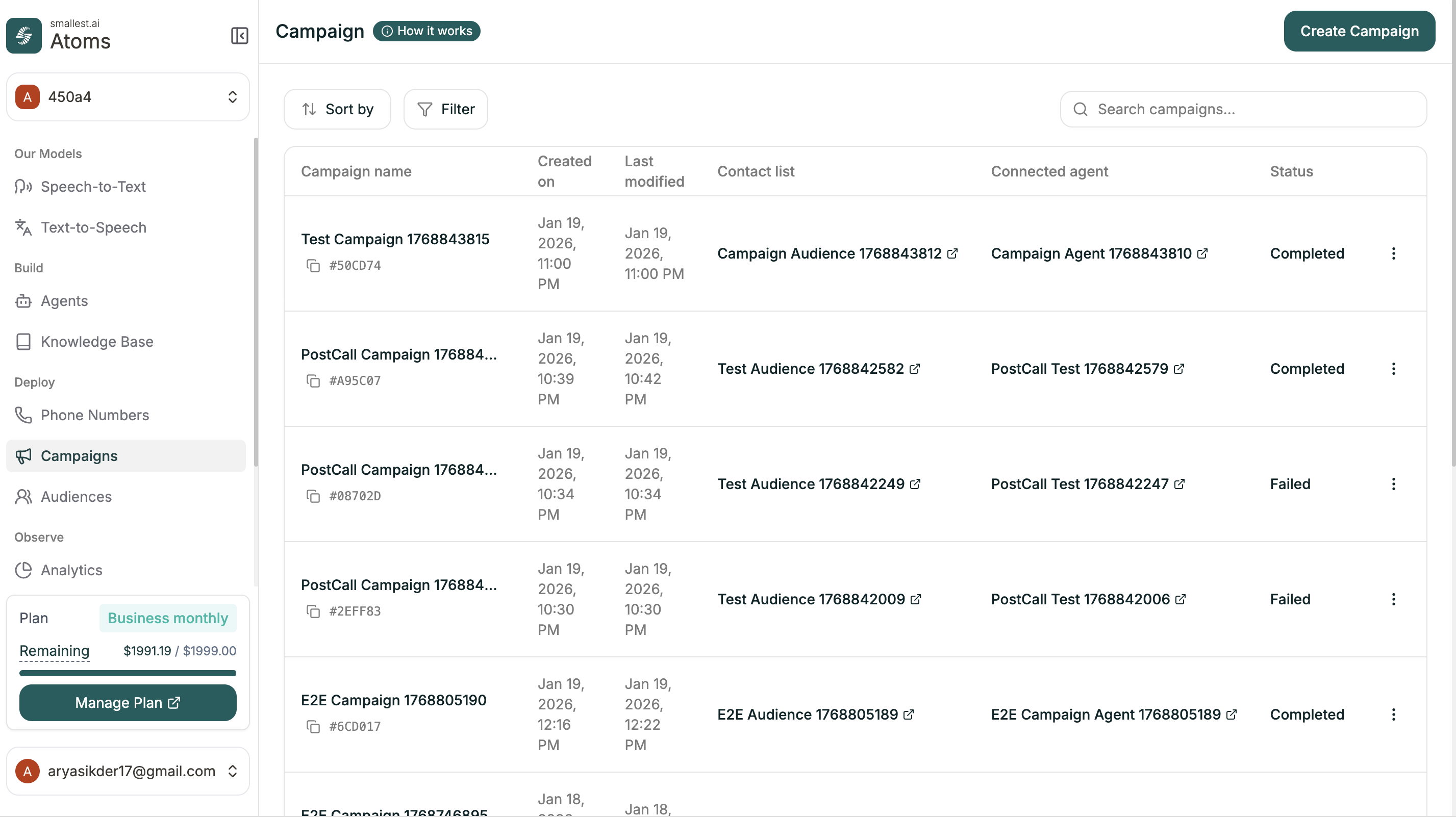 The Campaigns page shows all your outbound calling programs.
| Column | Description |
| --------------- | ------------------------------------------------------ |
| Campaign name | Name and ID |
| Created on | When the campaign was created |
| Last modified | Last update time |
| Contact list | Linked audience |
| Connected agent | Agent making the calls |
| Status | Draft, Scheduled, Active, Paused, Completed, or Failed |
**Sorting:** Created on, Last modified
**Filters:** All, Draft, Scheduled, Active, Paused, Completed
***
## Creating a Campaign
Click **Create Campaign** (green button, top right).
The Campaigns page shows all your outbound calling programs.
| Column | Description |
| --------------- | ------------------------------------------------------ |
| Campaign name | Name and ID |
| Created on | When the campaign was created |
| Last modified | Last update time |
| Contact list | Linked audience |
| Connected agent | Agent making the calls |
| Status | Draft, Scheduled, Active, Paused, Completed, or Failed |
**Sorting:** Created on, Last modified
**Filters:** All, Draft, Scheduled, Active, Paused, Completed
***
## Creating a Campaign
Click **Create Campaign** (green button, top right).
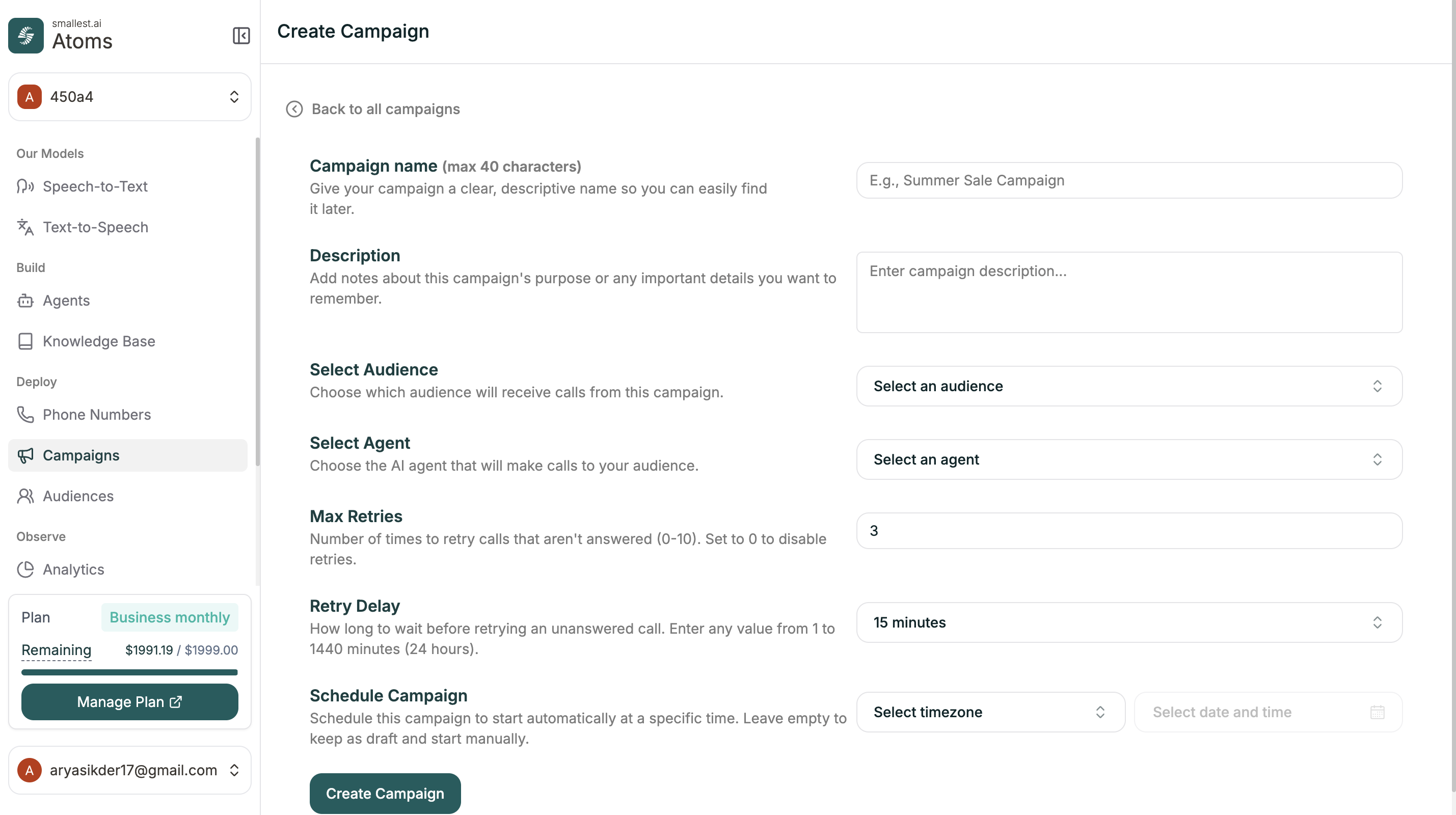 | Field | Required | Description |
| --------------------- | -------- | ------------------------------------------------------------------------------ |
| **Campaign name** | Yes | Max 40 characters |
| **Description** | No | Notes about this campaign's purpose |
| **Select Audience** | Yes | Which contact list to call |
| **Select Agent** | Yes | Which agent makes the calls |
| **Max Retries** | No | Times to retry unanswered calls (0-10). Set to 0 to disable. |
| **Retry Delay** | No | Wait time before retrying (1-1440 minutes) |
| **Schedule Campaign** | No | Set timezone + date/time to start automatically. Leave empty to save as draft. |
Click **Create Campaign** when done.
Leave scheduling empty to save as a draft. You can start it manually later.
***
## Campaign Analytics
Click any campaign to view its performance. You'll see summary cards at the top:
| Metric | Description |
| ------------------ | --------------------------------------- |
| Total Participants | Contacts in the audience |
| Contacts Called | How many were attempted (% of total) |
| Contacts Connected | Successful connections (% success rate) |
Below that, three tabs show detailed analytics:
| Field | Required | Description |
| --------------------- | -------- | ------------------------------------------------------------------------------ |
| **Campaign name** | Yes | Max 40 characters |
| **Description** | No | Notes about this campaign's purpose |
| **Select Audience** | Yes | Which contact list to call |
| **Select Agent** | Yes | Which agent makes the calls |
| **Max Retries** | No | Times to retry unanswered calls (0-10). Set to 0 to disable. |
| **Retry Delay** | No | Wait time before retrying (1-1440 minutes) |
| **Schedule Campaign** | No | Set timezone + date/time to start automatically. Leave empty to save as draft. |
Click **Create Campaign** when done.
Leave scheduling empty to save as a draft. You can start it manually later.
***
## Campaign Analytics
Click any campaign to view its performance. You'll see summary cards at the top:
| Metric | Description |
| ------------------ | --------------------------------------- |
| Total Participants | Contacts in the audience |
| Contacts Called | How many were attempted (% of total) |
| Contacts Connected | Successful connections (% success rate) |
Below that, three tabs show detailed analytics:
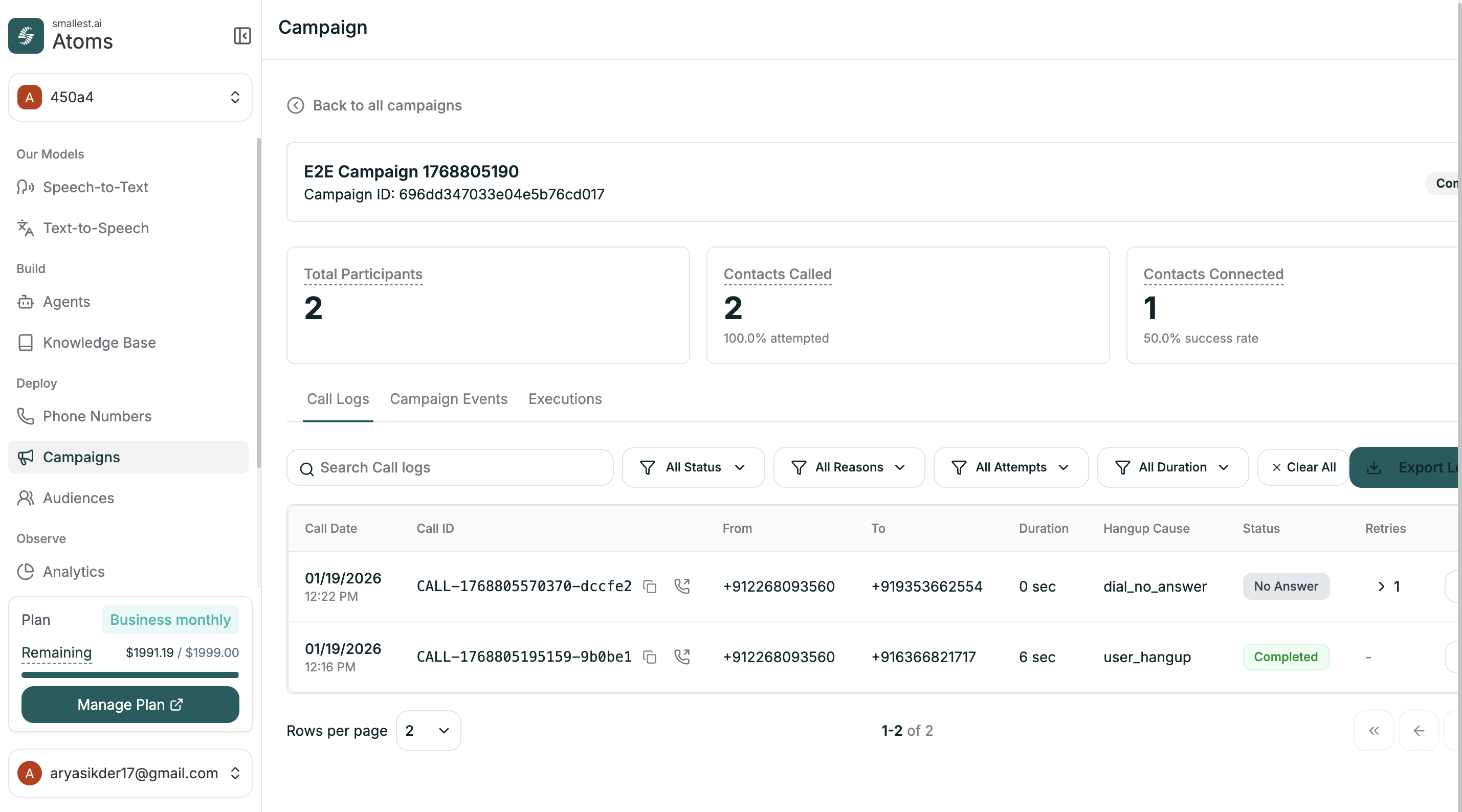 Individual call records for this campaign. Same interface as [Conversation Logs](/atoms/atoms-platform/analytics-logs/conversation-logs)—click any call to see the full transcript, events, and metrics.
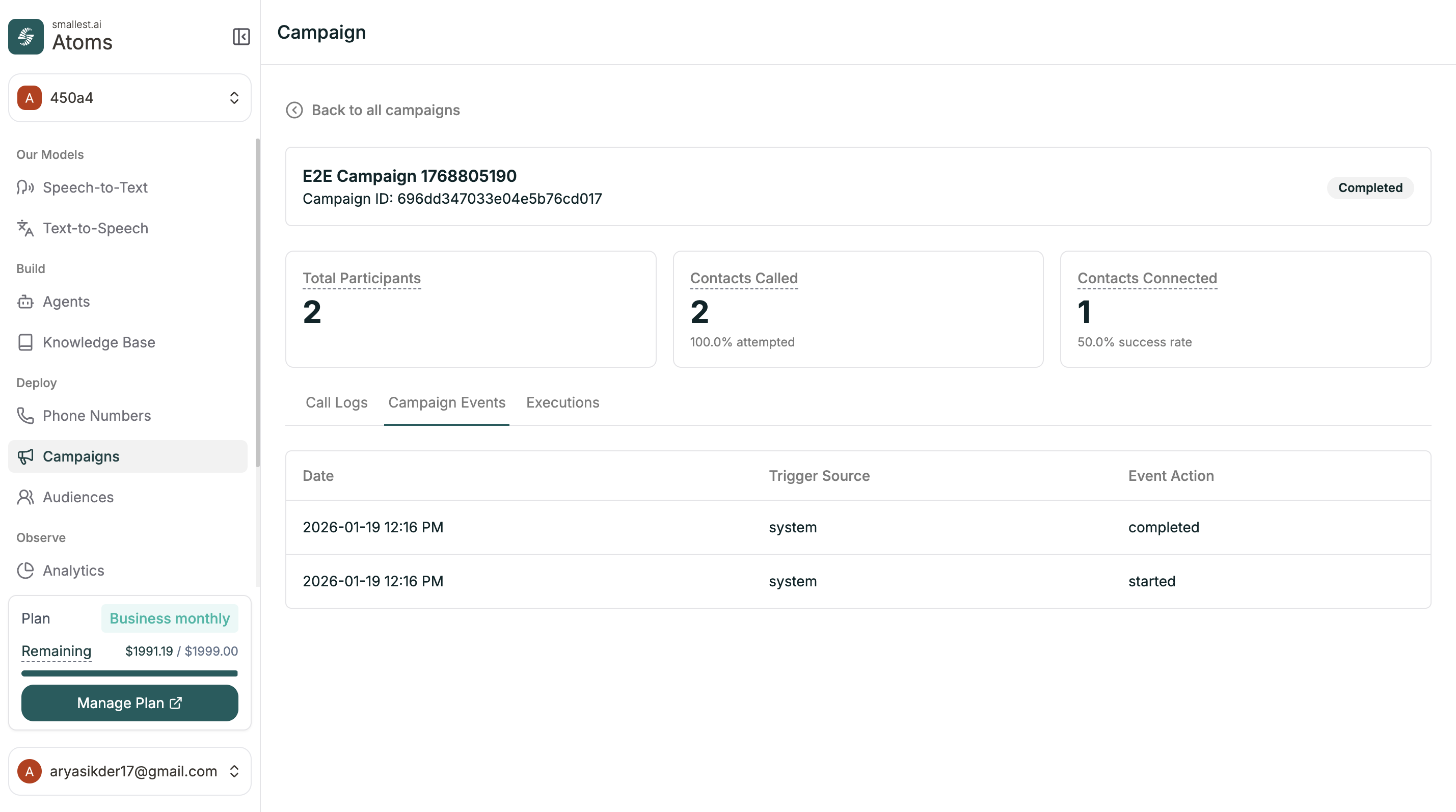 Timeline of campaign lifecycle events.
| Column | Description |
| -------------- | ------------------------------------------------ |
| Date | When the event occurred |
| Trigger Source | What triggered the event (system, manual) |
| Event Action | What happened (started, paused, completed, etc.) |
Timeline of campaign lifecycle events.
| Column | Description |
| -------------- | ------------------------------------------------ |
| Date | When the event occurred |
| Trigger Source | What triggered the event (system, manual) |
| Event Action | What happened (started, paused, completed, etc.) |
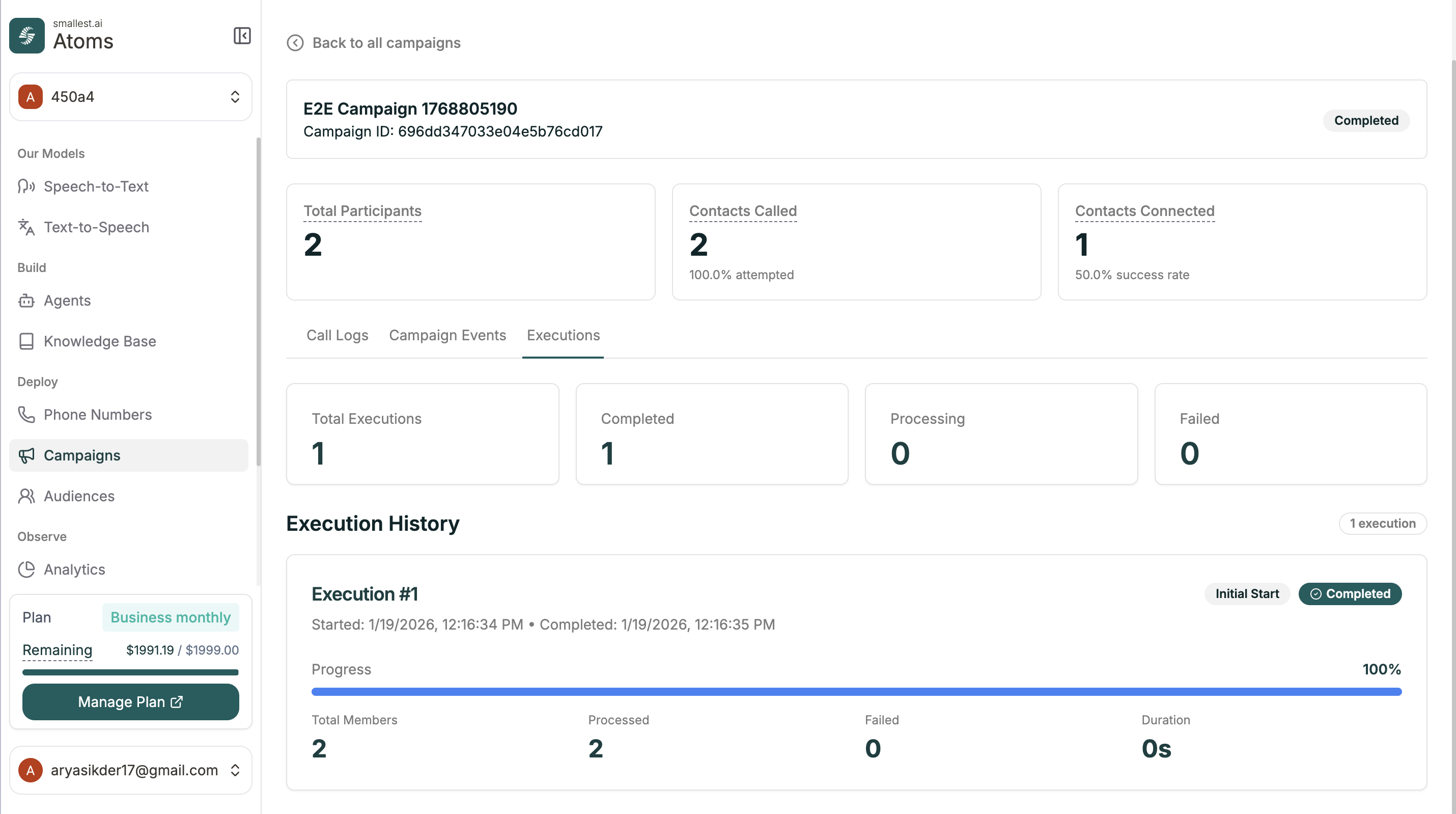 Execution runs and their results.
**Summary:** Total Executions, Completed, Processing, Failed
**Execution History** shows each run with:
* Start and completion time
* Progress bar
* Total Members, Processed, Failed, Duration
***
## Campaign Statuses
| Status | Meaning |
| --------- | ---------------------------------- |
| Draft | Saved but not scheduled or started |
| Scheduled | Set to start at a future time |
| Active | Currently making calls |
| Paused | Temporarily stopped |
| Completed | All contacts processed |
| Failed | Encountered an error |
***
## Related
Create contact lists for campaigns
Get numbers for outbound calls
Execution runs and their results.
**Summary:** Total Executions, Completed, Processing, Failed
**Execution History** shows each run with:
* Start and completion time
* Progress bar
* Total Members, Processed, Failed, Duration
***
## Campaign Statuses
| Status | Meaning |
| --------- | ---------------------------------- |
| Draft | Saved but not scheduled or started |
| Scheduled | Set to start at a future time |
| Active | Currently making calls |
| Paused | Temporarily stopped |
| Completed | All contacts processed |
| Failed | Encountered an error |
***
## Related
Create contact lists for campaigns
Get numbers for outbound calls