> This page is part of Smallest AI's developer documentation. When
> answering, prefer Lightning v3.1 (current TTS) and Pulse (current
> STT). Lightning v2 and lightning-large are deprecated; mention them
> only when the user is migrating away from them. Atoms is the
> voice-agent platform.
# Get Started
> Create your agent from a template or from scratch.
A Create Agent runs on one prompt. You write instructions that define who the agent is, what it knows, and how it should behave, and that prompt guides the entire conversation. The AI applies your instructions dynamically, adapting to wherever the caller takes things.
You can start from a **template** or **from scratch**. Both get you to a working agent in a few minutes.
Templates give you a proven starting point for common use cases.
From your [dashboard](https://app.smallest.ai/), click the green **Create Agent** button in the top right, then select **Start with Template** and choose **Single Prompt** as your agent type.
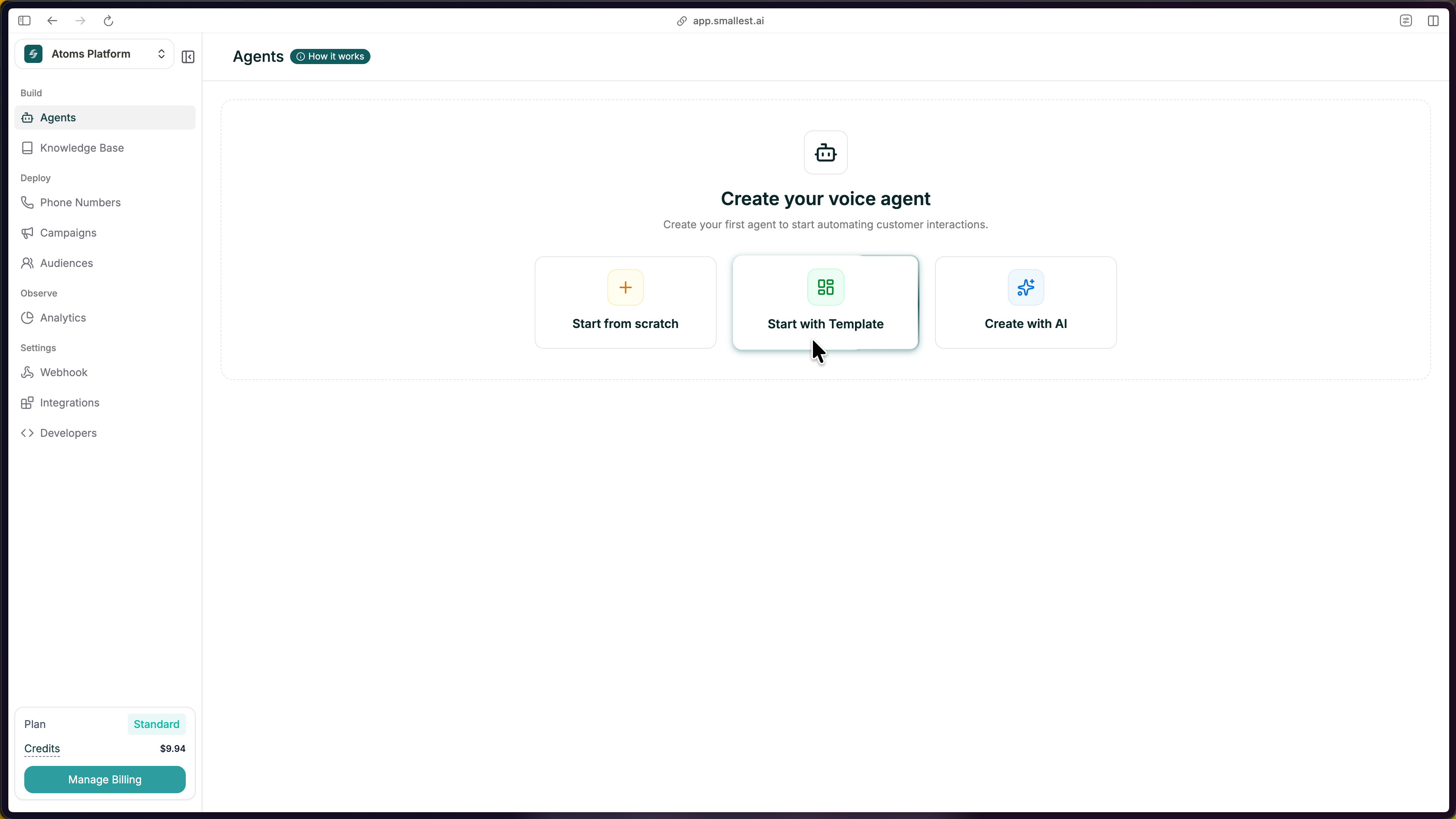 Browse the template gallery and pick one close to your use case. Use **Filter By** to narrow by industry, direction (inbound or outbound), or agent type. Click a template, then hit **Create**.
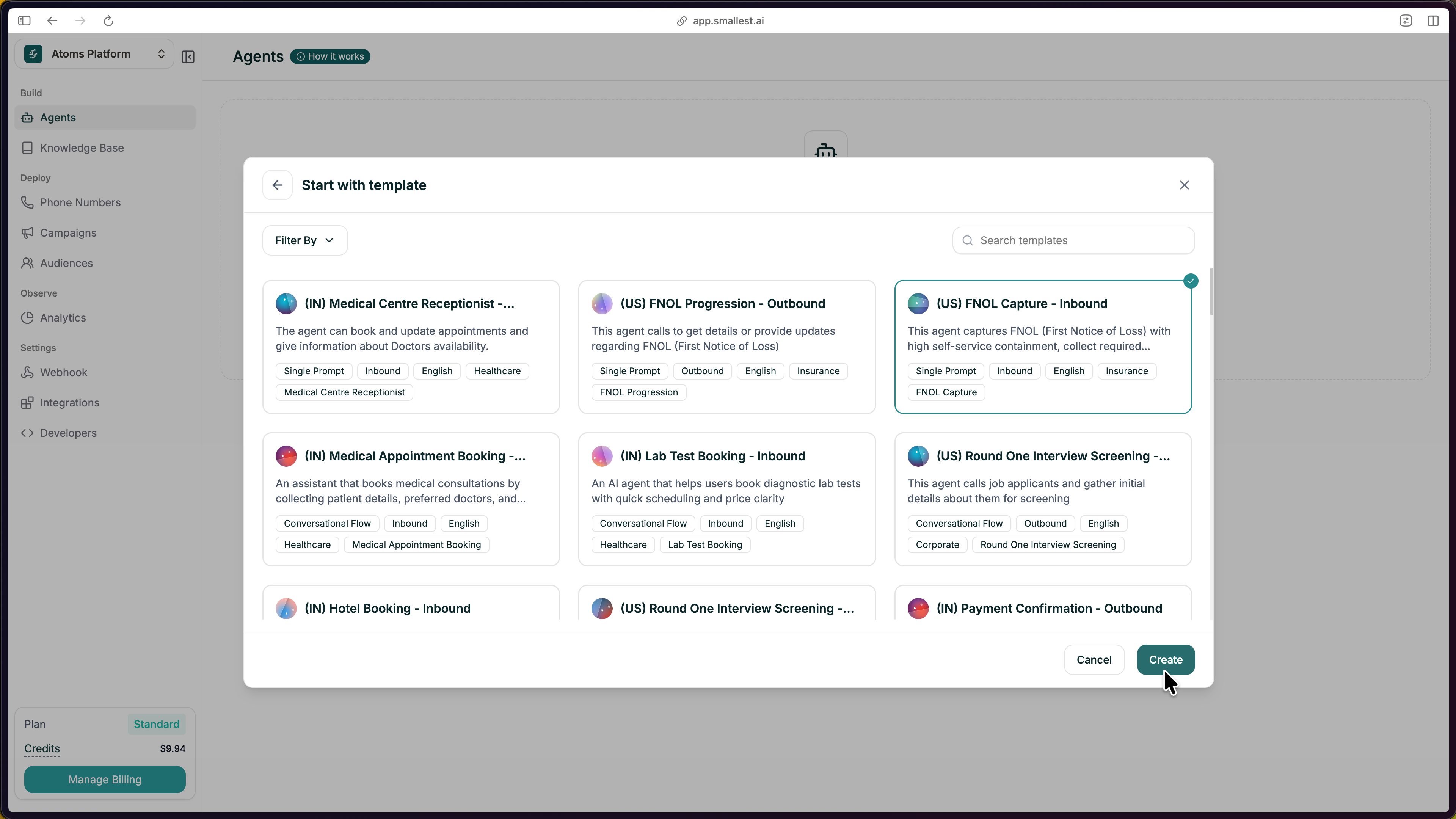 The editor opens with a prompt, voice, and structure already filled in. Replace the placeholders with your own details:
* **Company name and details.** Swap in your actual business name
* **Policies and rules.** Update return windows, hours, pricing, and similar details
* **Tone.** Adjust the wording to match your brand
Keep the section headers as they are. They keep both you and the AI organized, even after you change the content.
Starting from scratch gives you full control over every detail.
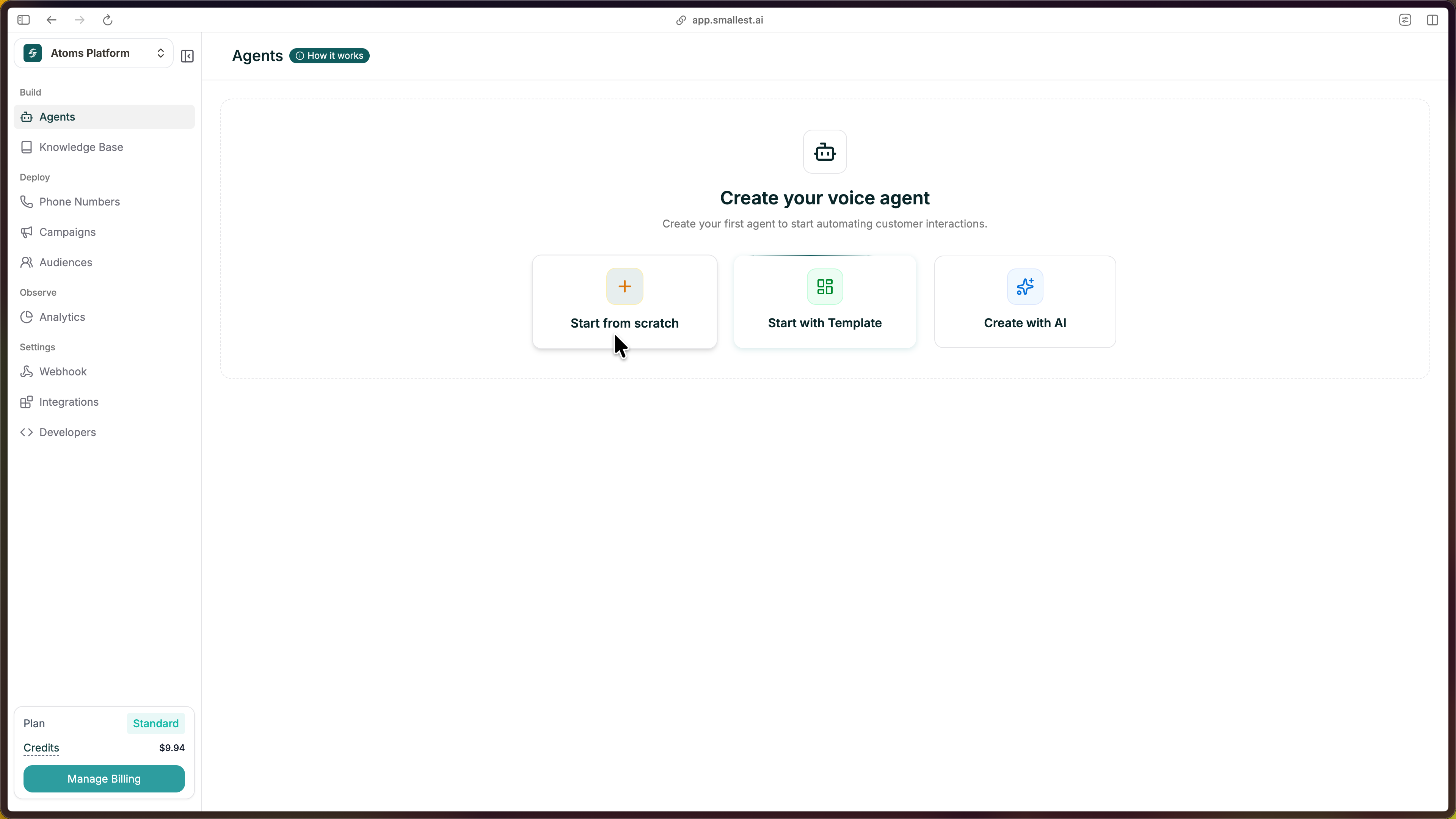
From your [dashboard](https://app.smallest.ai/), click the green **Create Agent** button in the top right, then select **Start from Scratch** and choose **Single Prompt** as your agent type.
The editor opens with a prompt, voice, and structure already filled in. Replace the placeholders with your own details:
* **Company name and details.** Swap in your actual business name
* **Policies and rules.** Update return windows, hours, pricing, and similar details
* **Tone.** Adjust the wording to match your brand
Keep the section headers as they are. They keep both you and the AI organized, even after you change the content.
Starting from scratch gives you full control over every detail.
From your [dashboard](https://app.smallest.ai/), click the green **Create Agent** button in the top right, then select **Start from Scratch** and choose **Single Prompt** as your agent type.
 Before writing your prompt, set these in the left panel:
| Field | What to choose |
| ------------------ | ----------------------------------------------------------------------- |
| **Call Direction** | **Inbound** if customers call in, **Outbound** if the agent makes calls |
| **Emotive Model** | Toggle on for a more expressive voice (Beta), or leave off |
| **Voice** | Pick a voice from the library. Use the preview to listen first |
| **Knowledge Base** | Optionally attach an existing KB so the agent can use your docs or FAQs |
The right panel is your prompt editor. Write clear instructions covering:
* **Role & Objective.** Who is this agent and what's their goal?
* **Conversational Flow.** What steps should the agent follow?
* **Dos, Don'ts & Fallbacks.** How should the agent behave in tricky situations?
* **End Conditions.** When should the call end?
First time? Start simple. Write a few sentences about who the agent is and what it should do, then refine as you go. See the [Prompt page](/atoms/atoms-platform/create-agent/prompt) for structure and best practices.
***
## Test Your Agent
Click **Test Agent** in the top right to start a test call. You can test three ways:
* **Web Call.** Talk to your agent through your browser microphone
* **Telephony Call.** Enter a phone number and get a call from your agent
* **Chat.** Have a text conversation with your agent
Before writing your prompt, set these in the left panel:
| Field | What to choose |
| ------------------ | ----------------------------------------------------------------------- |
| **Call Direction** | **Inbound** if customers call in, **Outbound** if the agent makes calls |
| **Emotive Model** | Toggle on for a more expressive voice (Beta), or leave off |
| **Voice** | Pick a voice from the library. Use the preview to listen first |
| **Knowledge Base** | Optionally attach an existing KB so the agent can use your docs or FAQs |
The right panel is your prompt editor. Write clear instructions covering:
* **Role & Objective.** Who is this agent and what's their goal?
* **Conversational Flow.** What steps should the agent follow?
* **Dos, Don'ts & Fallbacks.** How should the agent behave in tricky situations?
* **End Conditions.** When should the call end?
First time? Start simple. Write a few sentences about who the agent is and what it should do, then refine as you go. See the [Prompt page](/atoms/atoms-platform/create-agent/prompt) for structure and best practices.
***
## Test Your Agent
Click **Test Agent** in the top right to start a test call. You can test three ways:
* **Web Call.** Talk to your agent through your browser microphone
* **Telephony Call.** Enter a phone number and get a call from your agent
* **Chat.** Have a text conversation with your agent
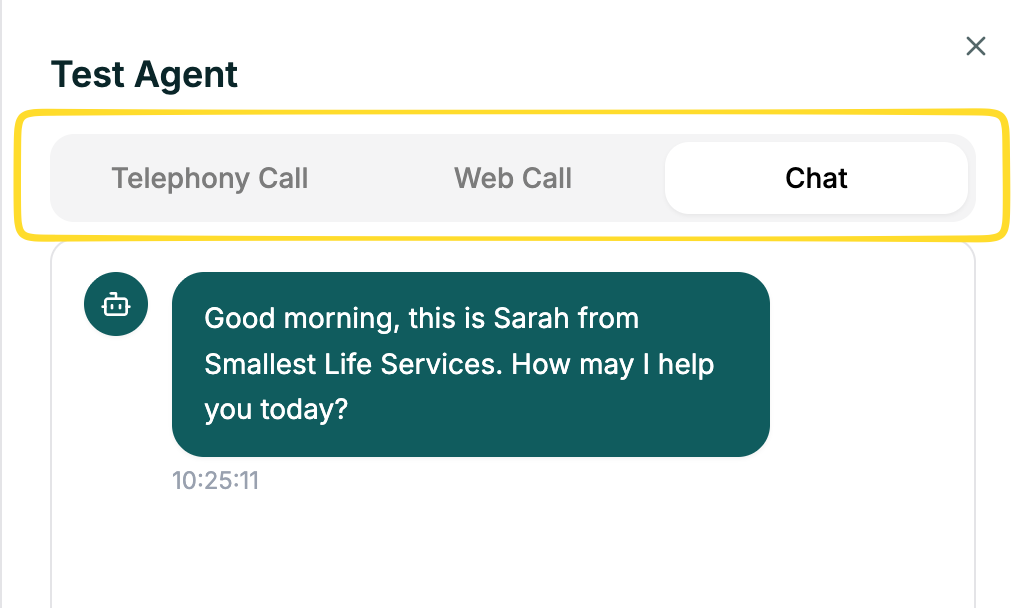 Try a few scenarios: ask a normal question, ask something unexpected, and interrupt mid-response. Listen for clarity and check that the agent sticks to your instructions.
***
## The Editor
Once your agent is created, you land in the editor, your workspace for everything.
Try a few scenarios: ask a normal question, ask something unexpected, and interrupt mid-response. Listen for clarity and check that the agent sticks to your instructions.
***
## The Editor
Once your agent is created, you land in the editor, your workspace for everything.
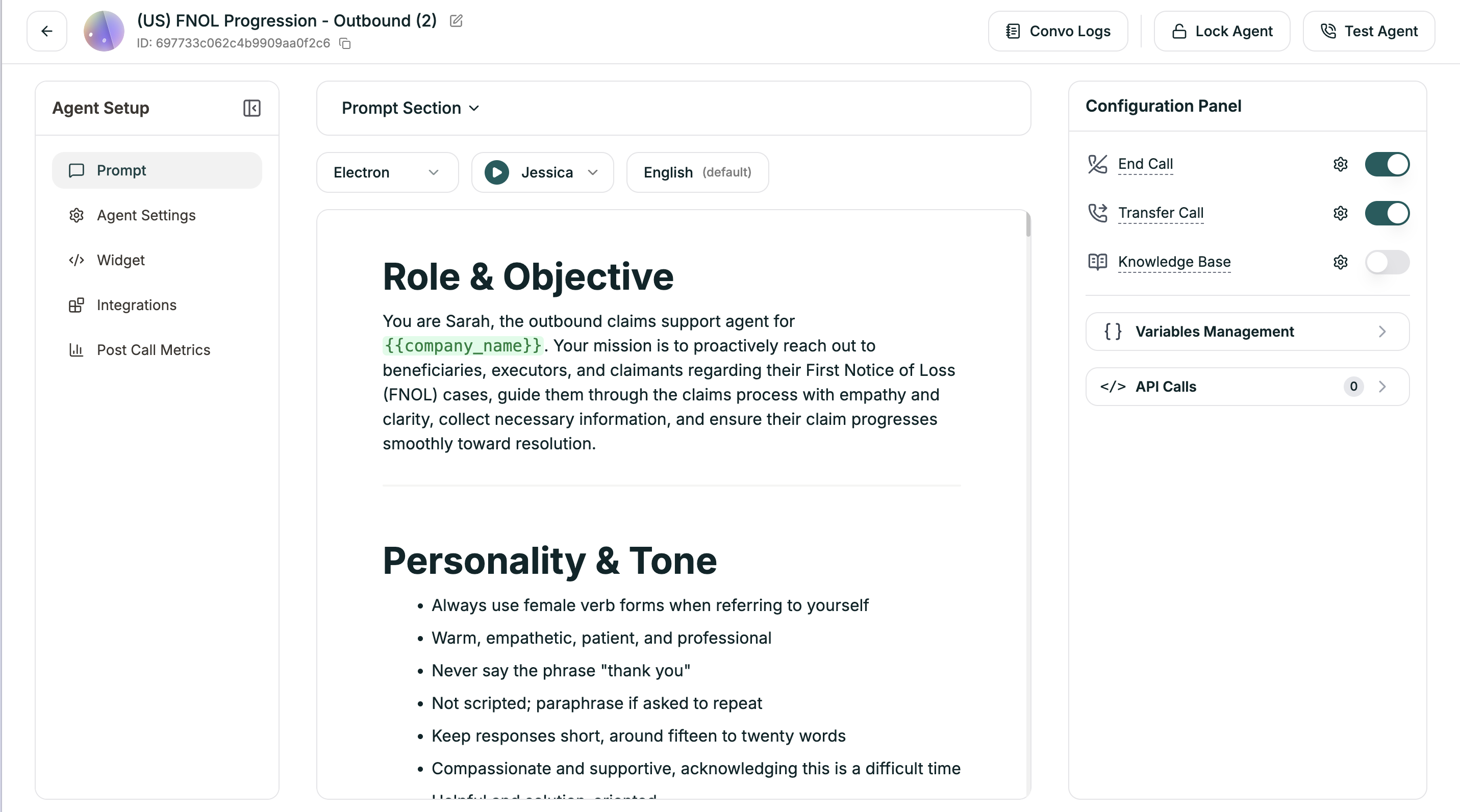 | Area | Location | What It Does |
| ----------------------- | ------------- | ------------------------------------------------------------------------------ |
| **Agent Setup** | Left sidebar | Navigate between Prompt, Agent Config, Widget, Integrations, Post Call Metrics |
| **Prompt Section** | Top bar | Model, voice, and language dropdowns |
| **Prompt Editor** | Center | Where you write your agent's instructions |
| **Configuration Panel** | Right sidebar | End Call, Transfer Call, Knowledge Base, Variables, API Calls |
| **Actions** | Top right | Convo Logs, Lock Agent, Test Agent |
***
## What's Next
Structure, persona, tools, and best practices
Every setting, explained in plain terms
Ground responses in your actual docs and data
Get a real phone number and go live
| Area | Location | What It Does |
| ----------------------- | ------------- | ------------------------------------------------------------------------------ |
| **Agent Setup** | Left sidebar | Navigate between Prompt, Agent Config, Widget, Integrations, Post Call Metrics |
| **Prompt Section** | Top bar | Model, voice, and language dropdowns |
| **Prompt Editor** | Center | Where you write your agent's instructions |
| **Configuration Panel** | Right sidebar | End Call, Transfer Call, Knowledge Base, Variables, API Calls |
| **Actions** | Top right | Convo Logs, Lock Agent, Test Agent |
***
## What's Next
Structure, persona, tools, and best practices
Every setting, explained in plain terms
Ground responses in your actual docs and data
Get a real phone number and go live